
Active Windows Feature
The Active Windows feature in the CCLAS interface indicates the number of active applications or programs you have open.
For example:
If the Active Windows icon shows as  , then three applications are open, and the first application is currently in view (screen 1 of 3).
You can:
- View the list of active applications
- Select how to view or arrange the active applications.
View List of Active Screens
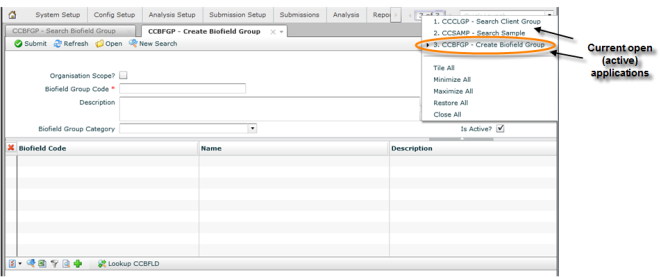
By clicking on the active window icon, a menu displays listing the active (open) applications. The arrow ( ) beside the application indicates the application currently in view.
Arrange Active Screens
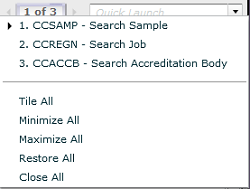
The active window icon also provides a list of options on how to arrange the active applications.
Tile All
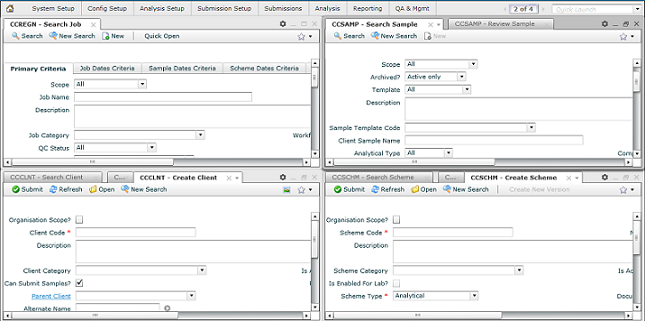
All active applications display in a tiled format.
Minimise All
All applications are minimised and the Home page displays.
Maximise All
Maximises each active application screen individually.
Note: To view all active applications, use the Tile All or Restore All options.
Restore All
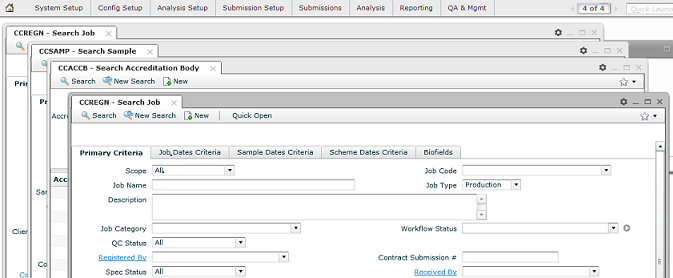
Displays all active applications in the browser as floating screens.
Close All
Closes all active applications and displays the Home page.
