
Apply conditional formatting to a grid
To show the conditional formatting expression builder and apply conditional formatting to a read-only grid:
- Select the
 Grid toggle conditional formatting menu grid flow option to show the formatting options in the grid's header, or click the drop-down button on the grid's header.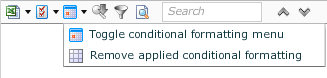
The grid header shows the formatting icon along with the number of formatting expressions that are currently defined for the corresponding column. For example:
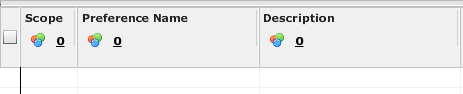
- Click on the formatting icon or expressions count to define expressions for that particular column to display the Grid Column Format Expressions dialog box.
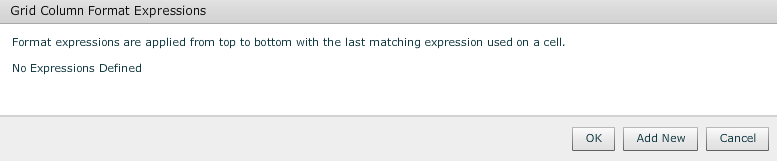
- Click Add New to add a new expression to the list. An expression is comprised of one or more sub-expressions, as follows:
- Select the connector used to compound the new sub-expression with any other sub-expressions within the expression: And or Or.
- Select the name of the column whose data is assessed by the sub-expression.
- Click the sub-expression's operator icon and select the operator that is used to compare the column's data with the value. When adding a sub-expression for a date/timestamp-based column, the Contains, Does Not Contain and Starts With operators are not available.
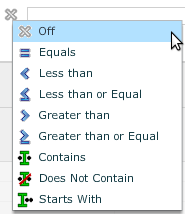
- Enter the sub-expression's value that is used to compare the column's data against.
- Click Add Sub Expression to add a new sub-expression to the expression.
- Click Delete to remove a sub-expression from the expression.
- Specify how a matching row should be highlighted, as follows:
Click the
 Grid formatting colour picker and select the background colour of a matching row.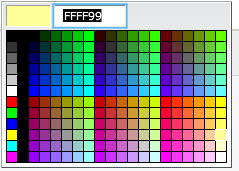
Click the
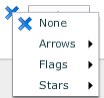
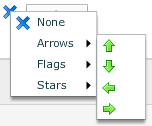
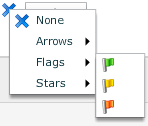
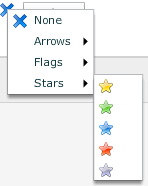
 Grid formatting flag picker for a matching row.
The following images show the different icons that are available.
- Continue to add new expressions to the list, as required.
- Change the order of expressions by using the drag the
 drag icon to drag an expression to a new position in the list. The red line indicates where the expression is dropped.
 - Click OK to apply the formatting expressions.
To hide the conditional formatting expression builder but retain conditional formatting on a read-only grid:
- Click Grid toggle conditional formatting menu grid flow option to hide the formatting options in the grid's header. The applied formatting is retained.
To remove conditional formatting from a read-only grid:
- Click
 Grid remove applied conditional formatting grid flow option to remove all conditional formatting applied to the grid's cells, and to hide the formatting options in the grid's header.
