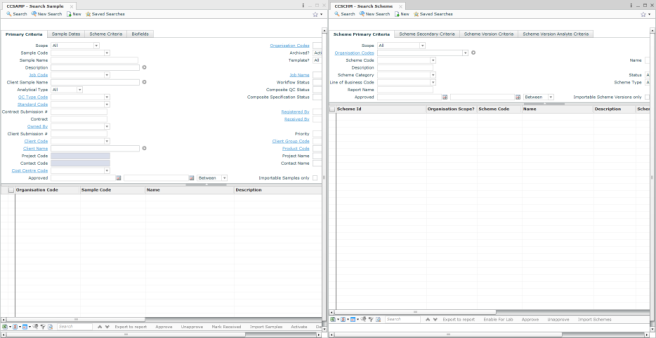
Launch an application from the Quick Launch bar
- Enter the name of the application (for example, CCSAMP) in the Quick Launch field.
Note: CCLAS includes an auto-complete functionality which attempts to predict the information entered into a field and offers possible matches. For example, if you enter CCSA, then a list of applications beginning with CCSA display. An application can be selected from this list for launching.
- Press Enter or select the application from the drop-down list to display the selected application screen. Typically this is a Search screen, however, for some applications it is a Detail screen.
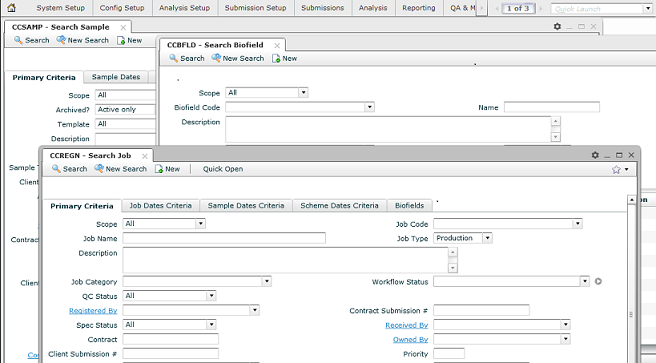
- Click
 Page Tile,
  Page Minimise and
  Page Maximise in any application to display the applications as tiled, minimised or maximised within the browser, respectively.
To launch a second application using the Quick Launch:
- Enter the name of the application (for example, CCSCHM) in the Quick Launch field.
- Hold down Shift, and press Enter to display the selected application in a pane to the right of the current application. The previously open application continues to display, in a pane to the left.