Customise a screen
-
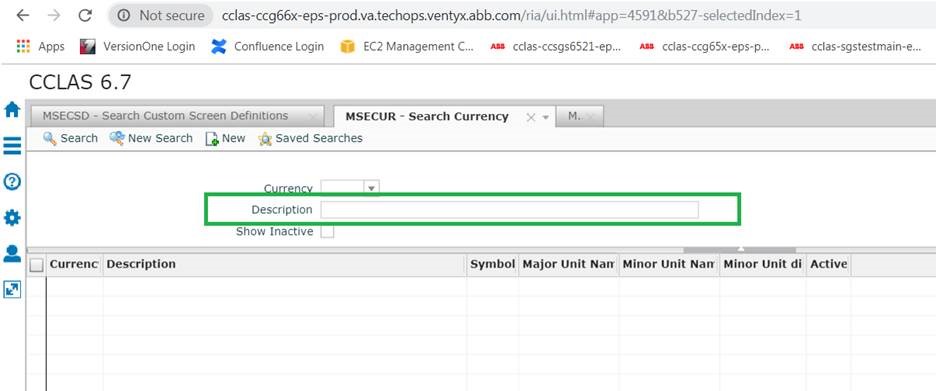
Launch the application to review the original screen. For example:
-
Access the MSECSD—Custom Screen Definitions application from the main menu or quick launch to display the MSECSD—Search Custom Screen Definitions screen.
-
Select Core Applications Only.
-
Click Submit to display custom screen definitions that match the criteria.
-
Select the screen definition, for example, MSECURSearch Currency.
-
Click Export to display the Export dialog box.
-
Select the Export Type as Export to XML to display the Click to Download dialog box.
-
Click Click to Download to download the screen definition as a ZIP file.
-
Access the ZIP file and extract and edit the file, for example, msecursearch_SYSTEM_.xml.
-
Whilst editing the file, either set the screen definition to replace or copy the core screen definition, ensuring that the name and customName match.
For example, to set the customised screen definition for replacing the original screen:
<definition xmlns:xsi="http://www.w3.org/2001/XMLSchema-instance" hasDetail="true" hasSearch="true" hasTree="false" screen="search" xsi:noNamespaceSchemaLocation="../definition-schema.xsd" customised="true">
<meta>
<name>msecur</name>
CCLAS 6 Online HelpCurrency</title>
<isMsk>false</isMsk>
<initial>search</initial>
<coreDtoName>com.mincom.ellipse.types.m2010.instances.CurrencySearchParam</coreDtoName>
<coreAppName>msecur</coreAppName>
<customisationType>replace</customisationType>
<screen>SEARCH</screen>
<customName>msecur</customName>
</meta>
For example, to set the customised screen definition for copying the original screen:
<definition xmlns:xsi="http://www.w3.org/2001/XMLSchema-instance" hasDetail="true" hasSearch="true" hasTree="false" screen="search" xsi:noNamespaceSchemaLocation="../definition-schema.xsd" customised="true">
<meta>
<name>cccurr</name>
CCLAS 6 Online Help My Currency App</title>
<isMsk>false</isMsk>
<initial>search</initial>
<coreDtoName>com.mincom.ellipse.types.m2010.instances.CurrencySearchParam</coreDtoName>
<coreAppName>msecur</coreAppName>
<customisationType>copy</customisationType>
<screen>SEARCH</screen>
<customName>cccurr</customName>
</meta>
-
Make changes to the screen layout, as required.
For example change the text of a label:
<layout>
<form>
<FieldGroup id="search">
<FieldGroup id="groupSearch">
<DropDown length="3" _case="csUpper" table="MSF0104127" type="btChar" id="currency" label="Currency" primaryKey="true"/>
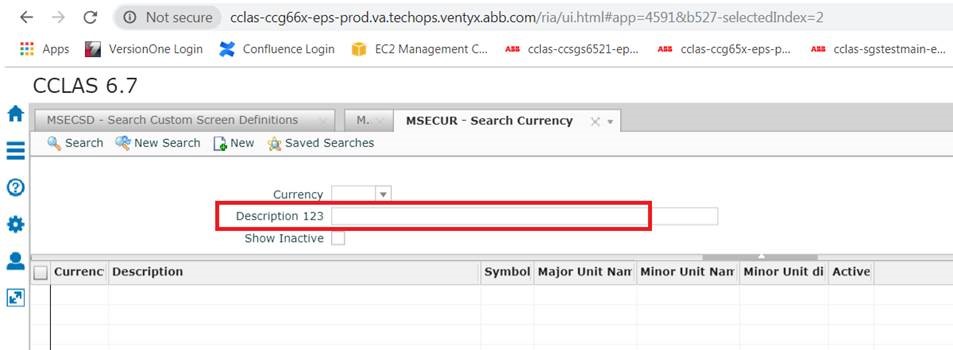
<Input length="50" id="description" label="Description 123"/>
<check box id="showInactive" label="Show.Inactive"/>
Save the changes to the XML file and zip the XML file to create a ZIP file for uploading.
-
Access the MSECSD—Custom Screen Definitions application from the main menu or quick launch to display the MSECSD—Search Custom Screen Definitions screen.
-
Click Import to display the Import dialog box.
-
Browse for the ZIP file to upload.
-
Click OK. Any content that fails validation generates error messages and is excluded from the import.
-
Access the MSECSD—Custom Screen Definitions application from the main menu or quick launch to display the MSECSD—Search Custom Screen Definitions screen.
-
Deselect Core Applications Only.
-
Enter the Application Name, for example, CCCURR—Currency.
-
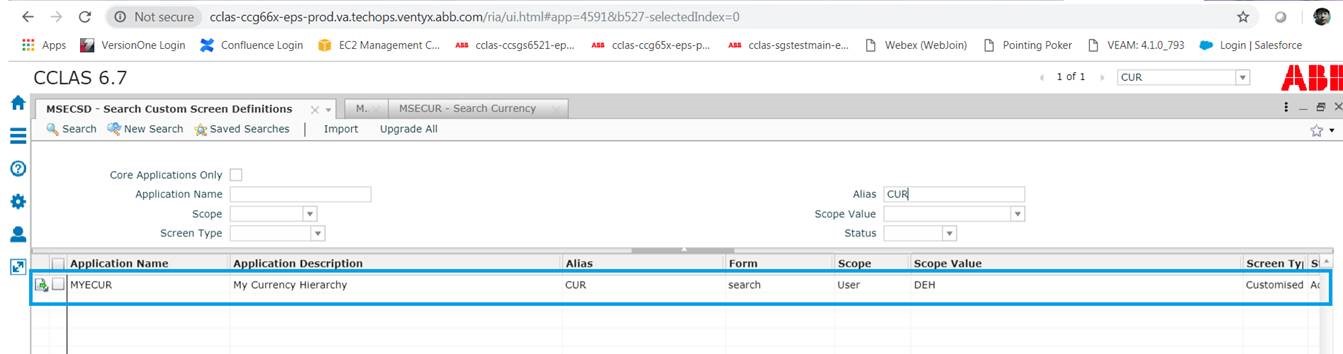
Click Submit to display custom screen definitions that match the criteria. For example:
-
Launch the application to review the customised screen. For example: