CCLAS EL 2.48.0 Workstation Installation Guide
This installation guide provides the necessary steps to install CCLAS EL 2.48.0 on a Workstation connected to an application server.
Important: Contact your network administrator or Datamine representative for the location of the CCLAS EL software, or for assistance with its installation.
These activities must be conducted with adequate network, domain and administrator permissions to the installation machines.
Presumption: It is presumed that the initial installation of CCLAS EL has been undertaken. This means that the CCLAS EL database and folders are already in place on a traditional network server or cloud server. The database and folders could be on the same or different server (typically determined by load).
Installation Options
The selection of the various options presented during the installation is dependent upon the installation configuration at your site.
CCLAS EL can be installed with the following configurations:
-
Local
The CCLAS EL executables reside on each laboratory computer.
The CCLAS EL database and folders reside on a traditional network server or cloud server.
Although a CCLAS patch or upgrade requires updating each laboratory computer, the performance of CCLAS EL for each user is far superior compared to running executables on a remote server from a workstation.
-
Application Server and Workstations—This guide covers these workstations installations.
Presumption: It is presumed that the initial installation of the CCLAS EL has been undertaken. This means that the CCLAS EL database executables on a network server or Citrix server has been undertaken by CCLAS Support. This means that the CCLAS EL executables are already in place on a traditional network server.
The CCLAS EL executables reside on a network server.
The CCLAS EL database and folders reside on a traditional network server or cloud server.
Although a CCLAS patch or upgrade only requires updating the network server, the performance of CCLAS EL for each user is far inferior compared to running applications locally.
Procedure
This procedure is to be done on each laboratory computer that is to run the CCLAS EL executables that are located on an application server.
To configure the workstation to run CCLAS EL executables located on an application server:
-
Download and unzip the Release_2.48.0.zip package.
Note: Due to the system changes applied during the installation of CCLAS EL 2.48.0, it is expected that the installer has Administrator privileges on the machine.
-
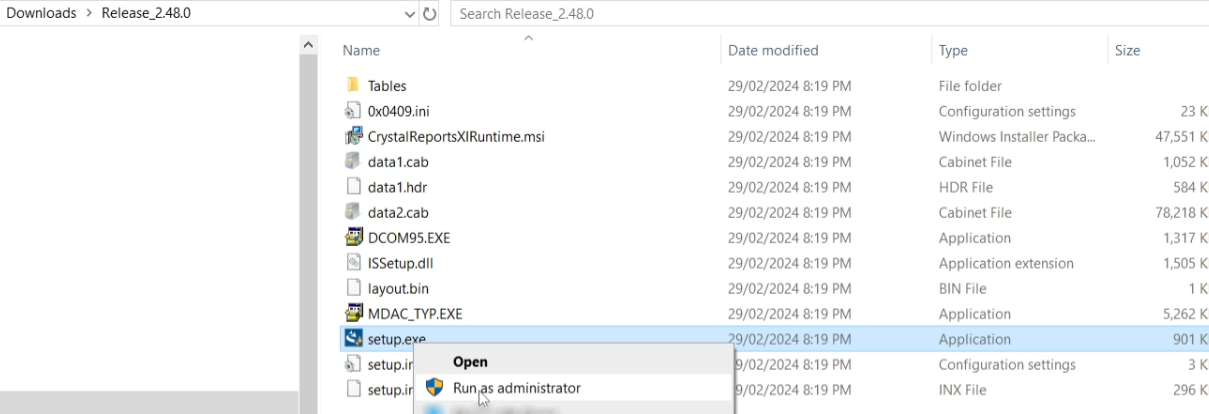
Right-click Setup.exe file and select Run as administrator to display the welcome screen.
-
Allow the install application to make changes to your device.
-
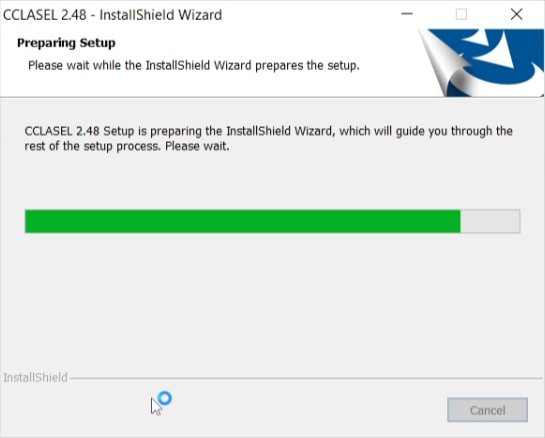
Wait while the InstallShield Wizard prepares the setup.
-
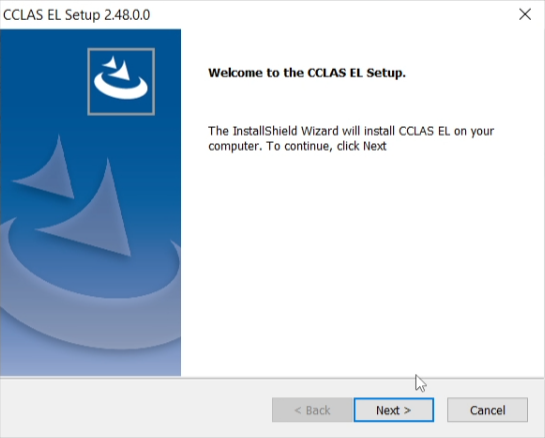
When the Welcome screen displays, click Next to proceed with the installation.
-
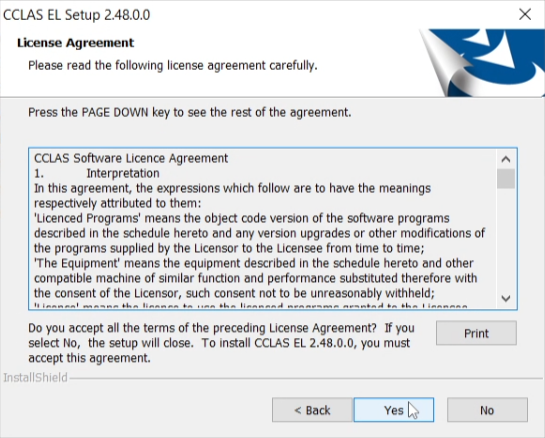
Review the CCLAS Software Licence Agreement, then click Yes to accept the terms and conditions.
-
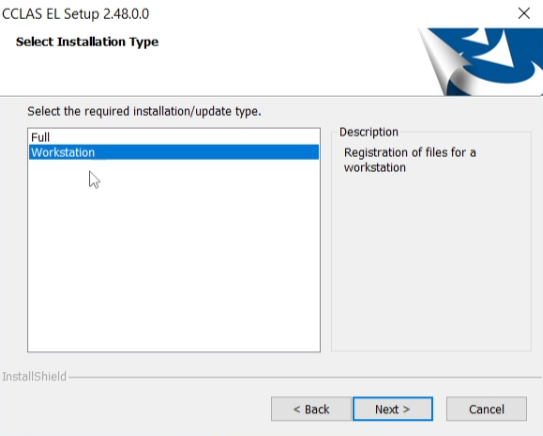
Select a Workstation installation to register the CCLAS EL components on the device, then click Next to proceed with the installation.
-
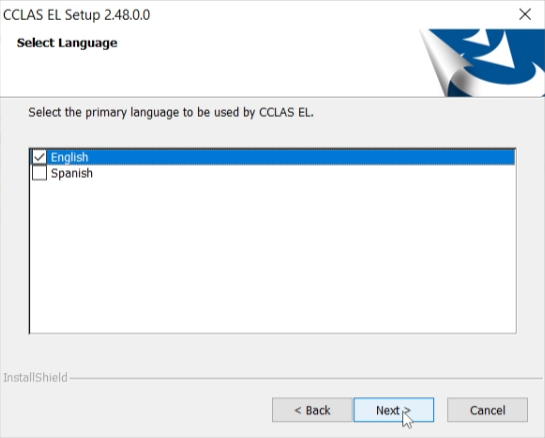
Select the default language for the CCLAS EL application, then click Next to proceed with the installation.
-
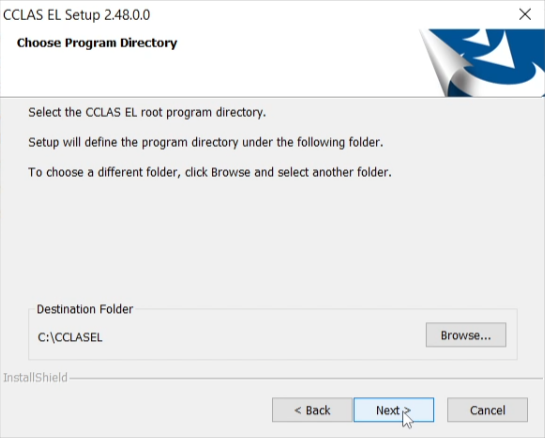
Browse for and select the path to the network folder that contains the CCLAS EL executables, that is, \\Server.Name\CCLAS\exe, then click Next to proceed with the installation.
-
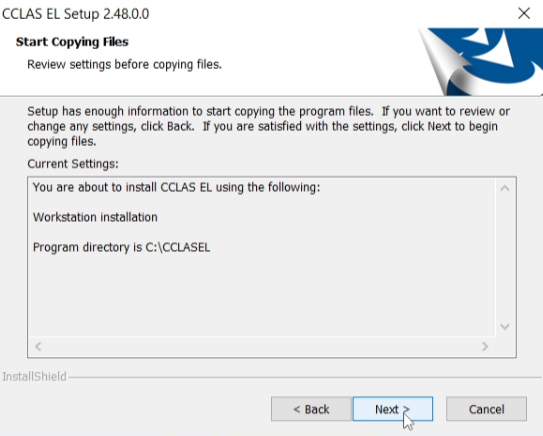
When the Start Copying Files screen displays, click Next to proceed with the installation. To amend any of the previous selections, click Back, then return to this point and proceed.
-
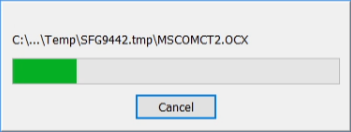
Wait while the InstallShield installs the files necessary for a CCLAS EL workstation.
-
Wait while the InstallShield registers the executables.
-
Wait while the InstallShield updates the CCLAS EL program folders.
-
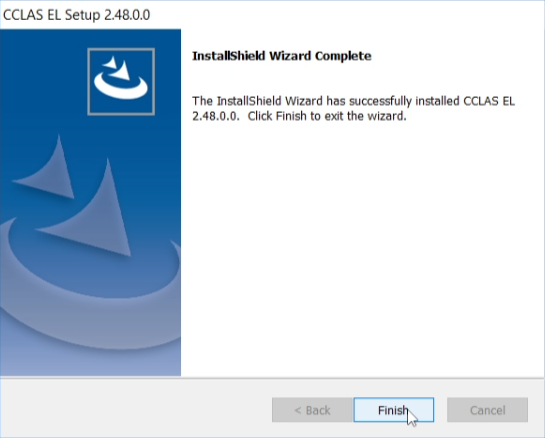
When the InstallShield Wizard Complete screen displays, click Finish to end the installation procedure.
-
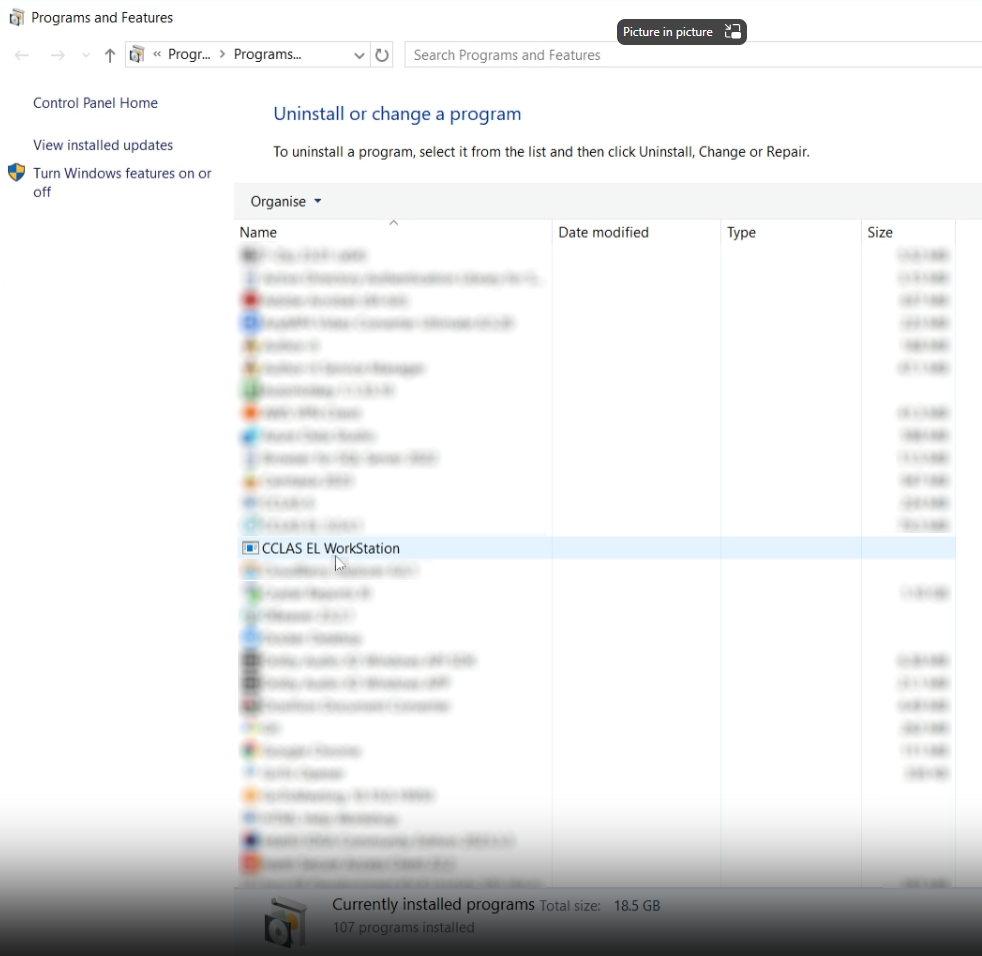
Upon successful installation, access the computer's Settings » Apps » Programs and Features list to see the CCLAS EL Workstation application.