Compare Schedules
To access this tool:
-
Tools ribbon >> Tools >> Compare schedules.
You can use this screen to compare any 2 schedules. The schedules need to be loaded in DTS in order to be able to do the comparison.
Firstly you need to choose 2 schedules from the list at the top of the form. This list displays all the schedules that are currently loaded.
Once you have selected the 2 schedules to compare, you need to choose
the data categories that you wish to compare. You can either select all
categories or unselect all categories using the
 buttons on the form. Alternatively you can individually select
categories by clicking on them in the list.
buttons on the form. Alternatively you can individually select
categories by clicking on them in the list.
Note Beware of selecting all categories in large schedules, especially tasks and dependencies, as this can slow down the comparison dramatically.
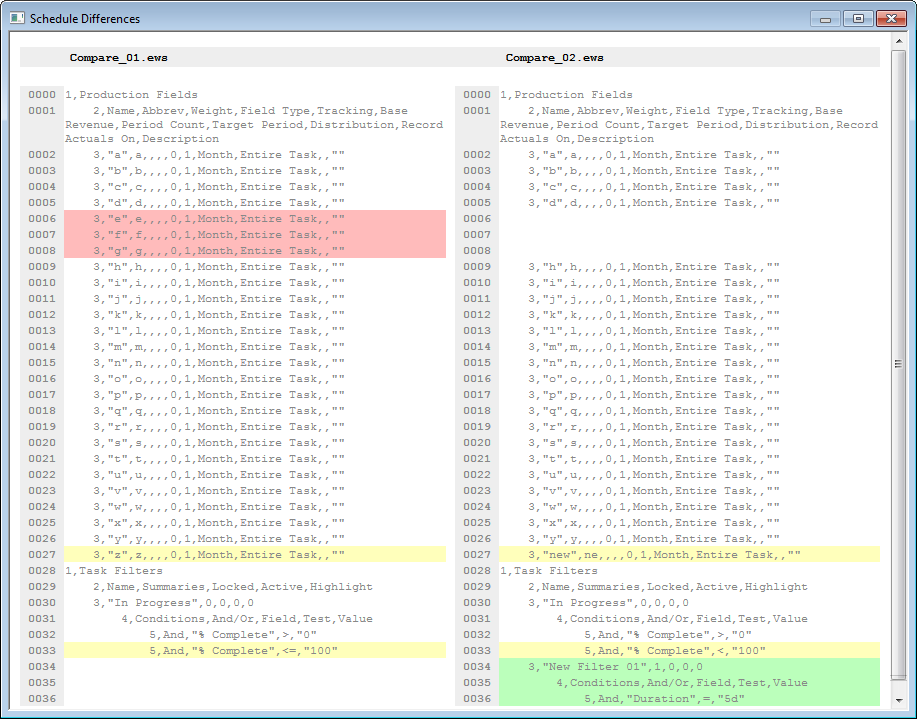
The comparison is done by comparing the EXF-formatted data. Results are displayed in a screen similar to the following.
- Lines highlighted in a light-red colour exist only in the left-hand schedule.
- Lines highlighted in a light-green colour exist only in the right-hand schedule.
- Lines highlighted in a light-yellow colour exist in both schedules but with differences.
Example Output
Hover over the image for a clearer view.