
Template Task Dependency
To access this screen:
-
Define at least two work package tasks. See Generate Work Packages/Tasks.
-
Drag between the predecessor task and successor task to form a dependency.
The Task Dependency screen displays.
Task dependencies are an important aspect of work packages. They define the interrelation between package tasks, essentially determining how activities are completed within a work package.
Once a dependency has been formed, it appears on the Generate Work Packages/Tasks workflow preview as a light blue line, for example:
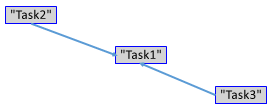
Note: The connection point position for each task does not indicate the dependency type or layer, but the arrowhead shows the predecessor and successor.
Double-click the line to redisplay the Template Task Dependency screen and adjust dependency properties.
The Start and Finish default tasks indicate the scope of the work package. In the example, below, Tasks 1, 2 and 3 complete in a linear fashion, and Start and Stop indicate the scope of the package:
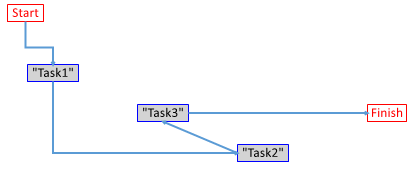
Note: When you create links interactively, the Type is 'remembered' between each dependency. If you define a dependency as Finish-Finish, the next dependency that you create will have a default Type of Finish-Finish.
| Field | Description |
| From | The first task that you selected for linking. |
| To | The last task that you selected for linking. |
| Type | The type of link applied between the selected activities.
Select a valid value from the drop-down list. Valid values are:
|
| Lag | Specifies the lag between the successor and the predecessor
activities.
Note: This field is not available if you select Percent Overlap. |
| Layer | Specifies the Dependency Layer in which the link is placed.
For more information, see Add a Dependency
Layer.
When you specify a layer, you can:
|
| OK | Click to apply the link and close this screen. |
| Cancel | Click to cancel all your changes and close this screen. |
| Help | Click to display the help for this screen. |
