
Edit Specific Date Working Times
- The Project Settings form can be opened by using the Project Settings button
 on the Home page of the ribbon.
- Select the Scheduling Calendars option under the Calendars section of the tree in the form.
- Select the relevant calendar in the calendar list on the page.
-
Use the mouse (or arrow keys) to select the relevant date (e.g. 24 December 2012) in the calendar grid.
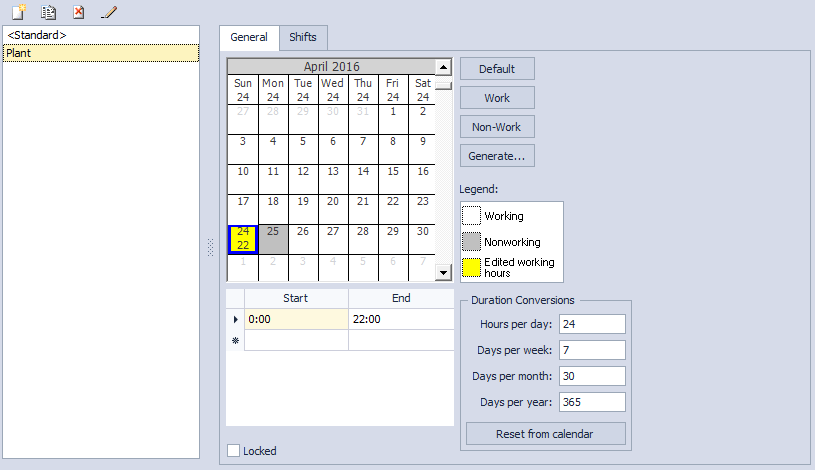
- Change the working time for the date in the Shift start / end fields of the grid below the calendar grid.
- You can change the working time for multiple dates by selecting multiple consecutive days in the grid with the mouse (or the arrows keys in combination with the Shift key).
- Press the Close button to apply the changes.
