
The Tasks Area
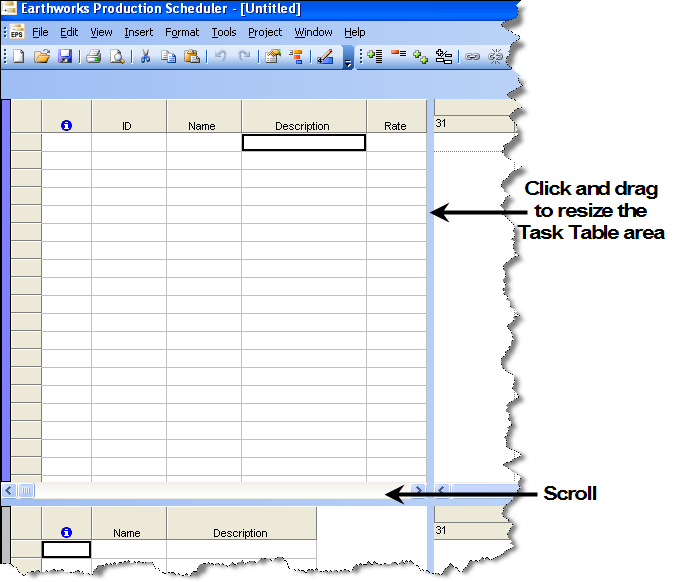
The Task Table contains all of the fixed fields for the DTS database as well as the Production, Code, and Text fields. The Task Table area is at the top, left corner of the DTS main screen.
Note: A task (or activity) is defined as a specific piece of work required to be done.
A task with a zero duration is called a milestone
and is represented in the Gantt Chart area as a red diamond ( ).
).
All activities in DTS are stored in a database. This contains in excess of 50 standard fields, the visibility of which can be customized when you use DTS. The data contained in these fields can be viewed in the Task Table area.
Default Task Table Columns
By default, the Task Table area displays the following columns:
- Indicator – This field is represented by
 . it displays icons representing when tasks have resources (
 ), scheduling constraints (
 ), notes (
 ), are derived or grouped tasks and so on.
 - ID – The unique identifier of the task. By default, you cannot change this ID and it is imperative that this value remains unique between all records. The ID is automatically assigned by DTS or is the imported task segment ID. You can add a new non-editable field called ID (Numeric).
- Name – The name of the task. This name is assigned by you or is the imported name of the task. The name is the common identifier for tasks.
- Description – The description of the task. The description is assigned by you or is the imported description of the task.
- Rate – The rate for the task. The rate is assigned by you or is the imported rate of the task.
- Start – The starting date for the task. The Start date is assigned by you or is the imported start date.
- Finish – The finish date for the task. This date is calculated by DTS based on the Start date and the Rate of the task.
Note: With the exception of the ID field, you can change the fields that are displayed in the Task Table, and change what is displayed in the Task Table. You can also copy the contents of the Task Table and paste them into Microsoft Excel, with or without the Task Table header.
Displaying Task Origin Fields
You can display additional fields that indicate how a task was created. Two origin fields are available:
-
Generated From Work Package – Displays the work package from which the task was created.
-
Generated From Template Task – Displays the template task or definition used to generate the task.
These fields are automatically populated when tasks are created from work packages or templates.
Displaying these columns can help you:
-
Identify related tasks.
-
Understand where tasks originated.
-
Group derived tasks together in the Task Table.
Resize the Task Table
To resize the Task Table area:
- Place the cursor on the border of the Task Table
area and one of the other areas until it changes to the resize cursor (
 ).
). - Click and drag the cursor until you have the size you want.
Resize Table Columns
To resize columns in the Task Table area:
- Place the cursor on the column divider that you want to change until it changes to the 'resize' cursor (
 ).
). - Click and drag the cursor until you have the size you want.
Move Columns
To move a column in the Task Table area using your mouse:
- Click the header of the column that you want to move to select it. The following happens:
- The entire column is selected - the column displays in black.
The cursor changes to the 'select and move column' cursor, shown below:

-
Click and drag the cursor to the location (the dividing border between two columns) that you want. The dividing column displays in a solid black, as shown below:

- Drop the cursor. The column is moved to the selected location.
