
Sequence Annotation Overlay
To access this screen:
-
Specify a Sequence Column for any supporting data object overlay. See Sequence Animations.
-
Expand the Annotate list and select a field containing values to display during animation playback.
-
Check Show Annotation.
-
Click Configure.
Use this screen to configure an object's annotation font, position and display text parameters, for use in Sequence Animation playback.
For example:
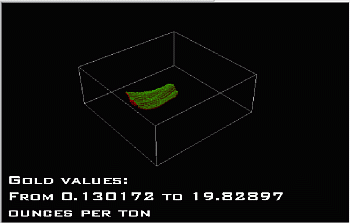
To configure annotation for sequence animations:
-
Display the Sequence Annotation Overlay screen.
-
Click Change to select a new font face, size, style, effects or colour using the Font screen.
-
Click OK to return to the Sequence Annotation Overlay screen.
-
Specify the X (horizontal) offset for the annotation either by setting the Pixels from left or Pixels from right.
-
Do the same for the Y (vertical) offset.
-
Next, specify what text you want to appear using the Display Text area. Any text may be entered here. When the sequence animation is run, the words
[FROM]and[TO]are replaced by the minimum and maximum values for the annotation column, for the relevant step.For example, you could display the mining periods from a date (encoded within the Sequence Column) to a date (encoded in the same column) using something like this:
Mining period from: [FROM]
To [TO]
An example readout would be:
Mining period from: 06/02/2026
To: 10/02/2026.Note: Click Reset to reinstate the default "From" and "To" prefixes.
-
Click OK to return to the 3D properties (General tab) screen for your data overlay.
Related topics and activities:
