
Select String/Drillhole
To access this screen:
-
Load or create and display string or drillhole data in any 3D window.
-
In the Sheets or Project Data control bar, expand the Strings or Drillholes folder.
-
Right click an overlay in the Sheets or Project Data control bar and select either Look at Individual String or Look at Individual Drillhole.
Centre and zoom the 3D window display to show a specific string or drillhole entity.
Note: This differs from the Look at command in that this function allows you to pick any one of the associated data entities for the selected object.
The screen displays the Object name followed by the indices of all string or drillhole entities in the selected object.
-
For string data, an incremental numeric index is reported.
-
For drillholes, the BHID value is displayed.
For example, the following screen displays when opening the Select String/Drillhole screen for the loaded "DmTutorials" drillholes data "_vb_holes":
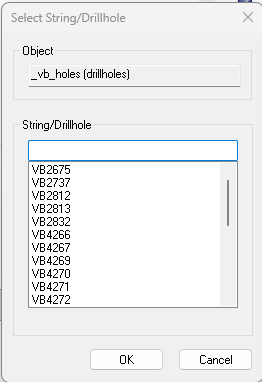
Type into the editable field to automatically filter the list. You can select one or more data entities.
Clicking OK adjusts the view to centralize and maximize the selected data in the target 3D window.
Related topics and activities:
