
MineTrust-Enabled Projects
About MineTrust
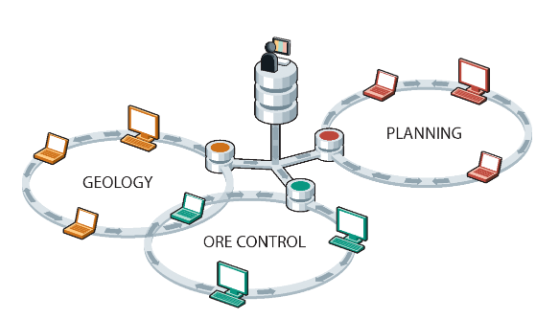
MineTrust is Datamine's data sharing service; a data management solution that is used to share and synchronise versions of files and groups of files between multiple users and teams in separate locations. Unlike many other file synchronisation systems, MineTrust can deal with groups of files, or packages, with a mix of file types that are synchronised and shared together. MineTrust can tag packages and files with any amount of meta data to reflect the data’s content, purpose, and how it is used within organisations and business processes.
MineTrust is built into Datamine Studio products by default. The use of automatically assigned tags specific to products and workflows, enables data to be shared automatically and efficiently between users and products, removing the need to manually manage and transfer files.
A cloud-hosted, highly secure data storage service, MineTrust provides reliable data management services for all team members, regardless of their location. Data is 'pushed' to the server following changes on the desktop and 'pulled' to other users' machines where newer data is available. This makes the following tasks to be performed very quickly and easily:
-
Sharing the latest 'ground truth' with other team members, such as sharing the latest field mapping data with resource modellers, or the latest EOM survey results, and so on.
-
Sharing reference data amongst multiple team members, such as the latest development plan to update reconciliation results, or a standard legend to be used for corporate-level reporting, for example.
-
Pushing data along a workflow, such as the latest drillhole sample data for implicit modelling revisions.
MineTrust is built specifically for resource modelling and mine planning workflows. Its integration with Studio products ensures teams collaborate in real-time without leaving their familiar working environment. It helps eliminate miscommunication and data duplication by centralising project files and enforcing structured sharing practices across departments, operations and the corporate enterprise.
Key MineTrust Benefits
Interested in MineTrust but unsure how it would work within your operation? Read on...
MineTrust offers flexible deployment models to suit varying IT policies and infrastructure capabilities. Clients may install the system on-premises, within their own Azure tenancy, or opt for Datamine’s fully managed cloud hosting.
SECURE & ENTERPRISE-READY
MineTrust enforces strict data separation through isolated Azure resource groups and encrypted storage. Identity management integrates with Microsoft services like Azure AD and B2C. Penetration testing is conducted regularly by third parties, and updates are delivered securely using automated deployment pipelines.
EFFICIENT SYNC & VERSION CONTROL
MineTrust ensures smooth collaboration through background file synchronisation and conflict resolution tools. Features like version history, check-in/check-out, and automatic retry protect data integrity and help teams stay aligned across locations.
SCALABLE & EXTENSIBLE
MineTrust supports growth, offering tiered database options for any size. User licences and storage can be expanded easily. Integration is enabled via a robust API and SDK, with native support for .NET, PowerShell, and C++, making it suitable for custom digital workflows.
WEB ACCESS & USER MANAGEMENT
Named user seats are managed by Datamine from live accounts within the Datamine Customer Portal, as elected by the client administrator. The online portal provides browser-based access to files and metadata for users without desktop applications.
Deployment Options
MineTrust offers flexible deployment options to meet various IT and compliance requirements:
-
On-Premises – Installed and maintained on the client’s internal infrastructure.
-
Client-Hosted (Azure) – Deployed in the client’s existing Azure cloud environment.
-
Datamine-Hosted (Azure) – Fully managed by Datamine in a secure Azure tenancy.
Each deployment type supports the same synchronisation functionality and data architecture, with infrastructure responsibility varying based on hosting choice. Once configured, Studio products connect to the appropriate system and data synchronization begins for enabled projects (see below).
MineTrust-Enabled Studio Projects
A Studio project that shares data via the MineTrust cloud service is said to be "MineTrust-aware".
Shared files are automatically synchronised with MineTrust so that other people accessing that data always have access to the latest version available, ensuring data is consistent across your organization for all projects where synchronization is enabled.
Before you can start to share data via the MineTrust cloud, you need to set a few things up, as described below.
Data synchronization activity information and other MineTrust Connector functions can be accessed using the MineTrust Connector Dashboard.
Configuring MineTrust
MineTrust relies on a background service that continually checks for project changes and (depending on your settings) synchronizes data with a secure cloud platform for access by an approved audience.
MineTrust depends on MineTrust Connector, which must be installed on any local device or server that will be synchronising data with the central instance. The connector facilitates automated, encrypted transfer of project files and supports scheduled synchronisation intervals.
MineTrust also depends on an available license, managed centrally via the Datamine Customer Portal. Customers are able to nominate accounts for access. Datamine will facilitate enabling access for those accounts.
Each eligible Datamine product unlocks one named seat (up to 25), and additional seats may be purchased in packs of five. Products must be currently maintained or on an active subscription.
Before others can start connecting to your MineTrust cloud system, the endpoint must be configured, and all user enrolments completed (via the Datamine Customer Portal). Datamine can guide you through this phase to complete initial deployment quickly and easily, whichever deployment option you choose.
The end result is a Customer Portal account that can be used to log into the MineTrust Online host to get started. More on this below.
Note: For more information on MineTrust licensing, database configuration, and next steps to configure endpoint access for your business, contact your local Datamine office.
Once everything is ready to go, setting up local user machines is straightforward:
-
Install the MineTrust Connector locally:
-
Log into https://minetrustonline.com/ with your Customer Portal credentials (see above).
-
Once signed in, you'll see files loading into the main window:
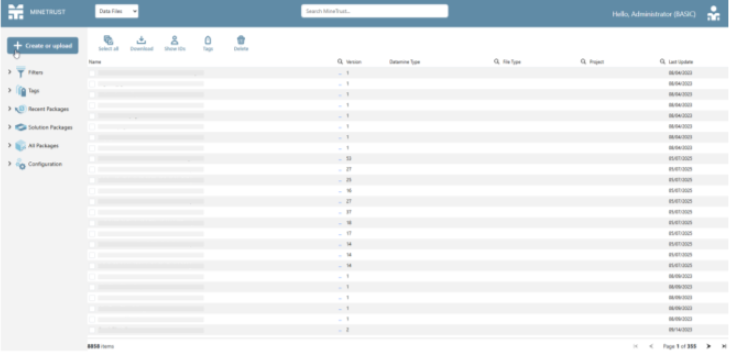
Note: If you are presented with an error message saying 'MineTrust not authenticated' then it is probable that your Datamine Customer Portal account has not been correctly configured within the MineTrust environment. In this case you will need to contact a MineTrust administrator in order to configure access to your account.
-
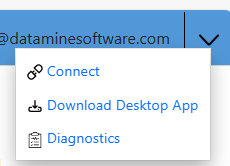
Expand the corner menu and select Download Desktop App:
-
Wait for the download to complete.
-
Unzip the downloaded archive.
-
Launch the .exe included in the archive and complete the installation steps.
-
If prompted, restart your PC.
MineTrust Connector is now installed and running.
-
Back in the web browser, expand the same menu as before, but this time select Connect.
-
At this point, you may see a popup asks if it can open the local instance of "the Datamine.MineTrustConnector.Service" application. Click Accept.
Note: After clicking 'Connect', you may also receive a notification saying that MineTrust Connector needs authorisation in order to run - this appears as a notification in the Windows tooltray. If so, click on the notification and you are prompted to authenticate once more with your Datamine Portal Account. This step allows the MineTrust Connector Service to access the target environment using your Customer Portal user account. In short, it tells MineTrust Connector which credentials to use to access the online information and data.
-
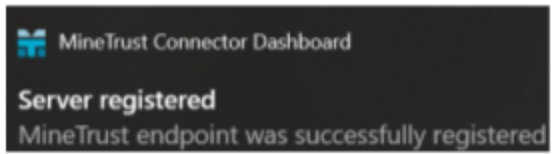
Enrolment on the environment is complete and successful once you receive the following notification:
-
You can now start creating MineTrust-enabled projects and synchronizing existing projects and sharing data securely and safely within your organization.
Data Synchronization
How and when is data synchronized between the MineTrust cloud store and the local machine?
TBC
Related topics and activities
-
Open MineTrust Project
