
switch-wireframe-edge ("ste")
See this command in the command table.
To access this command:
-
Wireframe Design ribbon > Edit > Switch.
-
Display the Find Command screen, locate
switch-wireframe-edgeand click Run. -
Using the command line, enter "switch-wireframe-edge" and press ENTER.
-
Use the quick key combination "ste".
Command Overview
Swap the linking off wireframe vertices from one arrangement to another within a quadrilateral. For example:
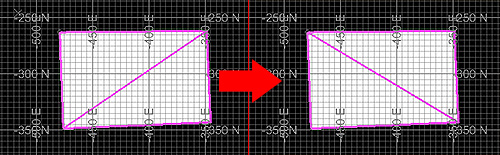
Command Steps:
-
Display wireframe data with internal edges to be rearranged.
Tip: Show the loaded wireframe with highlighted edges before you run the switch-wireframe-edge command.
-
Select an internal wireframe edge (exterior edges can't be adjusted).
The arrangement of the internal edge swaps between possible arrangements, within the bounding quadrilateral.
Command Automation
You can automate by passing this command and parameters into oDmApp.ParseCommand(), using any COM-aware scripting language.
Note: For more information on scripting in Studio NPVS+, please refer to your Scripting Tutorial (Help > Scripting Tutorial).
Example Parameter String (JS):
Where:
-
@point=100.0,200.0,0.0,1is theParsePointArguments: X,Y,Z,nButton.
Parameters Table
| Parameter | Description | Reqd? | Example Syntax |
|---|---|---|---|
ParsePointArguments
|
X,Y,Z,nButton.
|
Y | @point=100.0,200.0,0.0,1
|
Related topics and activities
