
Optimization Output
The Optimization Output control bar informs about the status and outcomes of optimization programs. The data displayed in this window is not stored in documents.
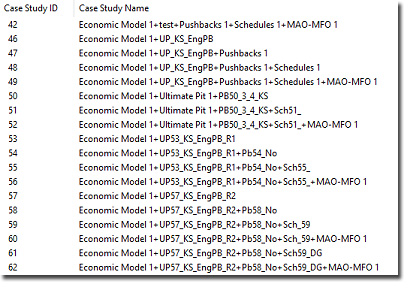
An example of Optimization Output control bar content
Data is presented using a series of views, each accessible at the bottom of the control bar:
-
Optimization Progress – Any in progress optimization run status is detailed here, as are the results of previous optimization runs in the current session.
Each optimization run is described according to:
- The Process being performed (generating activities, building the search tree, finding the best schedule and so on).
- The Status (which will include any error messages encountered).
- The Percent Done (for each process).
- The Computation Time (displayed only if the process completes without errors, otherwise it is listed as 00:00:00).
- Data Properties: where a data file is interrogated as part of the Optimization Workflow (e.g. using the Model Info command), results are shown here:
- Data Item – The type of data that was reviewed, for example, "Source Block Model".
- Project – The name of the current optimization project.
- Case Study – The case study to which the data relates (or "global" if it relates to all studies).
- Type: the format of data file under view, for example "Datamine".
- Description – Displays if the file is in its original location (i.e. the location when it was added to the project on the original system).
- Modified – If the file is available, its Last Modified property is displayed here.
- Disk File – The disk location associated with the data file. If this file location doesn't exist on the current system, the Description will read 'File is not in its original location'.
- File Size – The size of the file on disk, if the file can be found.
- Case Information: this is populated if the Optimization ribbon >> Reports >> Case Studies command is used. This lists all case studies of the current project by name and ID.
- Batch Run Log – Lists the contents of the current batch and the status of each case study optimization (Pending, Failed, Completed, In Progress). If an element of a batch run fails to complete, the reason is given in the Reason If Failed column.
-
Pushback Reoptimize – Displays the output from functions where pushback-specific settings are being used. Commonly, this is the result of selecting the Control mining width on benches, keep the Final Pit unchanged option on the Pushback SettingsMining Width Control screen, for example:
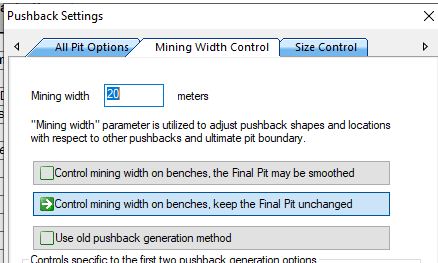
The ultimate pit optimal extraction sequence (OES) is required to generate pushbacks and occasionally, the sequence needs to be recalculated after creating a pushback. The updated OES is used when creating subsequent pushbacks. In this situation, the calculation of a new sequence will involve creating new ultimate pit (LG) phases and a new extraction using those phases and the progress of these calculation stages is displayed in the Pushback Reoptimize view
Note: Clear the contents of the current view by right-clicking the screen and selecting Clear.
Related topics and activities:
