
insert-point-segment-center ("ipsc")
See this command in the command table.
To access this command:
-
Digitize ribbon > Edit > Insert Points > Insert at Center.
-
Using the command line, enter "insert-point-segment-center" and press ENTER.
-
Use the quick key combination "ipsc".
-
Display the Find Command screen, locate
insert-point-segment-centerand click Run.
Command Overview
Creates a point at the mid-point of a selected string segment. You can pre-select string data to constrain the strings into which points can be added, otherwise, any strings can be modified.
Point Depth Interpolation
Inserting points in a 2D graphical environment (computer screen) when working in 3D space, requires the interpolation of a third dimension. The position of the point is calculated as a mean interpolation of neighbouring screen points, for example.
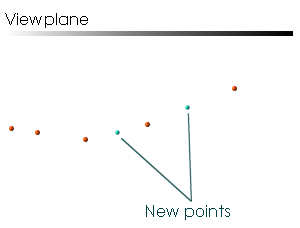
For example, suppose the 3D window's view plane is horizontal at an elevation of zero. Suppose also there is a string with each of its Z coordinates at 10. If a point is inserted then its Z coordinate will be added at an elevation of 10.
Command steps:
-
Select the required string.
-
Run the command.
-
Click to place the new points.
-
Click Done.
Command Automation
You can automate by passing this command and parameters into oDmApp.ParseCommand(), using any COM-aware scripting language.
Note: For more information on scripting in Studio NPVS+, please refer to your Scripting Tutorial (Help > Scripting Tutorial).
Example Parameter String (JS):
Where:
-
@point=100.0,200.0,0.0,1is theParsePointArguments: X,Y,Z,nButton.
Parameters Table
| Parameter | Description | Reqd? | Example Syntax |
|---|---|---|---|
ParsePointArguments
|
X,Y,Z,nButton.
|
Y | @point=100.0,200.0,0.0,1
|
Related topics and activities
