
Reset Labels
To access this screen:
-
Format Display screen >> Labels tab >> Reset.
Use the Reset Labels screen to specify how your plot projection overlay or downhole column label is presented (columns and rows) and the values to be used for each label field in the grid.
When you have added the relevant fields, they will be displayed on both the Contents and Style tabs, and if the number of fields is to be increased due to your actions on this screen, you are asked to confirm this.
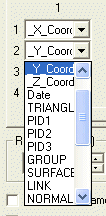
When a field has been added, the associated database column can be changed at a later date without going through the reset process; you can simply change the column name on the contents tab using the drop down menu associated with the specified field, for example:
Activity steps:
-
Display the Reset Labels screen.
-
Select one or more Labels to include. The list shows all attributes found in the target overlay's object database.
-
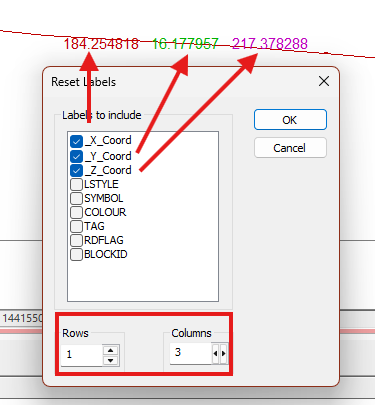
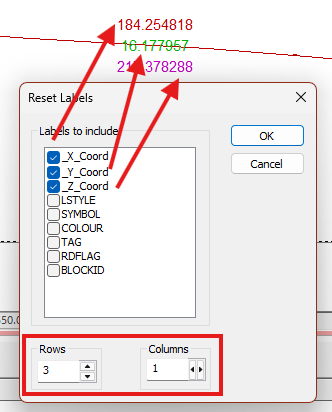
Choose how many Rows and Columns comprise the table used to display labels. Consider the following examples, where coordinate fields are laid out horizontally and vertically (the colouring was applied using the Style tab after the Reset).
(Click an image to expand it)
-
Click OK to return to the Labels screen.
Related topics and activities:
