
Configure OLE Object Plot Item
To access this screen:
-
In the Plots or Logs window, ensure Page Layout Mode is active.
-
Right-click an embedded OLE plot item and select Document >> Configure.
The Configure OLE Object Plot Item screen is used to create a connection between a plot sheet and an external file.
Embedded Document
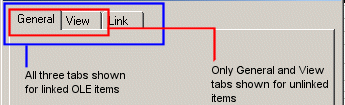
Once an Object Linked Embedded (OLE) item is added, regardless of whether it is linked or not, it can be configured, although the options for doing so will differ in each situation (linked files support additional linking options). In either scenario, the resulting Configuration displays a tabbed arrangement of functions:
General Settings
The General tab is available for linked and unlinked items.
-
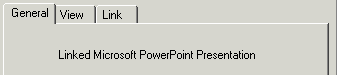
Object Description – Review this read-only description to confirm the type of object being configured. Linked items include a "Linked" prefix before the object type. Unlinked items show only the object type, for example:
-
Type – Review the description of the associated object type.
-
Size – Review the size of the imported file, if known. Some OLE formats do not support this information; in those cases, the field displays Unknown.
-
Location – Review the file path for the source information. For linked objects, this is the full path to the physical file. For new objects, or objects where the link has been deleted, this path refers to the active project directory.
View Settings
The View tab is available for linked and unlinked items.
-
Appearance – Choose whether the embedded document plot item is shown as embedded content or as an icon. If you display the item as an icon, external data is not shown directly in the plot item; right-click the icon and select Document >> Open to view the content in its native application. Animated content must be shown as an icon linked to an external file. Click Change Icon to change the icon used in the plot view.
-
Scale – Set the scale of the embedded item, where supported. The scale can be relative to the item's original size or to its current scaled size. This option is disabled for document types that do not support scaling.
Link Settings
The Link tab is shown only when the selected item is linked to an external source file.
-
Linked To – Review the full path to the file containing the data displayed in the section plot. Click Change Source to change the source file. Use care when changing the source; unsupported file types can cause a linking error the next time the object is opened or updated. Where possible, switch only between files of the same basic type.
-
Update – Choose how linked OLE items are refreshed.
-
Automatically – Updates all linked OLE items each time a project is loaded. Saving an external file does not automatically update the plot item view during the current session; click Update Now to refresh it.
-
Manually – Prevents embedded and linked OLE plot items from updating automatically when a project is loaded. Use Update Now to update items individually.
-
-
Last Update – Review the date and time of the last update for the selected object. This information is not supported by all embedded document types.
-
Click Open Source to open the external copy of the source file using the system default application. This is the same as right-clicking an embedded and linked OLE plot item and selecting Document >> Open.
-
Click Update Now to refresh the embedded document plot item with the contents of the linked external file. Changes made since the previous update are reflected in the embedded data.
-
Click Break Link to convert the current live document plot item into a snapshot item. After the link is broken, there is no further association between the embedded content and the external file.
Related topics and activities:
