
Page Size, Orientation and Margins
There may be requirements to work to standards that require different page sizes and layouts for different views. For example you may choose an A2 sheet for the plan view, A3 for EW section views and A4 for log plots. When the view is first created, the default page size and orientation is used.
You can change the page to any non-standard size with the pointer in Page Layoutmode by clicking in the space between the page border and the data area, or, you can use the Projectbutton >> Page Setup command to select a standard page size and edit the page margins.
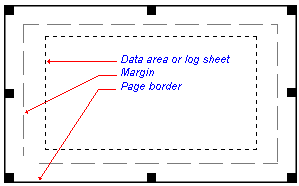
Whenever the page size is changed with the Page Setup command, you will be asked if you want the plot items on the page to be rescaled.
-
Choose No if you wish to leave the data area frame and grid, title block, scale bar and other plot items in their current positions.
-
Choose Yes if you want the program to rescale the plot items to fit the new page size.
Related topics and activities:
