
survey-append-strings ("apstr")
See this command in the command table.
To access this command:
-
Home ribbon >> Edit >> Append Survey.
-
Use the quick key combination "apstr".
-
Using the command line, enter "survey-append-strings" and press ENTER.
-
Display the Find Command screen, locate
survey-append-stringsand click Run.
Command Overview
Combine one or more string pairs according to a FEATURE key field value.
String data must be loaded and displayed. Data is selected by point or box/swipe selection in two distinct sets:
-
Strings in the first set are selected at their terminal end.
-
Strings in the second set are selected at their primary end.
<ENTER> confirms the selection of each group. Strings supported by the same FEATURE attribute value are connected if possible. If a connection isn't possible, the failing connection is displayed, for example:
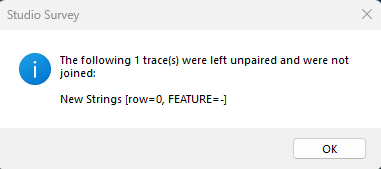
Connection failure will occur if:
-
An initial and secondary string trace FEATURE attribute value can't be matched because one is missing.
-
It isn't possible to combine the string trace(s) in one set with the other for geometrical reasons.
With this command, the current string data object stores the output combined string data, which means you can modify an existing (current) object with this command.
Original string data for combining can come from any loaded string object, and data in either selection set can be one-point strings (so you could use combine strings with landmark point locations represented by single-point strings, for example).
Command steps:
-
Load string data for combining and make sure it displays clearly in a 3D window.
-
If necessary, create a FEATURE attribute (edit-attribute) and add values designating strings for combining.
-
Run the command
-
Select string data that represents the "from" group. These are the strings that will be extended to combine with the "to" group.
-
Press <ENTER>.
-
Select string data that represents the "to" group.
-
Press <ENTER>.
Strings are combined, ensuring data of FEATURE attribute values guides the connections. Where connections could not be made, review the message and underlying data. You may need to edit FEATURE attribute values or string geometry and try again.
Related topics and activities:
