|
|
Understanding 'short-field' and 'long-field' systems. |

Short- and Long-field Modes
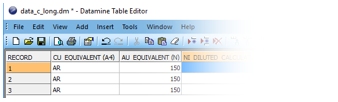
Prior to May 2018, field names within Datamine files were restricted to a maximum of 8-characters for both single- and extended-precision files.
In 2018, starting with Studio RM v1.4 and Studio EM v2.3, support for 24-character field names was introduced for extended-precision files. Single-precision files still incur an 8-character restriction regardless of operating mode.
This introduces a potential break in compatibility with earlier application versions. The purpose of this document is to explain how these changes may affect you.
-
A legacy system (8-character limit) will be referred to throughout this document as a ‘Short-Field’ systems and modes.
-
A system supporting up to 24-characters will be referred to as a ‘Long-Field’ system.
Long Field Name Systems - Scope
Long-Field systems permit a field name of up to 24-characters, regardless of the mechanism used to define it:
This includes:
-
Using the Table Editor installed with the long-field system (to create or modify data definitions).
-
Using interactive commands such as add-attributes, the Datamine Attribute Manager, the Data Object Manager and so on.
-
Using processes (or superprocesses) either interactively or by macro/script, where the process generates a field or modifies an existing one, e.g. EXTRA, DILUTMOD, ADDDD etc.
-
This includes reference to field names in an external file (e.g. &FIELDLST).
-
Setting object column names through a direct data connection such as DHLogger, SampleStation etc.
-
Setting field names directly using script (e.g. accessing DmFile or DmFileADO objects).
-
Importing data in Datamine or non-Datamine formats where the incoming column name is >8 characters.
Field Length Modes: Studio EM, RM and OP
Studio EM, RM and OP applications (released after May 2018) can operate in either Long-Field or Short-Field modes. One mode can be set for all applications on a PC; it is not possible to have a mixture of application modes on the same host machine.
For example, if Studio RM (v1.4 or higher) and Studio EM (v2.3 or higher) are both installed on the host machine and the system is switched to Long-Field mode, both applications will be able to read and write extended attribute names, although a logout/in may be required.
Conversely, switching back to Short-Field mode will revert all applications to the previous 8-character restriction (for both SP and EP files). Again, a logout/in may be required.
Studio EM, RM and OP: “Opting In”
For Studio EM, RM and OP you will be required to “opt in” to a Long-Field system. This is to ensure that the default behavior is compatible with legacy products that may exist within the organization.
Opting in (or out) of Long-Field support will affect all applications on a system, and may require the current user to log out of the system and log back in if:
-
the operating mode has been changed, but another application is currently accessing Datamine tables, or has done within the current Windows session.
-
you have made any attempt to access a Datamine binary table (.dm) in the current application and Windows session.
Both above will cause the current usage mode to be 'locked' until the next Windows user session. You can switch between Long-Field and Short-Field modes using:
-
your application’s Help | About dialog.
-
a standalone utility, installed with all Studio products after May 2018
Once Long-Field support has been activated, all supporting applications will permit field names up to and including 24 characters.
This approach ensures that an active decision must be made to use a system that could (potentially) create data tables that cannot be read correctly by legacy applications, or cannot be used in their full context (e.g. because of missing fields due to truncation-duplication) or unexpected downstream behaviour caused by the aliasing of long field names as part of import concatenation (e.g. FIELDN~1, FIELDN~2, FIELDN~3).
Field Length Modes: Studio UG, Studio Survey
Studio UG and Studio Survey require Long-Field support to operate. If your system is running in Short-Field mode when your application is launched, you will be required to enable Long-Field support and (if required) log out and back into a new Windows session.
Switching Modes - Studio EM, RM and OP
- System modes are switchable for Studio RM, EM and OP.
- Studio UG system behavior is fixed.
You can switch between Short-Field and Long-Field system modes (and vice versa) using your application’s Help | About dialog:
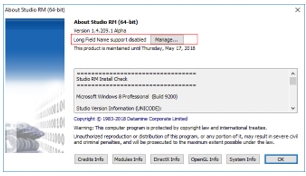
- Click Manage to view
the current mode and change or queue a request to change the current
mode. For example, a PC running in Short-Field
mode will display the following message:
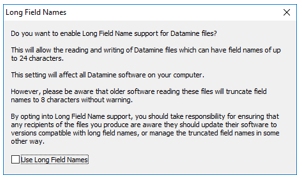
Selecting Use Long Field Names will trigger one of the following behaviors:
- If no application (including
the active one) has accessed a Datamine file at any time during
the current Windows session, Long-Field
Name support will be activated:

Subsequent use of all applications on the same PC will permit long field name reading and writing. -
If any application (Datamine or otherwise) has already accessed a Datamine table during the current Windows session, the operating mode is locked until the user logs out and back in (a full PC restart is not required).
In this situation you will be shown the following message:
Log out and back in to switch all installed Studio applications (that support long field names) to Long-Field mode.
The same behavior occurs when switching from a Long-Field system back to Short-Field mode.
Studio UG and Studio Survey – Long-Field Mode Fixed
Studio UG requires Long-Field support to operate. When you launch Studio UG v2.0 or higher, you will encounter one of the following behaviors:
- Long-Field support is already active: UG launches without further prompts
- Short-Field
mode is active: UG displays the following message:
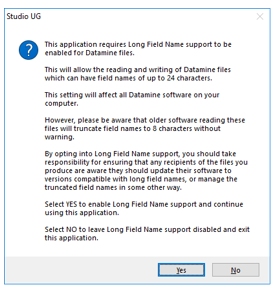
Click Yes to proceed. If your operating mode has been locked by another application, you will see the following message: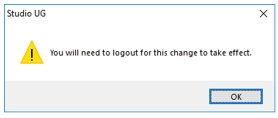
As Studio UG cannot run in Short-Field mode, it will close down. In this case, log out and back in to continue.
Compatibility with Earlier Versions
To implement extended field name support in Studio, changes have been made to core functions, including prerequisite functions such as Table Editor and Data Source Drivers.
The table below summarizes behaviors when swapping data between Short-Field and Long-Field systems:
|
Import/Load Into |
Short-Field System |
Long-Field System |
| Export/Save from | ||
| Short-Field System |
No Impact |
No Impact |
| Long-Field System |
Field names <= 8 characters will be imported/loaded as before. The display of field names >8 characters will be truncated in the short-field system. If this incurs a duplication of field names, only the first field will be displayed. Saving the resulting file in the short-field system will modify the file’s data definition so should be performed with caution. |
No Impact |
Macros referencing field names > 8 characters will operate as expected in Long-Field systems, but the same macro in a short field system will only consider the first 8 characters of the specified field, which could result in a field-not-found error when running the macro.
Consider the following scenarios:
- A tested macro and data from a Short-Field system are loaded into a long-field system and run. The results from the Long-Field system will be identical to the short-field system.
- A tested macro and data from a Long-Field system (where field names are <= 8 characters in length) is loaded into a Short-Field system and run. The results from the Short-Field system will be identical to the long-field system.
- A data object containing column names <= 8 characters is saved to disk using using a Long-Field system. This data will be read into a short-field system and processed without issues.
- A data object containing column names > 8 characters is
saved to disk using using a Long-Field
system. This data is loaded into a short-field system.
Extended field names are truncated to 8 characters. If this introduces a field name duplication, which isn’t permitted, the first instance of the field (only) will be displayed in the legacy Table Editor or made available to a legacy Studio application.
For example, a table containing BLASTID, BLASTIND and BLASTINDEX fields is saved using a Long-Field system. - Loaded into another Long-Field system, BLAST, BLASTIND and BLASTINDEX are available/displayed.
- Loaded into a short-field system, only the fields BLAST
and BLASTIND are available as the truncated BLASTINDEX field
introduces a prohibited duplicate field.
Saving the file in the short-field system in this case will modify the data definition of the file so should be performed with caution.
- A table containing the fields BLASTID, BLASTIND and XBLASTINDEX are saved in a Long-Field system and loaded into a short-field system. In this case, the fields BLASTID, BLASTIND and XBLASTIN are available to the legacy application. Saving the file in the Short-Field system will modify the data definition of the file so should be performed with caution.
Standalone Utility
In addition to the in-application tool for switching system modes between Long-Field and Short-Field modes, a standalone utility is also provided.
You can access this from the Windows Start Menu under the Datamine folder. The utility is called Long Field Names. This utility is installed with all modern Datamine Studio products:
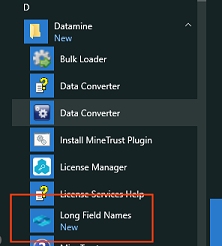
Launching the utility is the same as accessing the Manage
screen via the Help | About
dialog in Studio EM, RM and
OP. If a system mode is locked,
it will be necessary to log out and back in to switch to a different
mode.
Long-field Exceptions
Some processes may still impose their own limits on field name widths for various reasons, and this will be made clear in their accompanying documentation.
Summary
- The only chance of unexpected behavior arises from sharing data files with extended field names between Long-Field and Short-Field systems. If there is no intention to do this, you can use extended field names without impact.
- If you adhere to the previous 8-character limit, you can also continue to swap between Long-Field and short-field systems.
- Loading a file containing extended field names into a short-field system will not change its data definition but a restricted view of that data will be presented to the legacy application. Saving a loaded file (with truncated or obviated field names) in the Short-Field system will change the DD, however – be careful!
-
Long-Field support is not enabled by default for Studio EM, RM and OP but will be required for Studio UG.
-
If a mode has been ‘locked’ by an application in the current Windows session, it is necessary to log out and back in to change the system mode.
-
Legacy Studio applications will continue to be restricted to 8-character attribute names regardless of the operating mode. All newer systems running in Short-Field mode will behave in the same way, i.e. be restricted to 8-character attribute names.

|
This information is also available on Datamine's online Knowledge Base:https://datamine.freshdesk.com/en/support/solutions/articles/19000079998-extended-attribute-name-length-support |
 |
Related Topics |
|
|
Attributes
Overview
Attribute Naming Conventions The Attribute Manager Edit Attributes Dialog |
Copyright © Datamine Corporate Limited
JMN 20045_00_EN