
Personalise the Copy Sample dialog to set the Number of Samples as read-only for Template Jobs
Use this activity to personalise the Copy Sample dialog to set the Number of Samples as read-only for template jobs.
This dialog is accessed when Copying a Sample in a Job.
Activity Steps
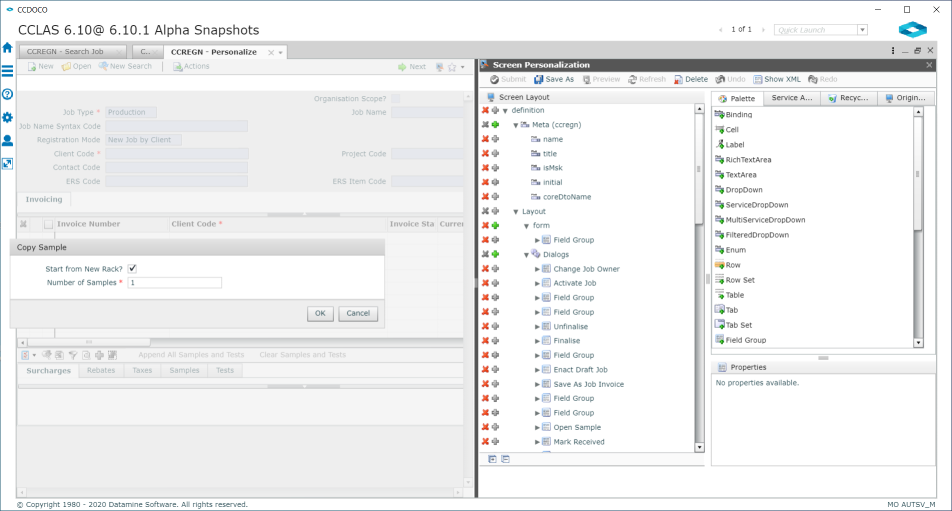
- Display the Copy Sample dialog from the Copy Sample row flow on the sample grid contained within the Samples tab of the CCREGN—Job Detail screen, then Access Screen Personalisation.
- Collapse the Meta, Layout, customisation.virtual and Actions nodes and expand the Behavior node in the Screen Layout Panel.
- Click
 on the Behavior node and select FieldToggle to add a field toggle behaviour to the screen layout.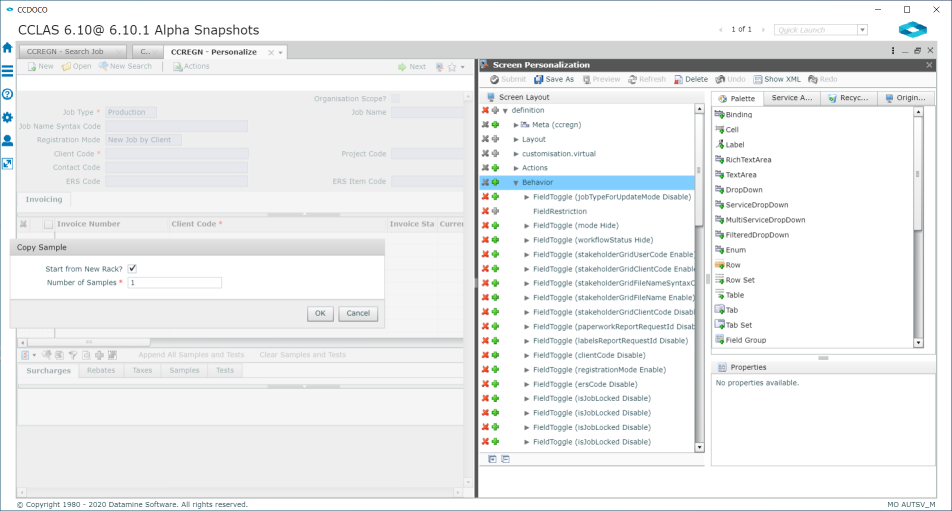
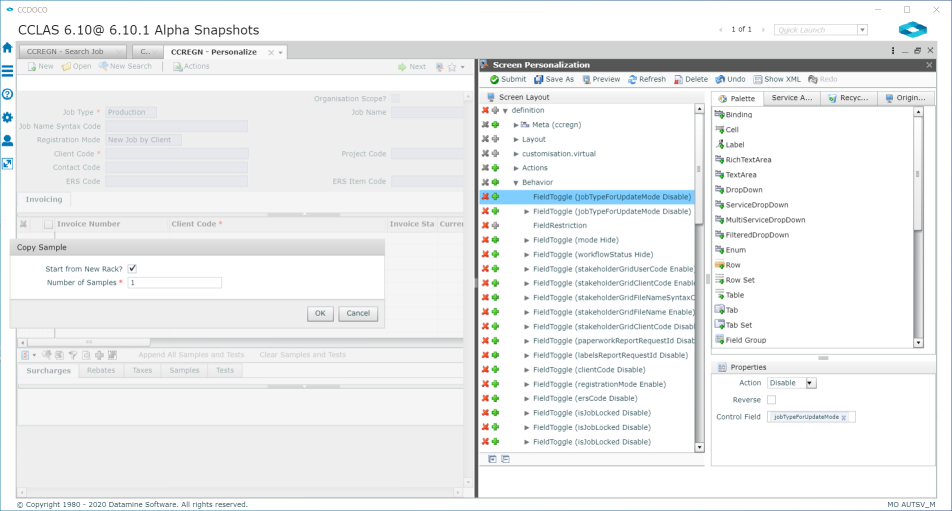
- Select the new FieldToggle node.
- In the Properties panel, set the Action to Disable and the Control Field to jobTypeForUpdateMode (which correlates to the Job Type field on the CCREGN—Job Detail screen).
- Click on the new FieldToggle node to add a value field link to the field toggle behaviour.
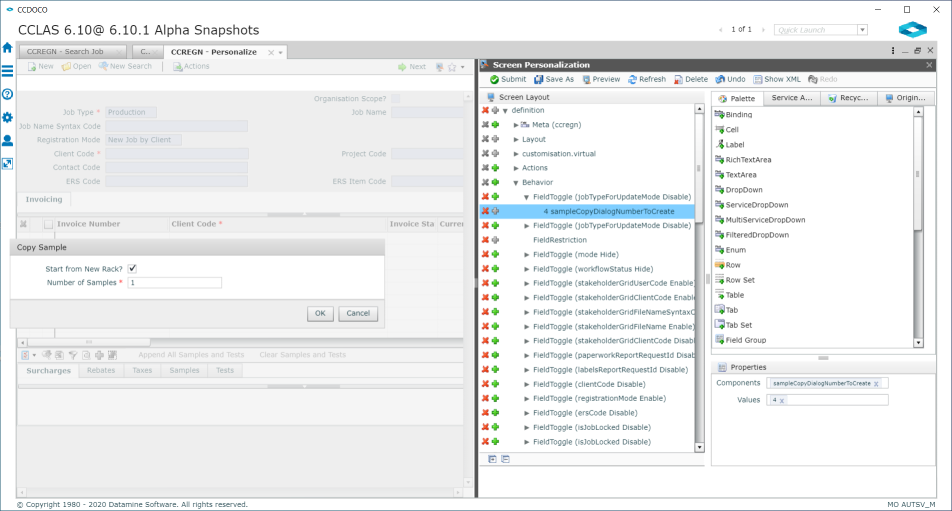
- Select the new ValueFieldLink node.
- In the Properties panel, set the Components to sampleCopyDialogNumberToCreate (the Number of Samples field to take the defined action) and the Values to 4 (the enum for a template job type).
- Click Submit.
When the Copy Sample dialog is displayed, if the job is a template job, then the Number of Samples field on the dialog is displayed as disabled, and enabled otherwise.
