
Launching Applications
Overview
The CCLAS 6 product comes with many applications to manage the processes within your laboratory.
The applications that a user can access can be limited to those required by their role.
Process
CCLAS 6 applications can be launched from a CCLAS 6 menu, the Quick Launch bar, via Favourite and History widgets on the Home Page or by quickly accessing a previously accessed entity.
Using the CCLAS 6 Menu
A CCLAS main menu may contain multiple sub-menus. By navigating through the menu and sub-menus, the required application can be accessed.
 Launch an application from the CCLAS menu
For more information on menus, refer to Configuring CCLAS Menus.
A system can be configured only give access to a menu. This is often done where various menus are tailored to a user's role within the laboratory.
Using the Quick Launch
The Quick Launch bar is located at the top right of the Home page.
Launch an application from the Quick Launch bar
Applications can be made available or not available for quick launch.
Make an application unavailable for quick launch
Using Favourite and History Widgets
The System Messages widget displays the welcome message for your CCLAS 6 environment. It contains information that may be important to you. This widget cannot be removed from the Home page.
The Home page can also contain Favourite and History widgets.
All added widgets display on the Home page when you log in to CCLAS 6.
Widgets can be maximised to view all details contained in the widget. When a widget is maximised, other available widgets display as icons down the right of the screen. The maximised widget icon is highlighted by a blue square. To view other widgets, click the related icon.
You can add up to seven widgets for frequently used information, such as favourite applications, and so on.
Once your preferred widgets are added to your Home page, information can be accessed by double-clicking on the record. The associated application (for example, the CCREGN—Job application) is launched where details can be processed.
Frequently used applications or items (such as a specific detail screen for an item) can be added to the list of favourite applications for easy access. All added favourites display and are managed in the Favourites widget.
Note: Where a user login is customised to restrict Home page functionality, the user has no access to favourites, history tracking, online help, quick launch or the settings menu.
Favourite Widgets
The Favourites widget displays all application screens that you have marked as a favourite. This allows you to access screens which are used frequently directly from the Home page. To display the screen, double-click on the application in the favourites list.
The Favourites widget is indicated by the golden star icon:  .
.
Launch an application from Home page Favourites
Once an application is saved as a favourite, it can be launched from the Favourites widget.
The Favourites widget can be made available or unavailable on the Home page, as required.
Where it is available, the Favourites widget displays all application screens that are marked as a favourite. This allows access to screens that are used frequently. To access an application, double-click the application in the favourites list.
When a widget is maximised, other available widgets display as icons down the right of the screen. The maximised widget icon is highlighted by a blue square.
Warning: When a search application is added as a favourite, the favourite does not comprise a shortcut to the search application, but rather a snapshot of the search application with its current search criteria and search result set grid layout. When the favourite application is launched, then the search is triggered using the favourite's search criteria and the result set returned to the favourite's grid layout.
History Widgets
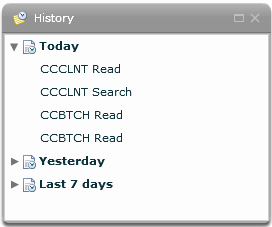
The History widget lists all screens you have accessed. Up to 100 entries can be stored and display in date order (for example, Today, Yesterday, Last Month and so on). This widget can be added or removed from your Home page.
The History widget is indicated by the time sheet icon: 
The History widget can be made available or unavailable on the Home page, as required.
Where it is available, the History widget displays all screens that were recently accessed. This allows further access to those screens. Up to 100 entries can be stored and display in date order (for example, Today, Yesterday, Last Month, and so on). You can open a screen from the History widget by double-clicking on the entry.
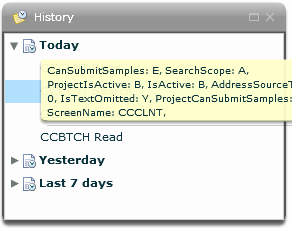
A brief summary of the accessed screen displays when a screen name is hovered over.
When a widget is maximised, other available widgets display as icons down the right of the screen. The maximised widget icon is highlighted by a blue square.
Quickly Accessing a Previously Accessed Entity
An entity previously accessed can be accessed using a quick search based on application name, data entered in to a field or a screen you have modified.
Full or partial characters can be entered in to the quick search and all character matches are returned.
The results can be viewed in two ways:
- Tree View—Grouped by application
- Sortable List
Quick Search details last only for the current session, once you log out of your session the details are lost.
Trail Tabs
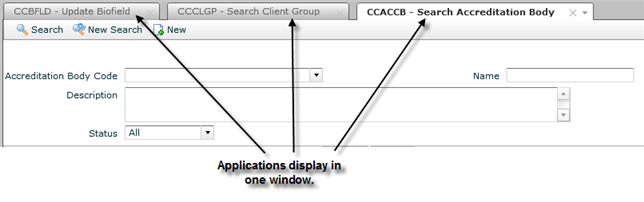
The CCLAS 6 screen interface provides a trail tab functionality so that you can track all applications you have opened during a session. The opened applications are stored as tabs at the top of the screen.
The tabs can be used in the following way.
View screen representation
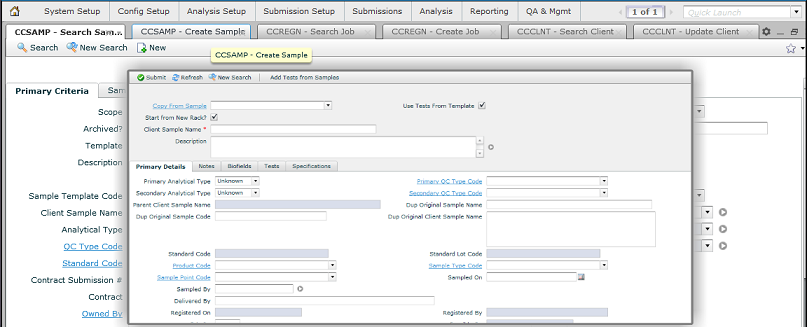
Hover over a trail tab to view a representation (pop-up) of the screen. Click the tab to display the full screen.
Close tabs
If you have a number of screens open (represented by the tabs at the top of the screen), it is possible to close any combination of opened screens at any one time. Click the drop-down arrow in the current tab and select one of the following options:
- Close Others
- Close Tab
Note: The drop-down arrow is only available in the screen fully displayed.

Active Windows Viewer
The Active Window Viewer displays the number of active application screens you have open. Click the active window icon to displays a list of active screens, as well as a list of how the screens can be arranged.

Showing the Application Description only in Tabs
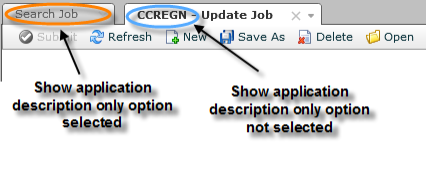
Use Show application description only to only display the description of the application and to not show the application code.
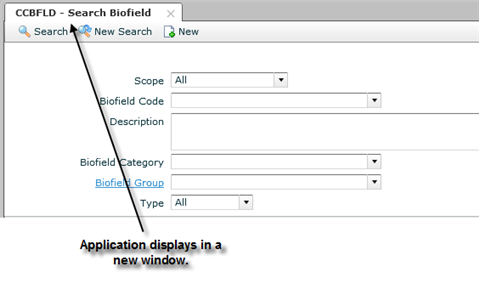
Opening Each Application in a New Window instead of a New Tab
Access settings and select Preferences » Use new window, such that, when an application is opened:
- If Use new window is on, then the application is opened in a new window.
- If Use new window is off, then the application is opened in the current window.
Auto-forwarding from a Search Page to Open the Detail Page
Use Auto forward from search page to automatically display the related Detail screen when only one result is returned from a search on a Search screen.
Secured Access to Applications
If you do not have the appropriate security permissions, applications may only open with Read access. Security access is set by your system administrator. Refer to Maintaining Users and Maintaining Security Roles processes for more information.
Application Defaults
Refer to Using the Screen Interface to maintain application defaults.
 Related processes...