
Performing Searches
Overview
Search functionality is used to locate the entities that you wish to work with.
Most applications open with a search screen comprising search criteria and a grid of returned results.
Process
Case Sensitivity
All codes, enumerations and Job Name fields are case-sensitive for searching.
Using Wildcards
Wildcards (% or _) are supported where % is zero or more characters, and _ is a single character only. For example for the following entries:
- "AA%"—Only selections that start with AA are displayed

- - "%AA"—Only selections that end in AA are displayed
- - "%AA%"—Only selections containing AA are displayed.
Entering One or Multiple Search Criteria
Some lookup/code fields only allow for the entry of one search criteria. Other lookup/code fields allow for the entry of multiple search criteria which is indicated by the display of Multi-select from list next to a field. Click this icon to view the selected items drop-down.
Note:
Multi-select from list does not display next to fields for which multiple selection is not possible.
Multiple criteria are applied as "Or", and can use wildcards. Example: Where "A%, B%, %D, E%F" is entered as the search criteria in the field, records matching A% or B% or %D or E%F in the related column are returned from the search.
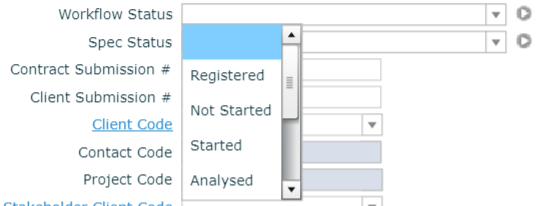
Where nothing is selected, then the selected items drop-down is empty.
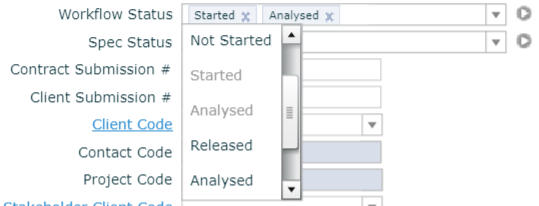
Where one or more items are selected, then the selected items drop-down displays the selected items.
Where many items are selected but the names of the items are too long, then only the first few items can be seen in the field, however the selected items drop-down displays all selected items.
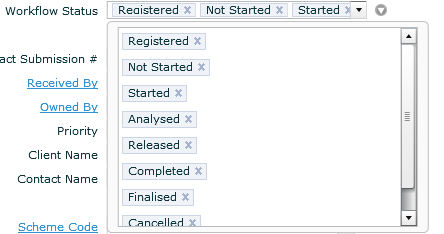
Click X to de-select any item from the selected items drop-down.
Using Lists
Active list fields accept manual entries and provide automatic completion.
In Submit screens, lists are populated with all active and inactive selections.
In Detail screens, lists are populated with all active selections.
If the exact string is entered, then the exact match displays in the field. Where the entity's name is not empty, the name displays to the right of the field.
In the case of a partial match, the list displays the list of partial matches.
Using Lists in Code Criteria Fields
Lists for codes are filtered by the Scope field (if one exists and is selected).
- If the selected Scope is Organisation, secondary field lists are filtered by organisation.
- If the selected Scope is All or Laboratory only, secondary field lists are filtered by organisation and laboratory.
Using Hyperlinks in Code Criteria Fields
Clicking the field hyperlink displays the Submit screen for the relevant application. Select the appropriate value then click  Return to Grid to populate the hyper-linked field with the selected value. This action can also be achieved by using the right-click Lookup option. Once a code is selected in the criteria field, the right-click Detail option allows for the display of the entity's detail screen.
Effect of Scope on Search Criteria
Where Scope is a search criteria on a search screen, the selected scope determines the visibility of other fields in the screen and the content of various drop-down selection lists.
Effect of an Entity's Activity Status
Most entities in CCLAS have an activity status.
Usually, the activity status is a bi-state property of the entity, such that, the Is Active is selected or cleared. When searching for these entities, the activity status is generally a criteria on the search form, and can be set to All, Active only, Inactive only.
For some entities, the activity status is a tri-state property of the entity, such that, the Active Status is Draft, Active or Suspended. When searching for these entities, the activity status is generally a criteria on the search form, and can be set to include multiple states.
Using Delta Dates in Date Criteria Fields
|
Delta |
Implication |
|---|---|
|
X |
Search records of a single day, exactly X days after today. |
|
-X |
Search records of a single day, exactly X days before today. |
|
X,Y |
Search records from X days after today to Y days after today. |
|
-X,-Y |
Search records from X days before today to Y days before today. |
Example, given a current date of 2021-05-06:
|
Delta |
Search Date From |
Search Date To |
|---|---|---|
|
10 |
2021-05-16 00:00:00.000 |
2021-05-16 23:59:59.000 |
|
10, 12 |
2021-05-16 00:00:00.000 |
2021-05-18 23:59:59.000 |
|
10, 2 or -10, -12 |
Invalid date |
|
|
-10 |
2021-04-26 00:00:00.000 |
2021-04-26 23:59:59.000 |
|
-10, -2 |
2021-04-26 00:00:00.000 |
2021-05-04 23:59:59.000 |
|
-10, 2 |
2021-04-26 00:00:00.000 |
2021-05-08 23:59:59.000 |
Saved Searches
The CCLAS 6 application toolbar provides a Saved Searches function that allows you to save search criteria and grid preferences (such as, which columns are displayed or hidden, grid column order and column widths) for the nominated search screen. When you access the nominated search screen at a later date, you can select the saved search and the saved search criteria is re-applied to the search fields.
Multiple default search criteria can be saved for the nominated search screen and you can also rename and delete existing saved searches.

Notes:
-
The Saved Searches function displays in CC and MSE screens only.
-
Saved searches only apply to the search screen in view.
-
Saved searches are only saved for the logged in user and laboratory.
-
You can also use the Organise Saved Searches option to organise your saved searches to suits your preferences.
 Related processes...