
Auto-assign Resources
To access this screen:
-
Tools ribbon >> Tools >> Auto-assign resources.
-
Home ribbon >> Auto-assign resources.
Bulk-assign resources to tasks based on selected task filters.
This automates the process of manually applying a filter, assigning one or more resources to the filtered tasks, and repeating this process. Furthermore, if you wish to unassign resources and repeat this process, you would already have a template to do this.
Resource assignment is achieved courtesy of an "assignment layout".
Each layout in the left-hand list has one or more rules according to which assignments a created (or removed or replaced).
Auto assignment layouts are managed using the toolbar on the left of the screen:
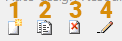
-
New auto-assignment layout. You can define any number of auto-assignment layouts by clicking on the toolbar in the screen.
-
Copy the selected layout to a new layout. This can be useful for creating similar layouts.
-
Delete the selected layout.
-
Rename the selected layout.
To create an auto-assignment layout:
-
Display the Auto-assign Resources screen.
-
Using the toolbar on the left, click New.
-
Rename the layout to something relevant either by double-clicking the default description, or selecting Rename on the toolbar.
-
With the layout selected, define the first assignment rule for the layout:
-
Select a filter from Apply to Tasks. This is a mandatory field as it associates a resource assignment rule with an activity "scope". This can be a defined project filter or one defined as part of flowcharting.
-
Select the Resource to assign to tasks passing the Apply to Tasks filter. See Creating Resources.
-
Select the resource assignment Type :
- Driving – The task duration depends on this resource. Effectively the rate of the resource is used to drive the task.
- Required – A set number of resources is required for the duration of the task.
-
Effort Driven – The number of resources required is calculated from the task and the resource rates.
Note: The default Assignment Options for resources is set in the AdvancedProject Settings screen.
-
Use Units to set the number of resources assigned as part of the rule.
Note: Units can't be modified for Effort Driven tasks (as this is a calculated value).
-
Set the Rate at which the resource will be assigned to the task. The default value is taken from the resource definition.
Note: This rate is set when you create the resource. See Creating Resources.
-
Check or uncheck Use Production Rate Table. This specifies whether to use the production rate table specified in the resource definition or not. The default value depends on whether the resource has a production rate table specified or not.
Important: If a production rate table is used, then the effect of adding resource assignments through this rule will be the following: all tasks that conform to the production rate table filters as well as the rule filter (specified in the Apply to Tasks column) will get the relevant rate specified in the relevant production rate table. All other tasks conforming to the filter for this rule will get the default production rate specified in the resource definition.
-
Choose if you wish to apply the rule to subtasks of activities using Assign to subtasks.
Note: If you have manually created a task structure with summaries and sub-tasks, or a grouping selected (which will also have summaries and sub-tasks), then the scenario may occur whereby the filter specified in Apply to Tasks selects only a summary and not its sub-tasks. If checked, the assignments will be applied to the sub-tasks.
Note: Assignments are never applied to summary tasks.
-
If the specified Resource has the function or skill of a replaceable resource, then Function Resource represents that replaceable resource.
-
-
To enter a new rule, click below the bottom of the table to add a new row. Repeat this until all your rules display.
-
Click Add to create all assignments for the currently selected template based on the rules specified in the grid.
-
Alternatively, click Clear and Add to first Remove all assignments for the currently selected template based on the rules specified in the grid. Then, new resource assignments are added based on the rules specified in the grid.
Note: Click Remove to clear all assignments for the currently selected template based on the rules specified in the grid. Other assignments that do not conform to these rules remain untouched.
-
-
Click OK.
-
Save your project.
Related topics and activities:
-
Managing Resources
