
Target Scheduling
Target leveling refers to the procedure whereby you try to meet as many maximum production targets as possible, without exceeding them. In contrast to normal resource leveling, the constraint in this case comes from the production targets that are specified in the Project Settings form.
Target leveling is started from the same form as resource leveling, i.e. both resource constraints and target constraints are considered while performing "leveling". Target constraints can be switched off separately when performing leveling. Target leveling can also be performed without any resources in your schedule. If you wish to do target leveling without considering resource constraints, but you have resources defined in your schedule, you would need to prevent each resource from being leveled individually using the relevant setting (Level flag on each resource).
Consider the following trivial example with 2 tasks (and no resources defined):
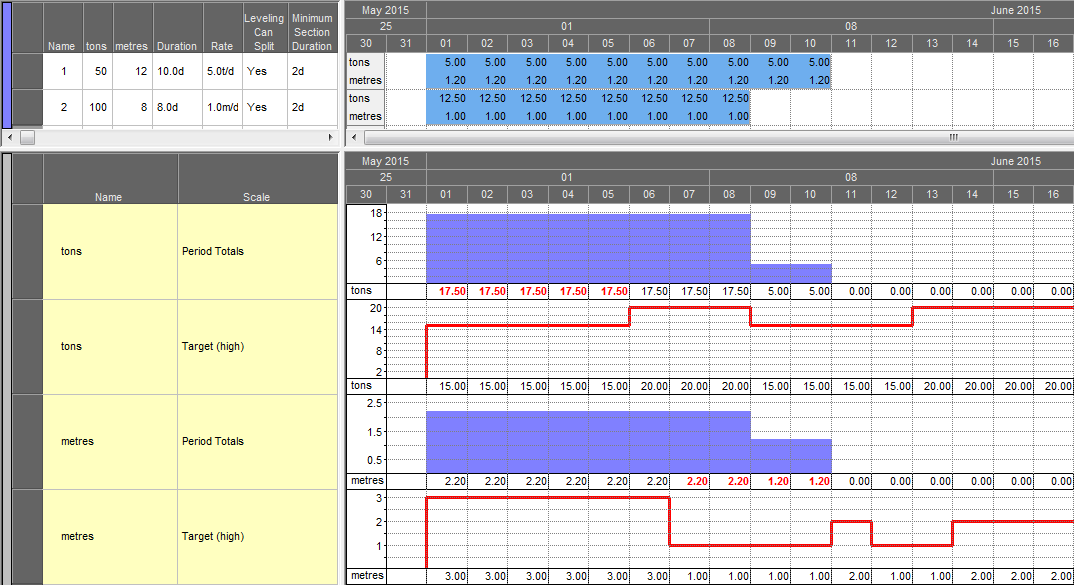
The bar chart Crosstab values show the tons (and corresponding metres) that will be extracted by each task. The red graphs indicate the ton and meter targets. Red numbers on the tons and metres histograms indicate days where the targets are being exceeded. Note the columns "Leveling Can Split" and "Minimum Section Duration" in the task table. These settings will have a significant impact on the resulting schedule.
To perform target leveling, proceed as follows:
-
Press F10, or select Tools ribbon >> Level to display the Resource/Target Leveling screen.
-
Select the Targets page.
-
Ensure that the option Consider targets during leveling is switched on.
-
Select each production target you wish to take into account. In this example both targets have been selected.
-
If required, you can change the targets in the grid at the bottom of the screen. These are the same targets as shown in the Project Settings form.
-
Click Level Now to run the leveling procedure.
The output depends to a large extent on the minimum section duration, which for task 1 is currently set to 2 days, like this:
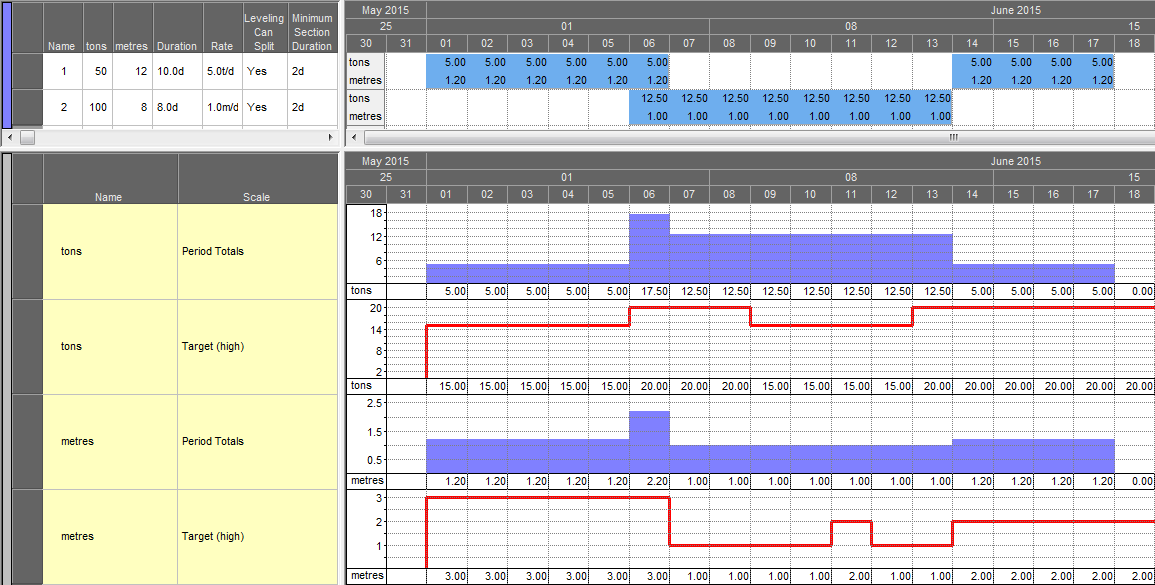
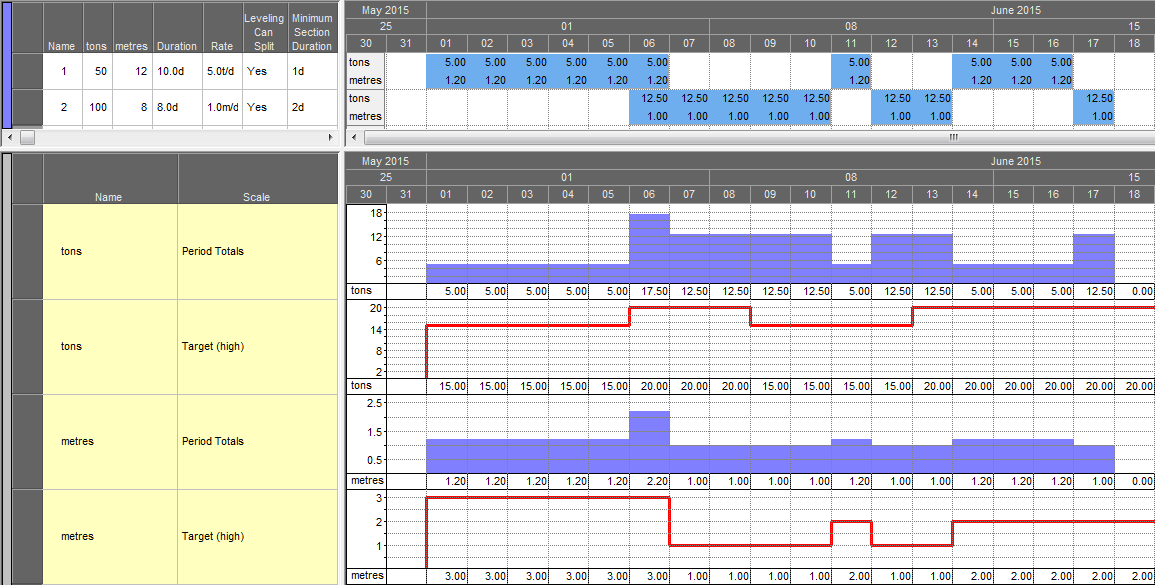
If you change the minimum section duration of task 1 to "1d" and re-run the leveling, the output will be as follows:
Related topics and actvities
