
Installing the Windows version
After downloading the installer, double-click the executable file to launch the installation wizard. Follow the instructions in each screen by clicking Next.
When prompted, review and accept the license agreement to continue with the installation.
Note: The installer must be run with administrator privileges. Right-click the installer and select Run as Administrator if needed.
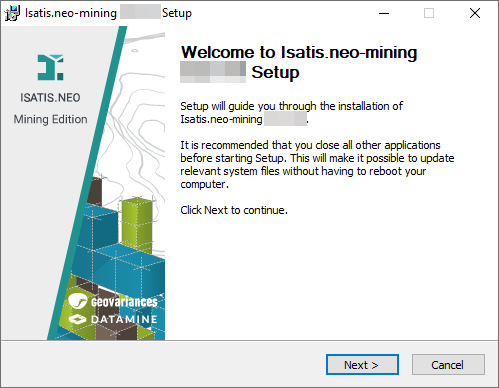
By default, the software is installed in the following location:
C:\Program Files\Geovariances\Isatis.neo
Note: The installation process takes a few minutes and requires approximately 1.5 GB of free disk space.
Silent installation (optional)
You can install the software in silent mode from a command prompt using the /S switch. You may also specify a custom installation directory with the /DIR option:
C:\TEMP\Isatis.neo_20XX.XX_winnt64.exe /S /DIR=C:\My_Installation_Folder
Choosing the licensing system
During the first launch of Isatis.neo, you will be prompted to choose your licensing system:
- Geovariances / RLM: for 16-digit activation keys or site/cloud licenses using the Geovariances License Manager.
- Datamine License Services: for 25-character license codes managed through the Datamine License Manager.
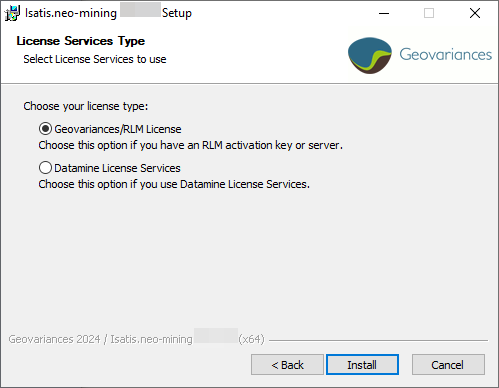
- Selecting Geovariances / RLM allows activation of a local or site license based on the RLM system.
- Selecting Datamine License Services lets you activate your license using a Datamine key or server.
