Data preparation
Relationship between lithology and iron grade
One of the imported variables from the file Assay.csv is Lithological code. Each code corresponds to one lithology (the rock corresponding to each code is not detailed, but this does not affect the relevance of the exercise). It can be interesting to check if the iron grade is related to any particular rocks.
We can compute the statistics of the iron grade, in each rock type.
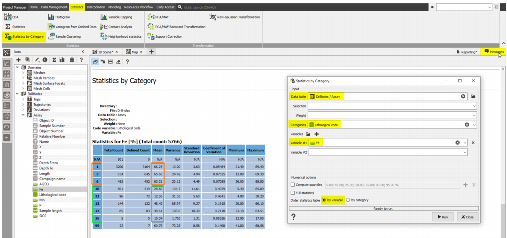
Open Statistics / Statistics by category. Select the Assay data table and the Lithological code as Categories variable. The studied variable is Fe. Press Run. The Messages window opens automatically and the statistics are printed.
- From the statistics, the iron mean is high (around 65%) in the lithologies 1, 3 and 6. Also, the variance is low in these rocks.
- The lithologies 10, 11, 12, 13 and 16 have a lower iron content (from 10% to 50%) and a higher variance (but for the lithology 16 which contains only 5 samples so this is not representative).
- The lithology 99 has a high iron content but also a high variance. It would correspond to an undefined lithology, and will be set aside.
Creation of simplified groups
From what we have seen, the iron content varies among the lithologies. Hence, we are going to separate the samples in two groups: high and low iron values, so that we get a simplified lithological variable for the dataset:
- Rich ore, corresponding to lithological codes 1, 3, and 6;
- Poor ore, corresponding to lithological codes 10 and above, not including 99.
The new lithological variable is created from Data Management / Create / Create Categories / From Rules.
Set the data table to Drillholes / Assay. In the input variables section, set v1 to Lithological code.
Then, the two categories must be defined. In the section titled Ordered List of Categories, click twice on the icon  . Enter the two category names and rules as shown. Note that the logical commands are based on Python scripting, and v1 refers to the variable Lithological code, defined above.
Because the Lithological code is a numerical variable, we can use the numerical order, which simplify the definition of the rules.
Type Final lithology as the categorical variable output name.
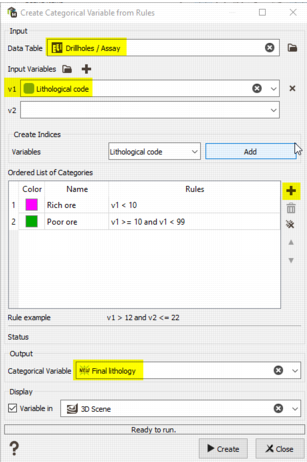
Click Create to run. A table showing the number of samples in each category will be printed in the Messages window (on the top right corner):
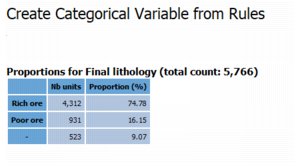
The 523 samples which are not in Rich or Poor ores correspond to the samples with the lithological code equal to 99, or to the samples where the lithological code is not defined.
Drillholes selection by polygon
Create the polygon
Click-drag the Drillholes / Tops data table into the Map Scene. We can see that three of the drillholes are outside the main orebody on the East, and one on the West.
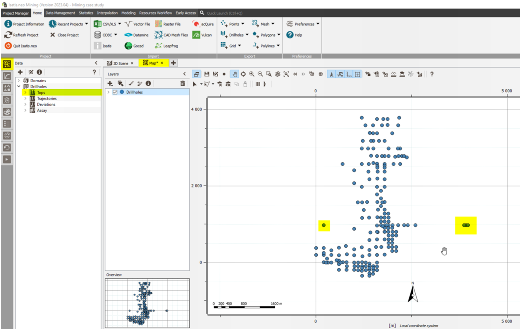
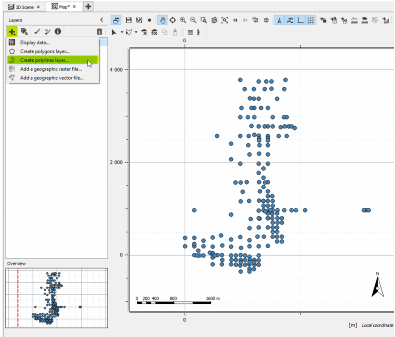
We will now draw a rough polygon around the orebody. From the Layers toolbar, click on the icon , giving access to the creation of a polygon layer  . A new window pops up.
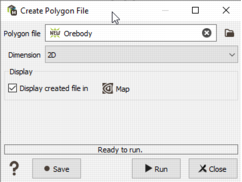
In the Create polygon file window, enter the name Orebody in the polygon file text field, and let the 2D dimension. Activate the Display Result option in the Map and click Run. A new layer "Orebody (empty)" should appears in the layers list. It means that the polygon itself exists, but that it has not been digitized yet.
Draw the polygon
To draw the polygon, click the Start Editing icon  available in the map toolbar; a series of new icons should appear, with Create Polygon
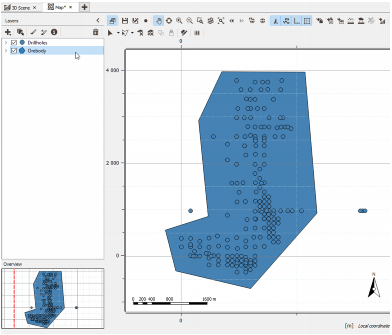
  on by default. Use the left click button to draw the polygon defined by several vertices. Use the right click button to draw the last vertex and close the polygon. As visible in the following image, click a series of vertices around the orebody, excluding the three holes in the East and one hole in the West. The polygon appears in transparent green while you are editing it.
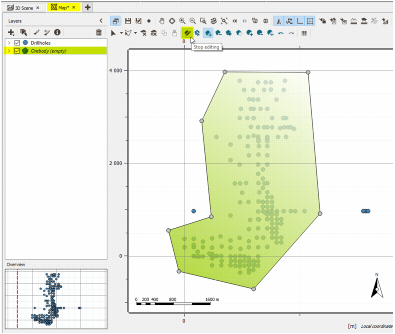
To end editing and save the modifications, click again on the icon (Stop editing). The final polygon should now appear in solid blue. The special toolbar for the polygon is hidden again.
Selection from polygon
The next step is to create a selection variable of the assays within this polygon. Go to Data Management / Create / Create Selection / From Polygon(s). Choose the Orebody polygon in input (let the selection type to "Samples inside at least one polygon"), the Drillholes Tops data table in output, and enter mask outside as the output Global Selection. We do not create any categorical variable, or per-polygon selection as we only have one polygon in input. Leave these fields empty.
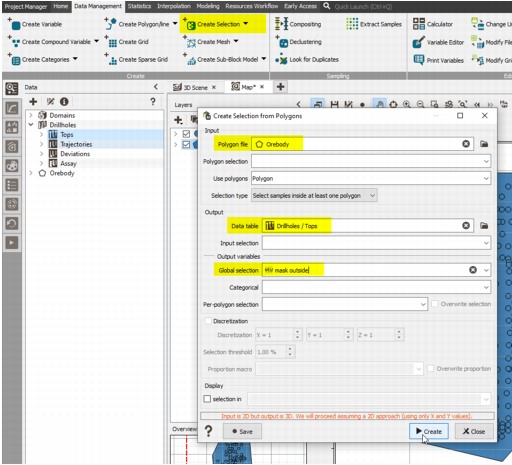
Click Create to finish. The report in the Messages inform us that the number of selected drillholes is 184 out of total 188, which corresponds to 97.87%.
Regularization of samples
Histogram of lengths
During the geostatistical analysis, the sample length is not taken into account, so a short sample will have the same impact as a long one. Therefore, for an unbiased interpolation, it is important to regularize the sample lengths so that it is homogeneous.
To get an overview of the sample lengths, we create a histogram. In the data explorer, go to the Length variable in the Drillholes / Assay data table and right-click to open the contextual menu. From the menu, select the "Build histogram" action. A new window with the histogram will appear, based on the selected length variable. An alternative is to open the histogram task from the Statistics tab in the ribbon, and to fill in the different fields.
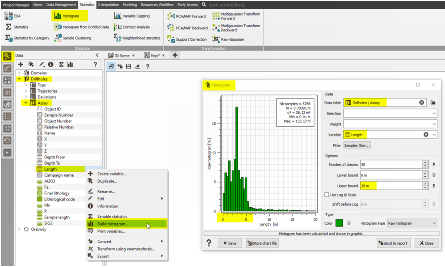
In the histogram and statistics (printed in the view label on the top right corner), we can see that the samples length goes from 0.01m to 133.17m and that the mean value is around 3.7m. About 18% of the samples measure 3 meters, whereas there are only a few samples longer than 5 meters.
It is not possible to keep the samples like that for the estimation, the length varies to much. To get regularized samples, without cutting to many of them or dilute the others, we are going to run a compositing step, choosing a composite length of 5 meters.
Compositing
The compositing is a process to regularize the lengths of the samples. It is more than recommended for the geostatistical analysis if the sample lengths within the drillholes are not regular. The compositing task splits the samples longer than a compositing length, and averages the neighboring samples below the compositing length in order to have the samples with approximately same length, respecting the domain boundaries as defined by the final lithology variable. In order to simplify the mining later, the compositing length could be related (being a multiple, for example) to the height of the benches, SMU or blocks to be estimated, which in this case-study is 15 metres.
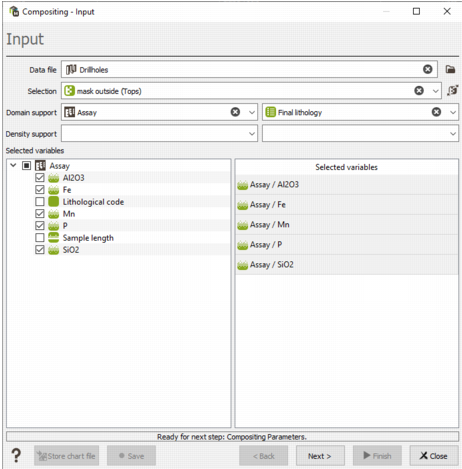
Load the Compositing window from Data Management / Sampling / Compositing. Set the Drillholes input file, apply the selection of mask outside, and the optional Domain support with the final lithology categorical variable. From the bottom left of the table, select only the following numerical variables: Al2O3, Fe, Mn, P and SiO2. Then click Next.
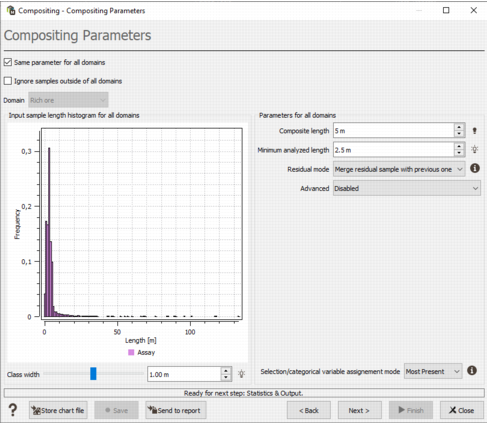
In the Parameters page, there is a histogram of the sample lengths. By default, all the domains are used together. However, this histogram is computed per domain when the checkbox "Same parameters for all domains" is inactive. A domain selector is then available. You can see the histograms in the Rich ore and Poor ore domains. In our case, there is no significant difference so we'll perform the same compositing among all domains.
About the parameters:
- Make sure you tick the "Same parameters for all domains" option.
- Set the Composite length to 5m. It corresponds to the length we would like to get, for most of the composites.
- Set the Minimal analyzed length to 2.5 m. It means that the composites where variable(s) are defined on less than 2.5m will get an undefined value for the corresponding variable(s). This parameter avoids assigning a value to the composite when the variable in not defined on a sufficiently large interval.
- The Residual mode allows you to manage the residuals, which are the parts of samples left after having cut the drillholes by the composites (because the drillholes length is not an exact multiple of the composite length in general). In the case of domains, several residuals per drillhole can appear. For this tutorial, we'll merge the residual sample with the previous composite. Note that it means that some composites will be longer than the expected 5m at the end.
- Leave the Advanced parameters disabled.
Click Next.
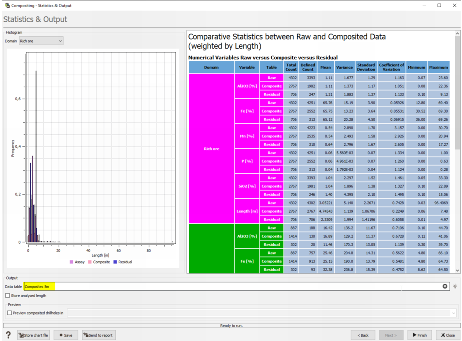
The final page prints the histograms of the raw assays, the composites and the residuals (before any operation) per domain. There is also a statistics table of raw assays, composites and residuals, in each domain and for each input variable, plus the Length variable. It is important to check that the variables have not changed too much from the raw samples to the composites. You can also verify that the composite length is consistent with what is expected.
In our case, the grade variables seem to keep their initial distribution (same means, and almost the same minimum and maximum values). We can see that the variance decreased. This is a common effect of the compositing since it smoothed the variables. The length of the composites is around 4.7m in both the Rich and Poor ore domains. The maximum length is 7.5m, which corresponds to (initial composite of 5m + residual of 2.5m, merged to the composite).
In the Output data table name, enter Composites 5m, and click Finish. The new data table called "Composites 5m" is created in the Drillholes file, visible from the Data explorer. All subsequent analysis will be on the composites.
Statistics by category
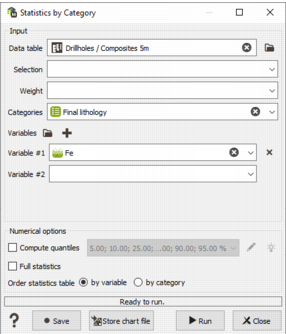
As an additional (optional) check, the statistics by domain can be calculated separately using Statistics / Statistics by Category. Set the Data table to Composites 5m, the Categories to Final lithology and the Variable #1 to Fe. Click Run.
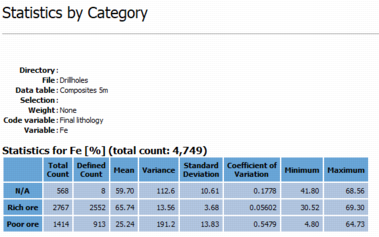
The table of statistics is printed in the Messages windows.
Display log of assays and composites
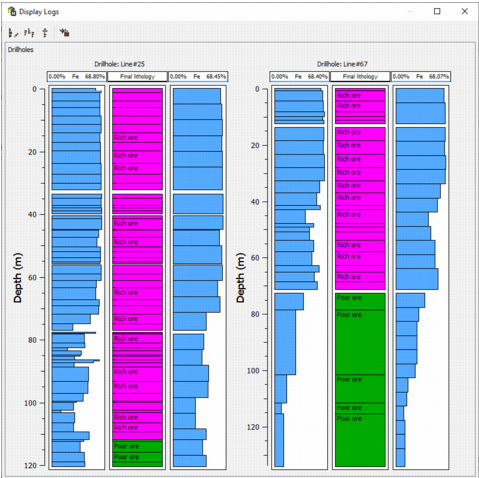
In the Map window, while the drillholes are selected in the Layers, by clicking on the Display log  button, the composited and raw samples could be compared visually.
Declustering
During the geostatistical analysis, the density of data is not taken into account. However, it can vary a lot among the deposit, leading to a biased estimation at the end.
Over the deposit, it can occur that some areas are sparsely sampled whereas others are densely sampled. Generally, the areas with high grades are more sampled, because at the drilling stage it was important to get accurate analysis there. However, there is a significant the impact of this irregular sampling for the estimation process.
The areas with a big amount of samples, which have higher grades, will be over-represented leading to over-estimation. Conversely, the areas with only a few samples, which have low grades, will be under-represented.
A method to avoid the biased estimates is to give a weight to the samples. For the geostatistical analysis, each sample should be weighted regarding its spatial relationship with its closest neighbors. It means that a sample which is alone in a given area/volume has more impact than a sample among many others in the same area/volume. We say that there is a cluster of samples when several samples are at the same (or a close) location. The isolated sample will get the maximum weight whereas the weights of the clustered samples will be set according to the number of samples inside the area/volume.
The declustering tool computes the mean and standard deviation for a variable, by testing different sizes of "windows". A window corresponds to a given area or volume. By testing several window sizes, it is possible to see if the variable should be weighted.
Go to Data Management / Sampling / Declustering to open the Declustering task. Select the Composites 5m as input data table, and Fe as Variable #1. On the right hand size, set the declustering window size with Z = 5m as it is the length of the composites. Update the graphic and the statistics.
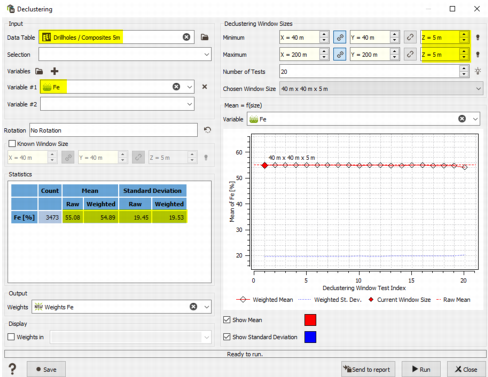
We can see on both the statistics and the graphic, that there is no real change of the mean and standard deviation when using different window sizes. It means that any clusters or non-regular sampling do not substantially change the variable's statistics. Thus, there is no need to assign a weight to the samples. They will all be considered equally.
Note: The declustering step is not needed for this tutorial. It is included here because this is a common step which should always be studied in the geostatistical process.
Block model definition
The estimation will be performed on a block model. The block model is a grid file, defined in three dimensions here because we have 3D drillholes, and covering the orebody.
Go to Data management / Create / Create Grid.
Enter the following parameters:
- Dimension: 3D
- Creation mode: Free
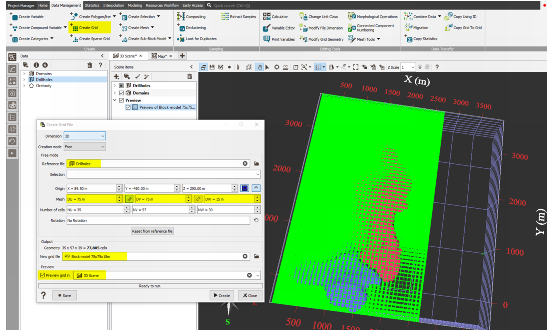
- Reference file: select the Drillholes file so that the parameters below will be properly initialized. Click on the "Reset from reference file" button below, and activate the Preview in the 3D scene. You will be able to see the block model in the scene as a green mesh, so that the block model corresponds to the area to cover.
- Origin: X = 89.50m, Y = -450m, Z = 250m.
- Mesh: DU = 75m, DV = 75m, DW = 15m. The mesh size can be determined from mining constraints (e.g.: truck size, mill capacity).
- Number of cells: NU = 35, NV = 57, NW = 39. The number of cells is determined to cover the entire volume, excepted the drillholes on the East.
- Rotation: no rotation.
Enter the name of the block model which will be created : Block model 75x75x15m.
Press Create. The block model file appears in the Data explorer. When closing the task, the preview in the 3D view disappears. In the Messages window, you can check that the block model contains 77,805 cells (noted Total number of nodes).
Selection from the Domains mesh
On the block model, we will create a selection to identify which cells are inside the meshes North and South. The selection is a boolean variable, which only takes the values "selected" or "not selected". In this case, a cell will be coded as "selected" in the selection variable when it is located inside a mesh. The North and South objects are located in the Domains mesh file.
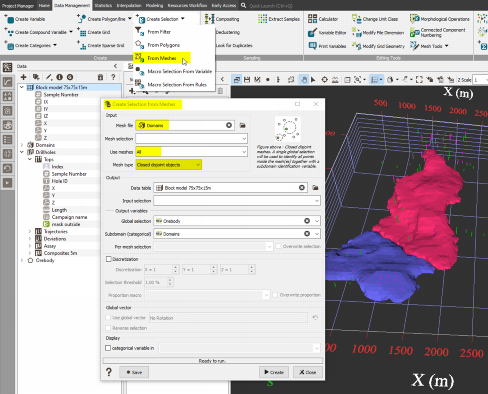
Go to Data management / Create / Create selection / From meshes.
Enter the following parameters:
- Mesh file: Domains
- Use meshes: There is the list of all the objects contained in the Domains mesh file. Here there are North and South. Select all of them.
- Mesh type: The algorithm works differently depending on if the meshes are closed and disjoint, are closed but overlap, or are open (such as surfaces). We have Closed disjoint objects.
- Output: Block model 75x75x15m
- Global selection: write "Orebody". It means that a block model cell will be selected in the Orebody selection variable when it is located inside the North or the South domains. The Orebody selection variable is defined on the whole block model.
- Subdomain (categorical): write "Domains". The block model cells will be tagged with the object name, i.e. North or South, in a categorical variable. The Domains categorical variable is defined on the whole block model.
- No discretization is applied.
Check the results in the Messages window:
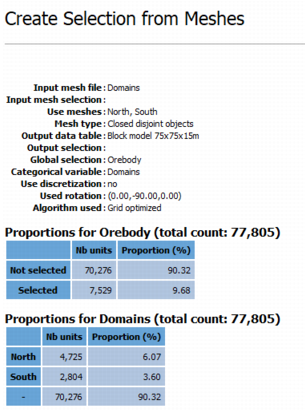
Visualization of the block model
Properties
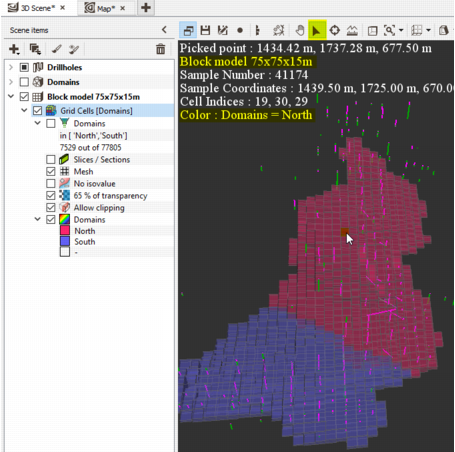
Click-drag the Domains categorical variable from the data tree into a 3D scene. You will see blocks of two colors: pink for the northern domain and blue for the southern one. The Block model item is added in the Scene items list, on the left of the viewer.
Double-click or right-click on the Grid Cells item to open the Item Properties.
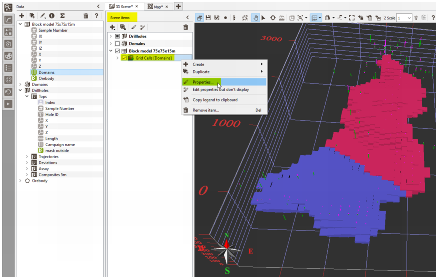
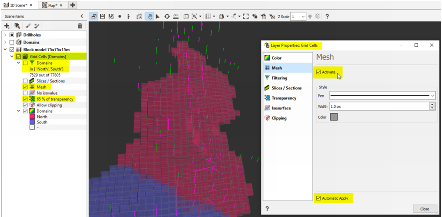
Inside the Properties, you can navigate between the tabs to display the mesh (the lines) of the cells, to choose a certain level of transparency or to filter the cells depending on the domain. Make sure that you Activate the option with the checkbox on the top of each tab, and that you Apply the modifications with the Automatic apply / Apply buttons on the bottom.
On the Scene items list some of the Properties parameters are shown. They can be activated or deactivated easily using the dedicated checkboxes. The legend (the colors North and South here) is also detailed.
Picking
To get the information of a particular cell, you can use the Picking mode. It is accessible from the 3D viewer toolbar, with the arrow icon. When this mode is activated, the button turns blue. Then, click on a displayed object.
Note: When using the Picking mode, it is not possible to move or turn the view. Use the Pan mode (hand icon) to do so. Press Escape to switch between these two modes easily.
The information corresponding to the picked point is printed on the left hand side of the viewer, and also in the Messages window.
In the example below, the cell n°41174 is picked. Printed are the coordinates of the picked point, the coordinates of the cell, the object to which the cell belongs (the Block model 75x75x15m here), the indices of the cell in the grid and the value of the displayed color variable (the Domains variable here, with the value North).