
Copy Using ID
Objectives
The aim of the Copy Using ID tool is to copy the contents of some variables from one data table into another according to the values of two ID variables identified in the input and output data tables.
The program reads the input ID variable values and, for each sample of the output data table, reads the output ID variable value and looks for a sample in the input data table with the same ID value. If no sample is found, nothing is copied and the program continues. Input and output ID variables can be numeric (integer or float), a text or categorical variables.
The program can copy any type of variables from the input data table into the output data table. When a variable does not exist in the output data table, it is created with the same characteristics as the input variable. The two data tables can be of any types.
This functionality is particularly useful to quickly migrate variables, especially macro variables or text variables, from one data table to another, for example in the particular case of the sparse grids. For the latter case, when creating the sparse grid, you simply have to tick the Keep a Copy of the Original Sample Number option and use this variable as the ID of the output data table.
Interface
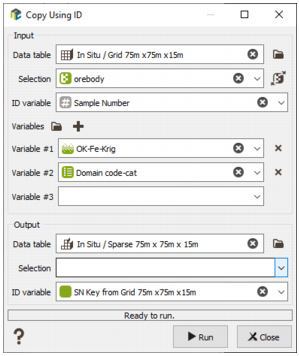
-
Input:
- Data table: Click the directory icon to open a Data selector and select the Data table where the input data are stored and on which the Copy Using ID task will be applied. It can be of any type. The Data table can also be dragged and dropped directly from the Data tab.
- Selection: Choice of the selection (as a restriction of the input Data table) to apply the Copy Using ID task.
- ID variable: Select the variable which will be used as the identifier in the input data table. It can be of any type: numeric (integer or float), text or categorical. By default the Sample Number variable is selected.
- Variables: Then define the variables to be copied. The variables can be numerical, categorical, text, selections or macrovariables. Use the buttons
 and
and  to add or remove variables. You can define several variables at a time selecting all of them directly in the Data selector
  (with a multi selection). The output variables will have the same name as the input variables.
-
Output:
- Data table: Define here the output Data table where the variables will be copied.
- Selection: Define here a Selection variable if you want to keep unchanged the samples outside the selection. Masked off samples are never modified.
-
ID variable: Select the variable which will be used as the identifier in the output data table. It can be of any type: numeric (integer or float), text or categorical, but it has to be of the same type as the input ID variable. Otherwise a warning message is printed to advert that the two variables are not consistent. By default the Sample Number variable is selected.
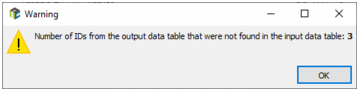
If some values from the output ID variable have not been found in the input data table, a message is popped up at the end of the run to indicate the number of invalid IDs (it is also reported in the Messages window).
Note: To copy estimation/simulation results computed on an unfolded regular grid back onto the file defined in real world, you must use the Copy Using ID task. In this task, set the input ID to the Sample Number variable from the unfolded regular grid, and set the output ID to the Unfolded Grid Sample Number variable in the real-space file.
The Unfolded Grid Sample Number is only created if, during the unfolding step, you enabled the option Generate unfolded SN into input tables. Make sure this option is checked when unfolding; otherwise the required output ID field will not be available, and the copy cannot be performed correctly.
- Click Run to launch the task and copy all the variables.
- the Sub-block IJK variable as ID for the sub-block file.
- the Sample Number variable as ID for the parent grid.
