
Combine
This mode allows you to combine different objects from one or several mesh files to get in a single mesh file. This operation can be recorded in a batch file.
-
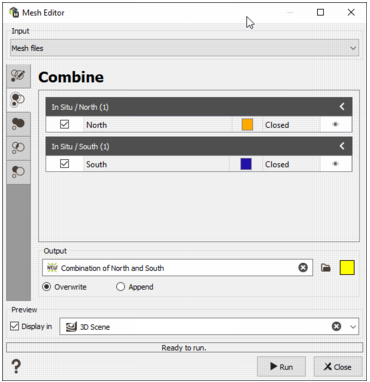
In the central area there are different sections, one per input mesh file. On the dark grey line, there is the name of the mesh file, followed by a number which corresponds to the number of selected objects in this mesh file. For each input mesh file, a table lists all the different objects contained inside. The section can be shrinked with the little arrow on the top right.
The columns headers are:
- Selected: shows if the object is selected or not to be combined. One or several objects can be selected by ticking the check boxes. Only the selected objects will be combined. The vertices of the selected objects are displayed in the scene with a green color.
- Object name: shows the object name (it corresponds to the Name variable referenced in the Meshes data table). This is a read-only information.
- Color: displays the object color (the same as the one referenced in the catalog of the Color variable of the Meshes data table). This is a read-only information.
- Mesh type: details the nature of the object. The categories are undetermined/open/closed. This is a read-only information.
-
Display: displays the object in the 3D scene by opening or closing the eye icon. To display the objects, the section "Display" and a 3D scene must be activated at the bottom of the interface.
The task computes the table as soon as the input file(s) is (are) provided.
- Output: Enter the name of the output mesh file which will contain the selected objects or click the directory icon to open a Data Selector. If it already exists the Mesh can also be dragged and dropped directly from the Data tab. Select the color of the mesh.
-
Modes
- Overwrite: it creates the combined object inside a new mesh file. If the output file already exists, it will be erased and created again.
- Append: if the output file already exists, the selected object(s) will be added to the existing objects.
- Click Run to perform the operation and create/append the object(s). A report is sent in the Messages window at the end of the run.
