
Finalizing the Plurigaussian Model
The final definition of the Pluri-Gaussian Model parameters is made in the LithoType rule window of the PGS workflow. The window is split into two parts:
- A zone for LithoType rule definition and edition, at the top of the window;
- A zone for variogram models edition at the lower part of the window.
The content of each zone depends on the choices made in the first window, on the selection (or not) of automatic inference for variograms and LithoType rule.
Model Characterization: Automatic Inference of Variograms and LithoType rule
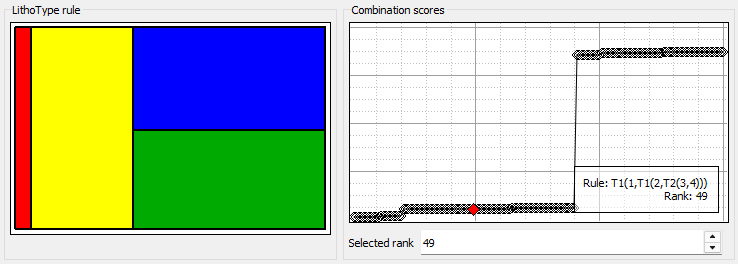
When the two automatic inference algorithms have been selected, the window looks as shown in the following figure, which corresponds to an example with four lithotypes:
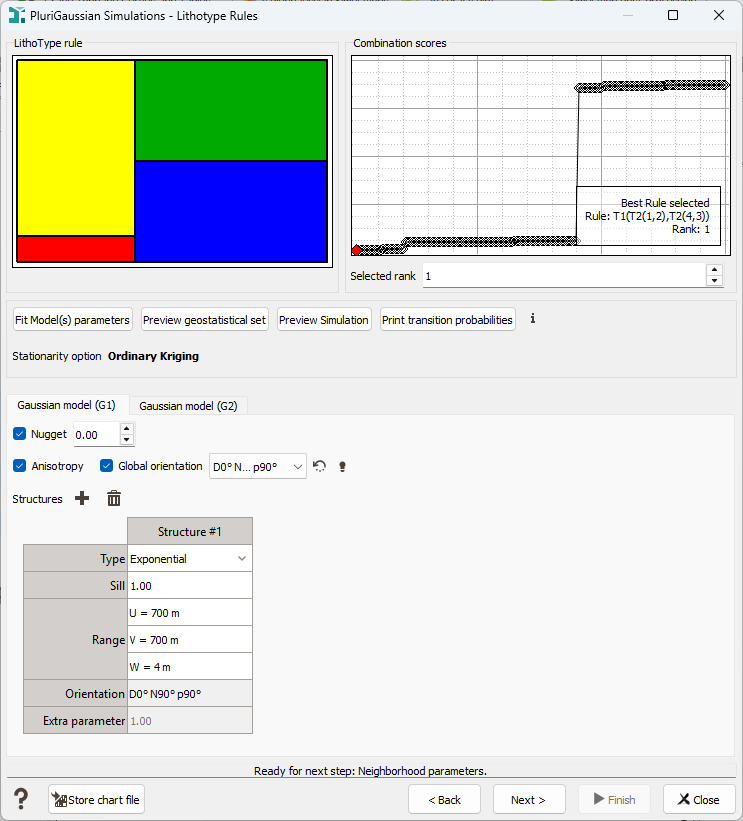
The LithoType rule is displayed, as well as the inferred variogram models for each underlying Gaussian Random Function. In addition, a Combination scores graph is drawn on the right of the LithoType rule. Each point of this graph corresponds to an evaluated Lithotype Rule. All the LithoType rule that can be defined with the selected number of lithotypes are tested for fitting the variogram models, which depend on these rules. The maximum likelihood, regarding the experimental curves, is evaluated and the Lithotypes Rules are ordered according to the performance criterion of the fitting. Then, the Combination scores Graph is built, the points being ordered from the "best" one (lowest score on the left) to the "worst" one (highest scores on the right). The default LithoType rule is the one with best score.
The graphics of LithoType rule and Combination scores can be saved as a Chart File using the Store chart file button available on the task window.
Model Characterization: Automatic Inference of Variograms Only
When the Automatic Inference of the plurigaussian model and the Inference of the LithoType rule are selected, the Combination scores graph is displayed. Otherwise, the window looks as shown in the following figure.
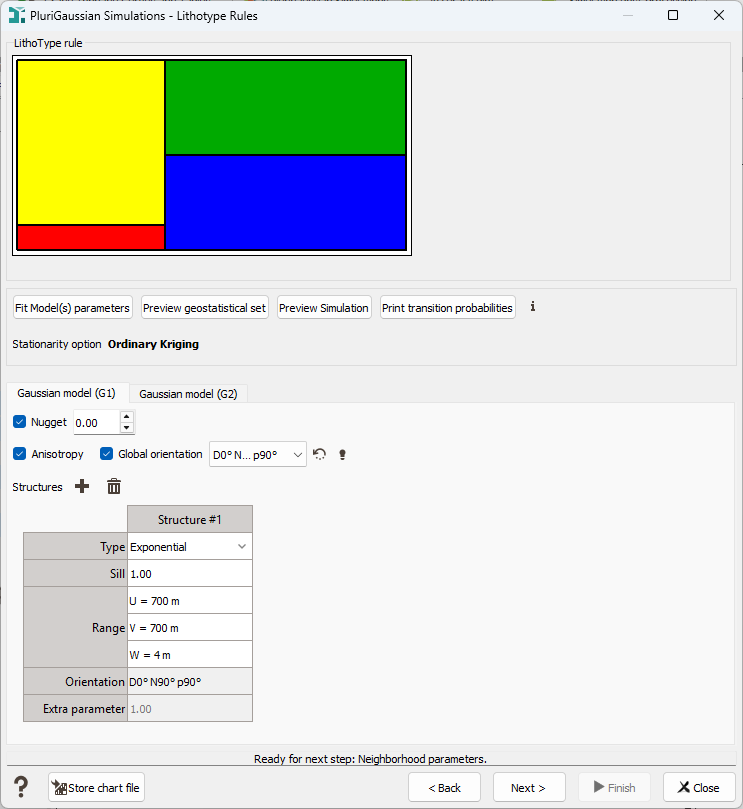
The Lithotype rule can be edited interactively, using the method described in the dedicated paragraph (see Editing the LithoType rule and the Variogram Models). It is obvious that the variogram model will have to be updated by clicking on the Fit Model(s) Parameters button.
Model Characterization: Manual Inference of Variograms and LithoType rule
When there is no automatic inference, the window looks as shown in the following figure. The Combination scores Graph has disappeared, and an Input Geostatistical Set must be selected. For allowing this, the Fit Model(s) parameters button below the LithoType rule graph has been replaced by a scrolling list field from which you can select one of the available Geostatistical Sets.
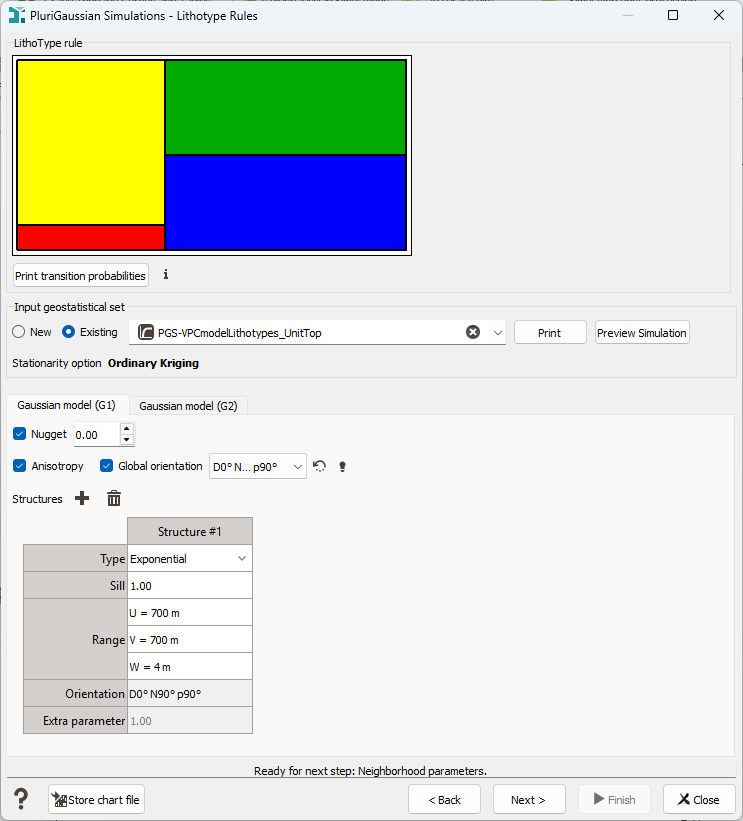
In such a case, the Lithotype rule must be edited using one of the methods defined in the dedicated chapter, and it is assumed that a geostatistical set containing the variogram models of each underlying Gaussian Random Function has been prepared beforehand.
Note: Regardless of the stationarity option defined in the Geostatistical Set, if you selected the Use Simple Kriging option on the first page, it will be applied.
Model Characterization: Non-Conditional Simulations
When non-conditional simulations are calculated, there is no input data for conditioning the simulations. Therefore, the automatic inference options which are using such data cannot be activated, and the LithoType rule must be fully defined by the user (number of lithotypes and rules scheme).
This case corresponds to the manual inference of model parameters, described in the previous paragraph.
Editing the LithoType rule and the Variogram Models
When the automatic inference options are activated, the simplest way of editing the default LithoType rule consist in clicking on a point in the score graph. Then, the corresponding LithoType rule is selected and it automatically replaces the current LithoType rule. It must be noted that the variogram models depend on the LithoType rule. Therefore, if these rules are changed, the variogram model must be updated by clicking on the Fit Model(s) parameters button.
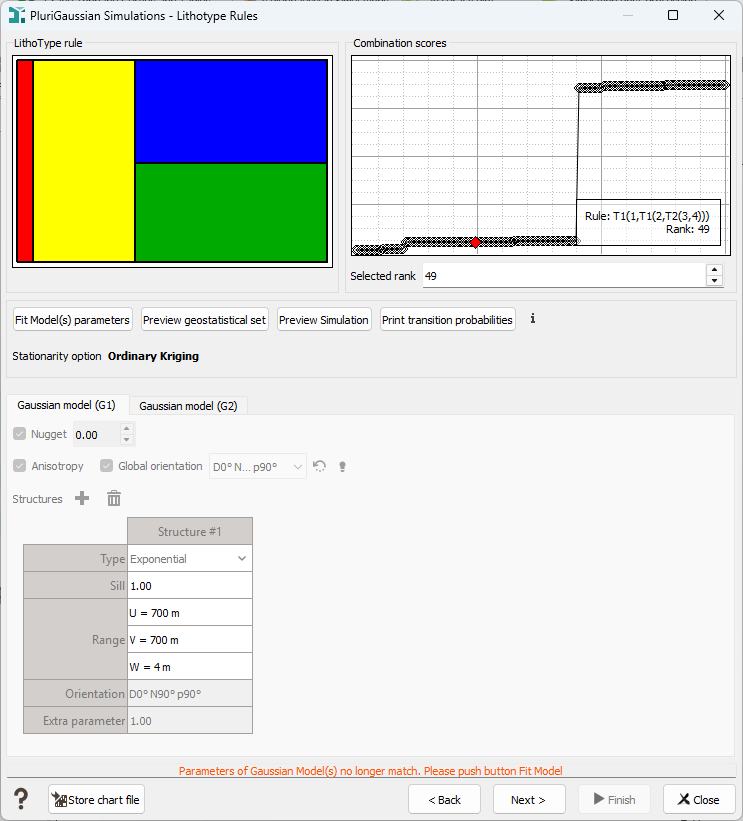
There is another way to modify the LithoType rule, which always applies, the automatic inference options being activated or not. It consists in editing interactively the LithoType rule graph. When the mouse is flying over this graph, contextual buttons are temporarily displayed over the graph, as shown in the following figure.
These contextual buttons allow, from left to right:
- To export the graph to the Report tab;
- To copy the graph into the clipboard;
- To save the graph in a file;
- To show it as proportional (same proportion for each lithotype);
- To edit the graph.
By clicking on the last button (arrow), you can erase the selected LithoType rule and it is now possible to draw with the mouse new LithoType rule in the blank area. The method is described here below:
-
Click in the blank area to put horizontal or vertical splits (while hovering the area, the program draws a line following the mouse, the line is horizontal or vertical depending on the location of the mouse inside the current rectangle, as shown in the following figure. If the cursor is over the TOP or BOTTOM area a vertical line is drawn, otherwise it is a horizontal line. When a new rectangle is created, it is temporarily colored in grey (different level of grey for each rectangle).
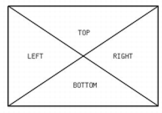
- Repeat the operation until the number of rectangles is equal to the number of lithotypes. When this number is reached, all the rectangles are colored with the real colors.
If the Combination scores graph is displayed, the program automatically detects the corresponding rank of the new LithoType rule in the Combination scores graph and highlights it in red.
As the LithoType rule has been modified, the variogram model must be updated by clicking on the Fit Model(s) parameters button.
If you are satisfied with the LithoType rule scheme, but if you want swap two (or more) lithotypes, click on the lithotype you want to move. A small square appears, which can be moved above the new location of the lithotype. Click again to swap the lithotypes. The process is shown in the following figure.
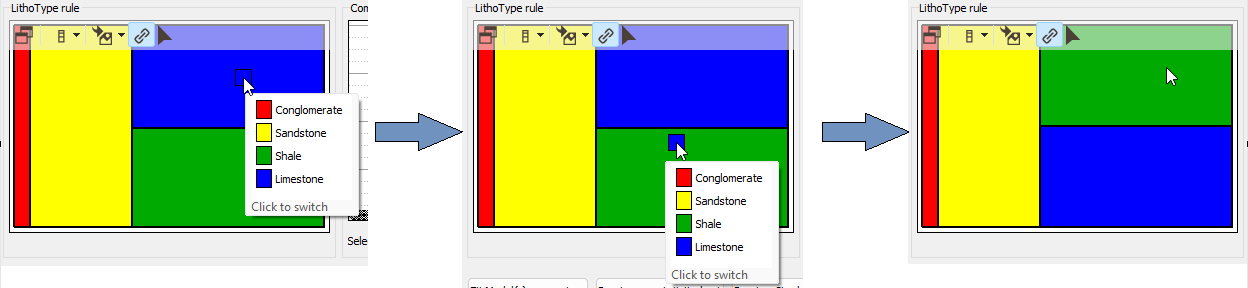
This process can be repeated several times to swap more than two lithotypes. At the end, the variogram model must be updated by clicking on the Fit Model(s) Parameters button.
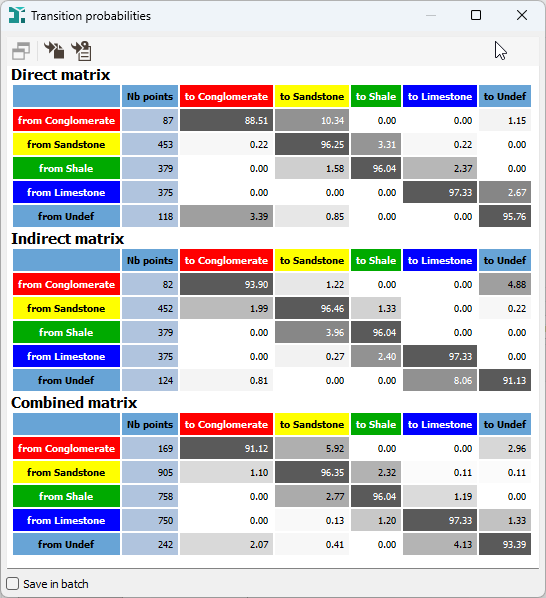
Press the Print transition probabilities button to pop up the probability matrix in a dedicated window. This result allows you to interpret contacts between domains to help you in the definition of the lithotype rules. The button is always available but its location depends of the automatic inference activation or not. When the mouse is flying over the tables, contextual buttons are temporarily displayed. Using the appropriate icon, you can either send the tables in the Reporting Window or copy them to the clipboard (to paste the tables in another application). Check the Save in batch toggle to store the fact that you want to compute the transition probabilities when running your batch file. The tables can be saved as a Chart File using the dedicated Store chart file button available in the task window and checking the Store tables toggle. The transition probabilities are also available in the Border analysis task.
In addition, it must be noted that all the text fields corresponding to the variogram models parameters can always be edited interactively.
Displaying the Model Before Calculating the Simulations
The LithoType rule graph is always displayed.
In addition, it is possible to display the variogram models and a non-conditional simulation corresponding to these models and to the selected LithoType rule.
-
Case 1: automatic inference of the variogram models
When the automatic inference of the variogram models is activated, the following buttons are visible below the LithoType rule and Combination scores graphics:
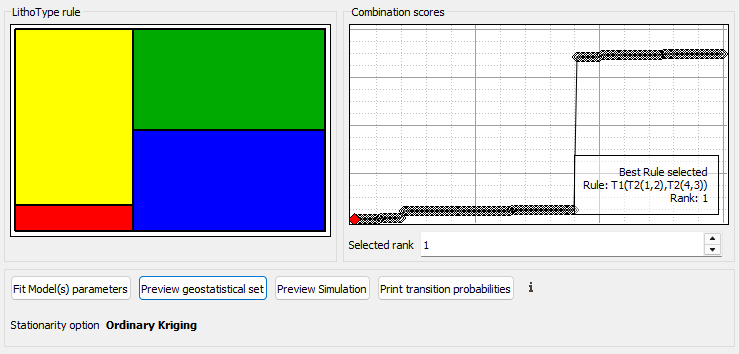
Click on the Preview geostatistical set button to display the variogram of each underlying Gaussian Random Function and their cross-variogram.
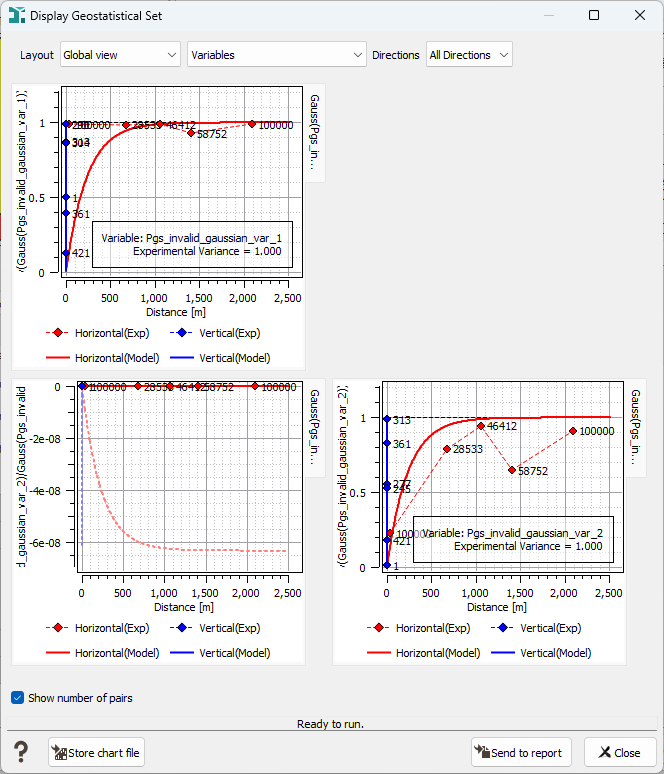
The default display includes all the calculated directions. It is possible to restrict the display to one direction only by selecting it from the dedicated scrolling list field at the top of the window. It leads to a simplified display.
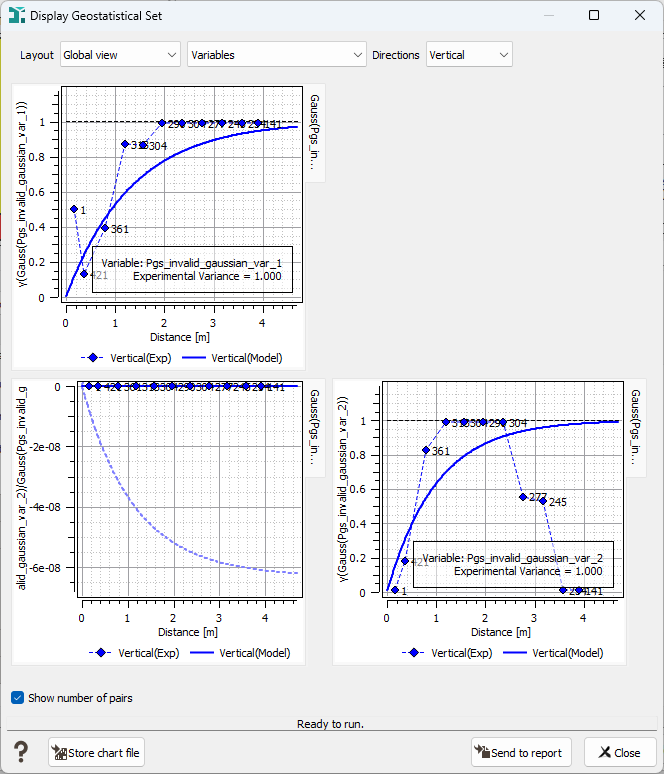
It must be noted that the two underlying Gaussian Random Functions are considered as independent. Therefore, the cross-variogram must be equal to zero for all the distances, as observed in the previous figure.
If the variogram models are edited by the user, the active variogram models displays are automatically updated.
-
Case 2: manual inference of the variogram models
When the automatic inference of the variogram models is deactivated, the following buttons are visible below the LithoType rule graph:
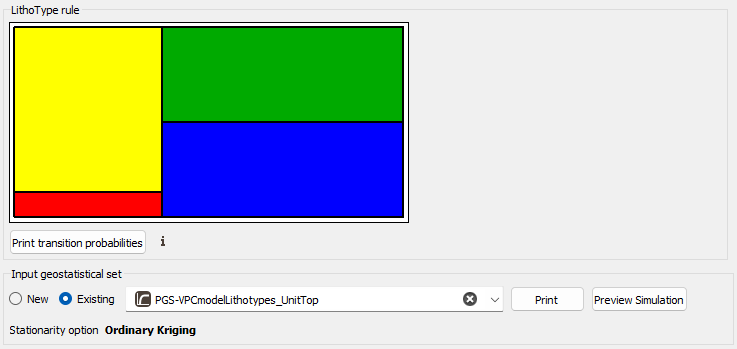
In that case, the graphic display of the variogram models is not available. A simple print of variogram models characteristics is only available.
Click on the Print button to display a pop-up window allowing to generate tables with models parameters. You can print different statistics and variograms.
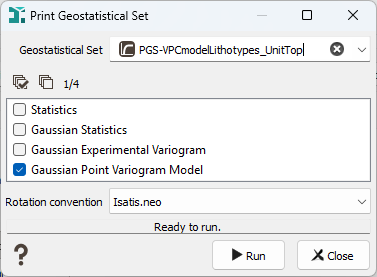
The results is shown in the Messages window.
Visualizing a non-conditional simulation
To anticipate the look of the final simulations, a 2D non-conditional simulation is calculated, with the current models' parameters. This simulation is displayed when clicking on the Preview Simulation button.
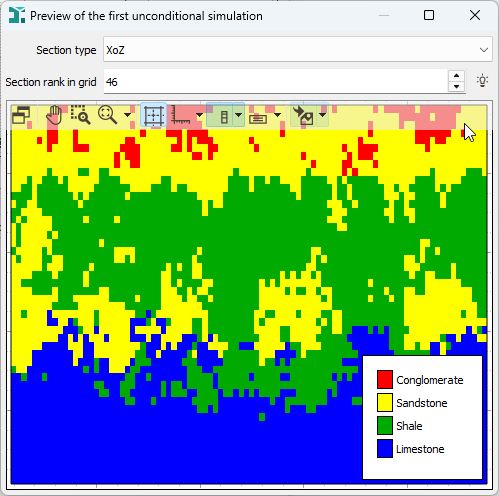
Three types of sections can be displayed from the Section type selector: XoY (default option), XoZ and YoZ.
The Section rank in grid selector indicates the location of the section in the 3D simulation grid. It is useful in the non-stationary case, with variable proportions. In such a case, the look of the simulation varies in space. In the stationary case (constant proportions), this selector is deactivated.
If the LithoType rule is modified, or if the variogram models are modified, this image is automatically updated.
The non-conditional simulation visual result can be saved as a Chart File using the dedicated Store chart file button available in the task window. The lithotype rule (i.e. the "flag"), the graphic of scores and the transition probabilities can be saved too.
