Explore Invoices
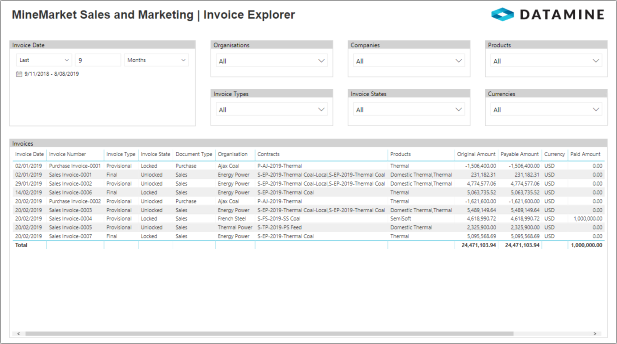
This example uses several visuals in Power BI to display sales and purchase invoices in a similar way to the Invoice Explorer in the MineMarket Client.
The data comes from the Invoice endpoint in the Marketing OData feed.
Note: The PBIT file available for this report includes the Invoice Details report because the two reports share data filtering.
Query Editing
Note: If all invoices are only for a single despatch order each, or for despatch orders for a single contract product each, most of this query editing is not required. Required columns can be expanded within a single query.
Some manipulation of the data is required if any invoices are for multiple despatch orders because Power BI initially displays such data as individual rows.
By combining multiple copies of the data from the Invoice endpoint, the report can display each invoice as a single line in the results table with comma-separated values for the contract names and products. The filter for contract products still lists individual products rather than all possible combinations that exist in the data.
Expand the linked data for the main query to include organisation and company names
- On the Home ribbon of the Query Editor, select Get Data or Recent Sources and load an instance of the Invoice endpoint's data.
- Rename the query "Invoice_Main".
- Expand the linked Organisations record, but only select the OrganisationName column.
- Rename the column "Organisation".
- Expand the linked Contracts table, but only select the Company column.
The query now has one row for every combination of invoice ID and contract.
- Expand the Company record, but only select the OrganisationName column.
- Rename the column "Company".
- Select the Id column.
- On the Home ribbon, select Remove rows > Remove Duplicates.
- Rename other columns as required; for example, "Invoice Number".
Create a query with comma-separated values for invoices with multiple contract names
- On the Home ribbon, select Get Data or Recent Sources and load a new instance of the Invoice endpoint's data.
- Rename the query "Invoice_List_Contracts".
- Expand the linked Contracts table, but only select the ContractName column.
The query now has one row for every combination of invoice ID and contract name.
- Remove the extra columns:
- Press and hold Ctrl while clicking the Id and ContractName columns.
- Right-click and select Remove Other Columns from the menu.
- Remove any duplicate rows:
- On the Add Column ribbon, select Custom Column.
- In the Custom Column dialog box, enter the following settings and click OK.
- New column name: Key (This is a temporary column to store the concatenated data.)
- Custom column formula:
=[Id] & [Contracts.ContractName]
- Select the Key column.
- On the Home ribbon, select Remove rows > Remove Duplicates.
- Manipulate the data so that there is only one row per invoice:
- On the Transform ribbon, select Group By.
- In the Group By dialogue box, enter the following settings and click OK.
- Group by: Id
- New column name: MyTable (This is a temporary column.)
- Operation: All Rows
- Column: Leave blank.
The contract names are now within a table.
- Manipulate the data so that the contract names are within a list:
- On the Add Column ribbon, select Custom Column.
- In the Custom Column dialog box, enter the following settings and click OK.
- New column name: Contracts
- Custom column formula:
=Table.Column([MyTable], "Contracts.ContractName")
- Expand the contract names to a comma-separated list:
- Click the Expand icon on the Contract column and select Extract Values from the menu.
- In the Extract values from list dialog box, select Comma as the delimiter and click OK.
- Remove the MyTable column.
Create a query with comma-separated values for invoices with multiple products
Note: The following steps are analogous to the steps for the query above for contract names.
- On the Home ribbon, select Get Data or Recent Sources and load a new instance of the Invoice endpoint's data.
- Rename the query "Invoice_List_Products".
- Expand the linked DespatchOrders table, but only select the ContractProductName column.
The query now has one row for every combination of invoice ID and product name.
- Remove the extra columns:
- Press and hold Ctrl while clicking the Id and ContractProductName columns.
- Right-click and select Remove Other Columns from the menu.
- Remove any duplicate rows:
- On the Add Column ribbon, select Custom Column.
- In the Custom Column dialog box, enter the following settings and click OK.
- New column name: Key (This is a temporary column to store the concatenated data.)
- Custom column formula:
=[Id] & [DespatchOrders.ContractProductName]
- Select the Key column.
- On the Home ribbon, select Remove rows > Remove Duplicates.
Note: Because the first 5 steps are identical for the data needed for the Products filter, consider duplicating the query after this step.
- Manipulate the data so that there is only one row per invoice:
- On the Transform ribbon, select Group By.
- In the Group By dialogue box, enter the following settings and click OK.
- Group by: Id
- New column name: MyTable (This is a temporary column.)
- Operation: All Rows
- Column: Leave blank.
The product names are now within a table.
- Manipulate the data so that the products are within a list:
- On the Add Column ribbon, select Custom Column.
- In the Custom Column dialog box, enter the following settings and click OK.
- New column name: Products
- Custom column formula:
=Table.Column([MyTable], "DespatchOrders.ContractProductName")
- Expand the products to a comma-separated list:
- Click the Expand icon on the Contract Product column and select Extract Values from the menu.
- In the Extract values from list dialog box, select Comma as the delimiter and click OK.
- Remove the MyTable column.
Create a query with individual products for the filter
- Repeat the first 5 steps (up to and including removing duplicates) of the activity to create a query with comma-separated values for invoices with multiple products.
- Rename this query "Invoice_Filter_Products".
- Remove the Key column.
- Rename the column "Product".
Check table relationships
- On the Home ribbon (of Power BI's main interface, not the Query Editor), select Manage Relationships.
- Check that the following relationships are active:
- From Invoice_Filter_Products (Id) to Invoice_Main (Id)
- From Invoice_List_Contracts (Id) to Invoice_Main (Id)
- From Invoice_List_Products (Id) to Invoice_Main (Id)
- For each relationship:
- Click Edit.
- Check that the Cardinality is Many to one (*:1) for Invoice_Filter_Products and One to one (1:1) for the other relationships.
- Check that the Cross filter direction is Both.
- Click OK.
Report Level Filter
|
|
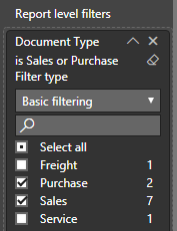
The report level filter limits data on all report pages to invoices with the Document Type of Sales or Purchase. (Because freight and service contracts are not exposed in the MineMarket Information Services, other invoices do not display with correct contractual data in Power BI.) |
Invoice Date
|
|
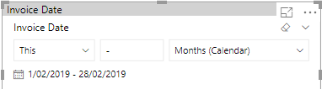
This slicer visual displays the Invoice Date field from the Invoice_Main query. The default slicer type for dates is Between, which displays a start and end date and a slider. This report uses a Relative slicer type to limit the invoices to this month. To change the slicer type, ensure the slicer header is enabled (under the visual's formatting settings), and click the downwards arrow in the top-right corner of the visual. |
Other Filters
|
|
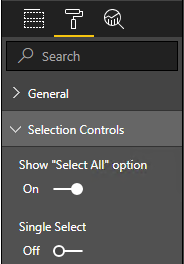
The other filters are also slicer visuals, but set to the Dropdown slicer type. In the Format settings for each visual, the Selection Controls have been modified to show "Select All" and allow multiple selections. The Organisations, Companies, Invoice Types, Invoice States and Currencies filters display the respective fields from the Invoice_Main query. The Products filter displays the products from the Invoice_Filter_Products query. |
Slicer synchronisation
|
|
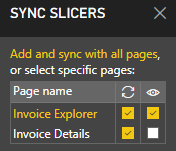
In order for the filtering of data on the Invoice Explorer to affect the Invoice Details page, synchronise each slicer:
Note: The synchronisation of slicers across pages was introduced in the February 2018 release of Power BI. |
Invoices
|
|
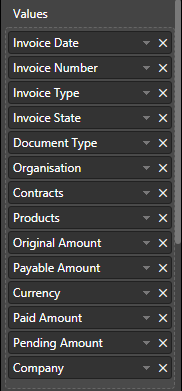
The invoices display in a table visual. Most of the columns are from the Invoice_Main query; however, the Contracts and Products columns are from the separate queries with comma-separated values. To modify the date format:
Important: No currency conversions are handled in Power BI. Therefore, the Total row only displays meaningful data if all displayed invoices are in the same currency. |