View Unpaid Invoices
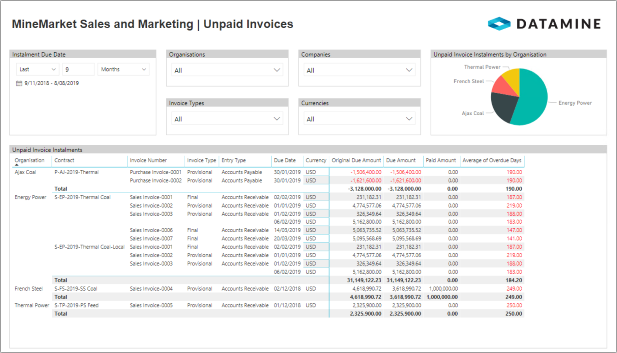
This example uses several visuals in Power BI to display sales and purchase invoices that are not fully paid.
The data comes from the Invoice endpoint in the Marketing OData feed.
Query and Data Editing
This report requires some query editing using the Query Editor, and some additional editing using the main Power BI user interface. Only columns in the Unpaid Invoices query should be used in the visuals in the report.
Expand and rename columns
- On the Home ribbon of the Query Editor, select Get Data or Recent Sources and load an instance of the Invoice endpoint's data.
- Display the organisation:
- Expand the linked Organisations record, but only select the OrganisationName column.
- Rename the column "Organisation".
- Display the contract and the company:
- Expand the linked Contracts table, but only select the ContractName and Company columns.
The query now has one row for every combination of invoice ID and contract.
- Rename the Contracts.ContractName column "Contract".
- Expand the Company record, but only select the OrganisationName column.
- Rename the column "Company".
- Expand the linked Contracts table, but only select the ContractName and Company columns.
- Display the invoice instalments:
- Expand the InvoiceInstallments list, but only select the following columns:
- InstallmentDueDate
- CurrencyISOSymbol
- Amount
- PendingAmount
- Expand the InvoiceInstallments list, but only select the following columns:
- Calculate the paid amount per instalment:
- On the Add Column ribbon, select Custom Column.
- In the Custom Column dialog box, enter the following settings and click OK.
- New column name: Paid Amount
- Custom column formula:
=[InvoiceInstallments.Amount] - [InvoiceInstallments.PendingAmount]
- Right-click the column and select Change Type » Decimal Number from the menu.
- Rename the following columns for spacing and brevity:
- InvoiceNumber—Invoice Number
- DocumentTypeName—Document Type
- InvoiceTypeName—Invoice Type
- EntryType—Entry Type
- InvoiceState—Invoice State
- InvoiceInstallments.InstallmentDueDate—Due Date
- InvoiceInstallments.CurrencyISOSymbol—Currency
- InvoiceInstallments.Amount—Original Due Amount
- InvoiceInstallments.PendingAmount—Due Amount
- Remove columns that relate to the invoice as a whole rather than the instalments:
- InvoiceDate
- CurrencyISOSymbol
- OriginalAmountValue
- PaymentCurrencyISOSymbol
- PayableAmountValue
- PaidAmountValue
- PendingAmountValue
- DespatchOrders
- On the Home ribbon, click Close & Apply.
Determine number of days overdue and which invoices are unpaid
- Click the Data icon on the left of the Power BI user interface.
- Calculate the number of days each instalment is overdue:
- On the Modeling ribbon, select New Column.
- Enter the following formula for the column:
Overdue Days = DATEDIFF(Invoice[Due Date], TODAY(),DAY)
- Click the Commit (tick) button to the left of the formula bar.
- Create a filtered table for invoices that are not fully paid:
- On the Modeling ribbon, select New Table.
- Enter the following formula for the column:
Unpaid Invoices = FILTER(Invoice, if(Invoice[Entry Type] = "Accounts Payable", Invoice[Due Amount] < 0, Invoice[Due Amount] > 0))
- Click the Commit (tick) button to the left of the formula bar.
- Select the Due Date column in the Unpaid Invoices table.
- On the Modeling ribbon, select the preferred Format for the date.
Page Level Filter
|
|
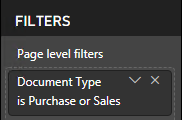
The page level filter limits data to invoices with the Document Type of Sales or Purchase. (Because freight and service contracts are not exposed in the MineMarket Information Services, other invoices do not display with correct contractual data in Power BI.) |
Invoice Instalment Due Date
|
|
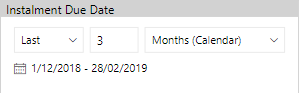
This slicer visual displays the Due Date field from the Unpaid Invoices query. The default slicer type for dates is Between, which displays a start and end date and a slider. This report uses a Relative slicer type to limit the invoices to this month. To change the slicer type, ensure the slicer header is enabled (under the visual's formatting settings), and click the downwards arrow in the top-right corner of the visual. |
Other Filters
|
|
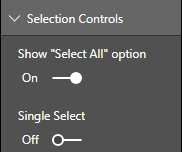
The other filters are also slicer visuals, but set to the Dropdown slicer type. In the Format settings for each visual, the Selection Controls have been modified to show "Select All" and allow multiple selections. The Organisations, Companies, Invoice Types and Currencies filters display the respective fields from the Unpaid Invoices query. |
Pie Chart
|
|
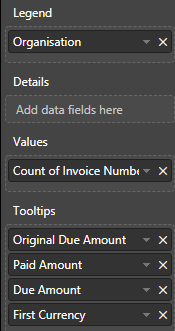
The organisations display in a pie chart visual. Clicking a slice of the pie chart filters the report by that organisation. Clicking the same slice again resets the filtering. The legend is the Organisation column from the Unpaid Invoices query. The values are the Count of Invoice Number, but set to Count (Distinct). The tooltips are the Original Due Amount, Paid Amount, Due Amount and First Currency. Important: No currency conversions are handled in Power BI. Therefore, the tooltips only displays meaningful data if all displayed invoice instalments are in the same currency. |
Unpaid Invoice Instalments
|
|
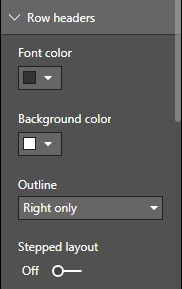
The unpaid invoice instalments display in a matrix visual. The rows are Organisation, Contract, Invoice Number, Invoice Type, Entry Type, Due Date and Currency. The values are Original Due Amount, Due Amount, Paid Amount and Average of Overdue Days. If not all rows (columns) are visible, click the Expand all down one level in the hierarchy icon in the top of the matrix visual. In the formatting settings:
Important: No currency conversions are handled in Power BI. Therefore, the Total rows only display meaningful data if all displayed invoice instalments are in the same currency. |