
Chart Properties
To access this screen:
-
In the Plots window, right-click a chart (Histogram, Scatter Plot, Variogram or Stereonet chart) and select Properties.
The Chart Properties screen is used to manage layout and appearance properties for the selected chart.
To configure these settings:
-
Review the selected chart while you configure the settings. The Plots window is updated automatically when settings are changed.

The Plots window is automatically updated when any of the settings are changed.
-
In the General group, configure which chart or page is displayed:
-
Review Number of Charts to see the total number of charts in the selected chart object. This field is read-only.
-
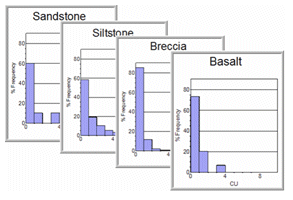
Set Current Chart to choose the chart number currently displayed. For a compound chart, this value is always 1 because there is only one chart to show. For multiple-chart items, where more than one data series has been isolated using key, value, or weight fields, change this value to show another chart in the range. If multiple charts exist and only one chart is displayed at a time, the Current Chart and Current Page values are identical and update automatically. Where multiple charts are displayed at once in the same plot item, the Current Chart value shows the highest index number for all visible charts.
-
Set Current Page to choose the page currently displayed. For example, if eight charts exist in a sequence and two charts are shown side by side in the same plot item, using two Columns and one Row, there are four pages in total. You cannot enter a value greater than Number of Pages.
-
Review Number of Pages to see the total number of individual chart pages available for display. This read-only value depends on the number of charts, rows, and columns in the chart object.
-
Review Selectable to confirm whether the chart is selectable. This field is read-only.
-
-
In the Layout group, configure a chart's layout settings to control how many charts are displayed per page:
-
Set Rows to define how many rows are displayed per page when displaying multiple-chart items.
-
Set Columns to define how many columns are displayed per page when displaying multiple-chart items.
-
Set Gap to define the gap, in millimetres, between individual chart frames on a page in a multiple-frame layout.
Note: If a value is set for either the Rows or Columns fields that generates a number of 'frames' that exceed the maximum number of charts, any unused frames will be left empty.
-
-
In the Appearance group, configure general appearance settings:
-
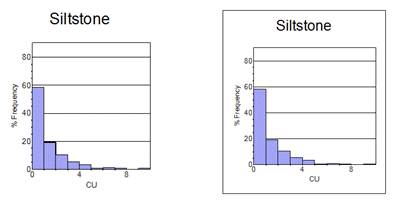
Set Border to No to hide the border, or Yes to include a single-pixel border around the selected chart.
-
Set Visible to Yes to show the chart, or No to hide it.
-
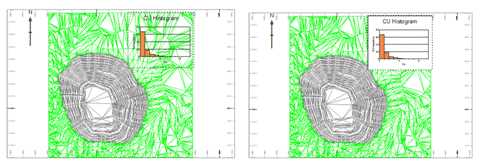
Set Opaque to Yes to make the chart background white and opaque, or No to make the background transparent. A transparent background is generally used when charts are overlaid on other plots. In the example below, the chart on the left is transparent and the chart on the right is opaque.
-
-
In the Position group, configure the settings for positioning and sizing a chart on a page:
-
Set X to define the X position, in millimetres, for the top left corner of the chart. The default value is 25 mm.
-
Set Y to define the Y position, in millimetres, for the top left corner of the chart. The default value is 25 mm.
-
Set Width to define the horizontal extent of the chart, in millimetres.
-
Set Height to define the vertical extent of the chart, in millimetres.
-
The default values for the above settings allow a suitable margin for printing. When editing these values, make sure that a sufficient margin is left for printing and that the selected page size is not exceeded.
-
Multiple individual charts can be placed on a single page and their positions (and sizes) customized using the Position settings.
-
-
Laying out Multiple Charts on a Page
The Chart Properties screen can be used to define the layout of multi-chart objects, showing them either as individual charts spread across many pages, or as multiple charts on one (or potentially more) pages.
By default, when you create a new chart sheet (or insert a chart as a plot item), a single chart is displayed per page. This chart will reflect the settings defined in the Histogram or Scatter Plot dialogs.
The Chart Properties screen offers the choice of creating multiple charts (representing multiple data series) or a single, compound chart showing all results on one sheet. A compound chart will, by definition, always be a single 'page', however, multiple charts are handled by a single chart 'object' in memory using independently accessible pages.
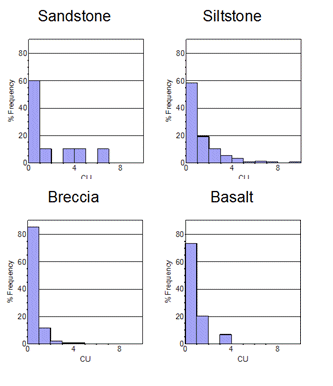
For example, if the Individual Charts option is selected on the Histogram screen, and the Value/Key/Weight fields that have been selected give rise to four separate charts (for example, if one X Coordinate Value Field is selected, and one LITH Key Field containing four unique values), these charts will be created separately, and can be accessed individually using the Charts tab. For this 4-chart object, setting Columns to 2 and Rows to 2 allows all four charts to be displayed on one sheet, as shown below. The Pages property is automatically set to 1.
If, for this 4-chart object, Columns is set to 1 and Rows is set to 1, the Pages property is automatically set to 4, and only one chart is displayed on the sheet. In the image below, only the selected chart is shown.
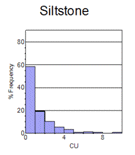
In this configuration, the chart object is displaying one of several pages.
Related topics and activities:
