
Insert Document
To open this screen:
-
In the Plots or Logs window, select a sheet and turn on Page Layout Mode.
-
On the Manage ribbon, select Plot Items >> Office Documents.
You can also:
-
Display the Sheets or Project Data control bar.
-
Right-click a plot or log sheet, select Insert.
-
On the Plot Item Library screen, select Document, then click OK.
The Insert Document screen is used to either create an OLE object type within the current project (unlinked to external data) or to specify an OLE-friendly file format that can be embedded within your plot or log sheet (linked or unlinked).
Insert Options
-
Create New: creates an unlinked file, meaning there is no connection between any external document and your project. The data can be edited by the default application, such as Excel or Word, but the application edits the embedded content.
-
Create from File: creates a document from an external file. You can link to the external file, or take a snapshot of the file in its last saved state and embed that snapshot in the plot view.
To create a new embedded document object:
-
On the Insert Document screen, select Create New.
-
Select an Object Type from the list displayed. The choice made is important as it will define the application that will be used to create or edit the content of the embedded object. The list of object types is specific to your system. All registered OLE-friendly formats will be displayed. Remember, you can only embed static content in a plot sheet, so your choice of object type should reflect this criterion.
-
If you wish to embed the content as initially viewable data, ensure the Display As Icon check box is cleared. If you wish to show your embedded content as an icon, select this check box. This option is not recommended for hardcopy printouts.
Linked and Snapshot Documents
With Create from File, you have the choice of linking to an external file, or taking a "snapshot" of the file in its last saved state, to be embedded within your plot view.
If you only wish to record a particular object at a particular moment in time, creating a snapshot, and the underlying data changing in future will not be relevant to your presentation, it is likely that dynamic linking between the embedded object and the external file will not be necessary. Note that you cannot associate a non-linked object with a data source after it has been embedded. Once it becomes embedded, even though it is still associated with the external application and can be edited as such, it is native to the project.
To create a snapshot (unlinked) item, ensure the Link check box is cleared when adding the new object.
However, if the external file is constantly updated, or is likely to be in the future, for example, in the case of an output file from another process, you can embed a dynamically linked document that will allow you to refresh your object with the click of a button, loading in the latest underlying data whether that is a database table, picture, graph or other format. Dynamically linked documents are also updated automatically when a project is loaded if such items are contained within it. Linked objects can be updated as required during a session, and can even be linked to an alternative data source after initial embedding. You can also break a link at any time, resulting in a snapshot document as explained above.
To create a live (linked) item, ensure the Link check box is selected when adding the new object.
To insert an external document into a particular section:
-
Open the Plots window, and display the sheet that you wish to add an OLE object to.
-
Open the Sheets control bar.
-
Expand the Plots folder to show all available sections, e.g.:
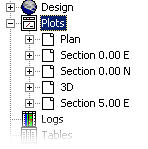
-
Right-click the sheet description corresponding to the sheet that is currently displayed.
-
Select Insert....
-
Select Document from the Plot Item Library.
-
In the Insert Document screen, select either an object type and follow the remaining Microsoft dialogs to import your object, or select a file in an OLE-friendly format to insert.
Inserting Animated Content in a Plot Section View
Although many formats are supported for this type of import, only static content (non-animated) can be shown directly in the Plot section view - although animated content such as movie clips and Flash files can be displayed as icons, to be opened manually in the default application.
To insert, say, a media clip in .avi format:
-
Insert the item as a link to a physical file. Ensure the Create from File option is used.
-
Ensure the Link check box is selected.
-
Ensure the Show as Icon check box is selected.
-
Click OK.
To show the animated content it is necessary to:
-
Enter Page Layout Mode (Manage ribbon and Layout | Layout Mode) if not in this mode already.
-
Right-click the embedded icon representing the animated content.
-
Select Document | Open...
-
Your content will then be displayed in the associated application.
Related topics and activities:
