
Projection Wizard
To access this wizard:
-
Manage ribbon >> Insert >> Sheet >> Plot >> Custom.
-
Using the Plot Item Library screen, select Projection Wizard
-
Click OK.
The Projection Wizard is used to create horizontal, vertical, inclined and 3D view plot sheets by selecting the section type, defining one or more of the orientation, midpoint, width and view direction parameters.
After a new custom plot is defined, it is displayed as a new sheet in the Plots window, available via a new, automatically labelled tab, located along the bottom of the window.
Projection Type Screen
This screen is used to define one of four projection types. The following options are available:
-
Plan:
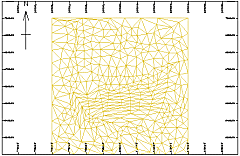
If a Plan type is selected, the projection is oriented in a horizontal plane; the plot sheet is created automatically and the wizard is then closed.
-
Section:
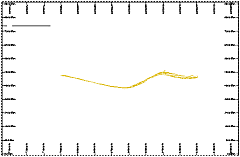
If a Section type is selected, the orientation is then defined in the following Section Orientation screen.
-
Vertical Projection:
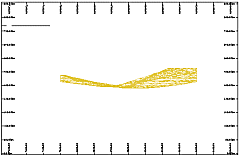
If a Vertical Projection type is selected, the orientation of the vertical plane is defined in the following Projection Plane screen.
-
3D View:
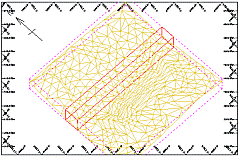
If a 3D View type is selected, the azimuth and dip of the view is defined on the View Direction screen.
Section Orientation Screen
This screen is used to define the orientation of the section. The following options are available:
-
North-South
-
South-North
-
West-East
-
East-West
-
Horizontal
-
Vertical
-
Inclined
To define a section:
-
On the Section Orientation screen, specify the orientation of the section, click Next.
-
In the Section Midpoint screen, select the section Mid-point position (along the axis defined by the previous selection), click Next.
-
In the Section Clipping screen, specify the clipping width.
-
Click Finish.
Projection Plane Screen
This screen is used to define the orientation of the vertical projection. The following options are available:
-
North-South
-
South-North
-
East-West
-
West-East
-
Other
Specify the orientation of the vertical projection and then click Next to create the plot. The section mid-point and clipping width are automatically defined.
Section Midpoint Screen
This screen is used to define the mid-point position (X or Y coordinate) of section. Depending on the section orientation, the following options are available:
-
Mid-point Easting (X coordinate)
-
Mid-point Northing (Y coordinate)
Specify the mid-point of the section and then click Next to create the plot. The section clipping width is automatically defined.
Section Clipping Screen
This screen is used to define the clipping width associated with the section. The clipping width is the total width of the clipping, which is divided equally in front and behind the section plane. For example, a 100m clipping width has a front and back clipping, each 50m in width. Only data falling within the clipping limits is displayed.
Specify the clipping width of the section and then click Finish to create the plot.
View Direction Screens
These screens are used to define the view direction (azimuth and dip) of a 3D View type. The following steps are needed to create the plot:
-
Define the view direction's Azimuth , click Next.
-
Define the view direction's Dip , click Finish.
Related topics and activities:
