
Table Filter/Sort
To access this screen:
-
In the Plots window, double-click a Table plot item.
-
Alternatively, in the Sheets control bar, Tables folder, right-click a table and select Sort, Filter, or Format.
The Table Filter/Sort screen is used to format, sort, filter and use hole sets for managing the selected table's data. This screen comprises four tabs:
-
Columns/Contents: used to configure the display method used for data within a table. See Format Column Display Screen.
-
Define Index: used to sort the contents of the current table. This tab is also accessed using the Table | Sort... command. See Define Index tab.
-
Filters: used to filter data in the current table. This tab is also displayed when the Table | Filter... command is selected. See Filters tab.
-
Hole Set: shows the hole sets added to the project and the individual holes. See Format Hole Set Screen.
Define Index Tab
Use the Define Index tab to specify one or more sort criteria for the selected table. For example, to sort borehole sample data in descending order by borehole ID, followed by gold grade, move the ID field into the Index list first, move the grade field second, and check Descending Order.
To define a sort index:
-
In the Columns list, select a property that is not already used as a sort value.
-
Click > to move the selected property to the Index list. The property is removed from the Columns list and added to the bottom of the Index list.
-
In the Index list, select a sort criterion and use the up and down arrow buttons to promote or demote it. The primary sort criterion is shown at the top of the list, and data is sorted according to items progressively lower in the list.
-
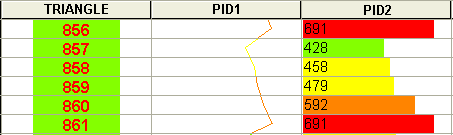
Check Unique Index to display only the first instance of any index, or index combination if more than one value is used. For example, if two PID2 values of 691 exist and PID2 is the only index, selecting this check box hides the duplicate row. If both TRIANGLE and PIDS are specified as sort criteria, both rows are shown if the combination of indices is unique.
-
Check Descending Order to sort all table columns in descending order. By default, columns are sorted in ascending order according to the index values specified.
The following table is sorted in TRIANGLE-PID1-PID2 order. Each table column is represented by a different column display format.
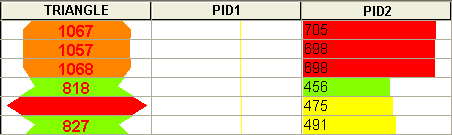
Changing the index order to PID1-TRIANGLE-PID2 sorts the columns as follows:
Filters Tab
Use the Filters tab to streamline the contents of a table according to specific expressions. For example, you may want to include borehole sample data below a minimum grade cut-off point, or only include data from boreholes with a specific borehole ID prefix.
To manage table filters:
-
Review the Filters list to see all filters currently applied to the table.
-
Click Add to display the Table Filter Expression screen and define a new filter expression. For example, TRIANGLE < 100 shows wireframe data table rows up to a TRIANGLE value of 99.
-
Select a filter and click Edit to display the Table Filter Expression screen and modify the selected filter expression.
-
Select a filter and click Delete to remove it from the list.
Related topics and activities:
