
MineTrust View-Only Mode
Note: This topic describes pre-release functionality for our development partners. MineTrust is coming soon, and if you are interested in finding out more about our powerful data management facility, please contact your local Datamine office.
MineTrust projects operate in one of two modes:
-
Full access mode – All licensed functions are available.
-
View-only mode – Data can be viewed but not edited.
View-only mode is the default mode for a MineTrust-enabled project, regardless of the configuration of the local PC.
When opening a project that is synchronised with MineTrust, the project is launched in View Only Mode by default. This mode lets you inspect and review the project without modifying (and subsequently locking) files, ensuring that multiple users can access the same project simultaneously without unintended data loss.
To apply project changes, switch to Editing Mode. Only one user can hold the edit lock for a MineTrust-enabled project at one time.
When the user in Editing Mode closes the project, or switches back to View Only Mode, the lock is released and another user can switch to Editing Mode.
View Only Mode doesn't lock everything down - you can still do the following:
-
Load and unload data within the project (these files aren't yet a part of the managed MineTrust package, so loading and unloading them won't do any harm.
-
Modify visual properties, including:
-
Formatting styles (line, symbols, opacity and so on).
-
Legends.
-
Filtering and selection tools.
Note: Filters and legends are created temporarily and are not saved in View Only mode.
This lets you see what you're working with in a variety of ways before optionally committing to editing mode (see below).
-
-
Navigate and explore the 3D workspace, including selecting and querying objects.
By default, when an existing MineTrust-enabled project is opened, it starts up in "view-only" mode even if MineTrust is locally installed and MineTrust Connector service is running. This is to prevent accidental data changes. You can tell this by looking at the top of the primary 3D window, where a banner appears:

You will also see an icon in the top right corner of the application:

Click Enable Editing Mode to allow editing, providing the project isn't already in use by another user (you'll see a message if this is the case), the project and contents (known as the "MineTrust package") are 'locked', meaning other MineTrust users can't access it whilst you're busy with it. This lock is released when you close the project, or decide to stop synchronizing data.
Note: When you create a new MineTrust project, it is automatically locked to you and opens in editing mode. Once you have configured your initial project, save it and close the application to upload the new project to the MineTrust endpoint. If the project is shared (you configure this when you create the project), others can then access it and collaborate with you.
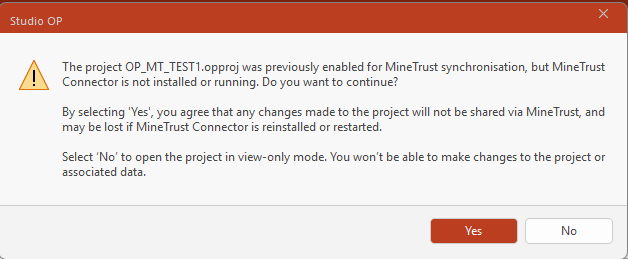
Where MineTrust is not available on the local PC (either because the MineTrust endpoint isn't available or hasn't been configured correctly, or the MineTrust Connector service is not running, you are presented with the following:
-
Clicking No opens the project in view-only mode. In this mode you can still:
-
Load and unload data within the project.
-
Modify visual properties, including:
-
Formatting styles (Line, Symbols, Opacity, and so on)
-
Legends
-
Filtering and selection tools
-
-
Navigate and explore the 3D workspace, including selecting and querying objects.
Note: Filters and legends are created temporarily and are not saved in View Only mode.
-
-
Clicking Yes opens the project as a standalone, unshared clone of the project. In this case, your changes aren't shared with others and are only performed in isolation.
This is, essentially, creating an offline copy of the shared project.
In summary:
| MineTrust-Enabled Project? | MineTrust Configured? | Open and View-Only? | Open and Edit? |
|---|---|---|---|
| No | No | No | Yes |
| No | Yes | No | Yes |
| Yes | No | Yes | No |
| Yes | Yes | Yes | Yes |
Data Synchronization
How and when is data synchronized between the MineTrust cloud store and the local machine?
MineTrust project changes are made during a project session, whilst the project is 'locked' from access by other users (other than in MineTrust View-Only Mode). This makes sure your changes are batched up and committed in a single operation for others to benefit from.
For example, consider the following timeline showing two Studio users make changes to the same project in a MineTrust enabled organization:
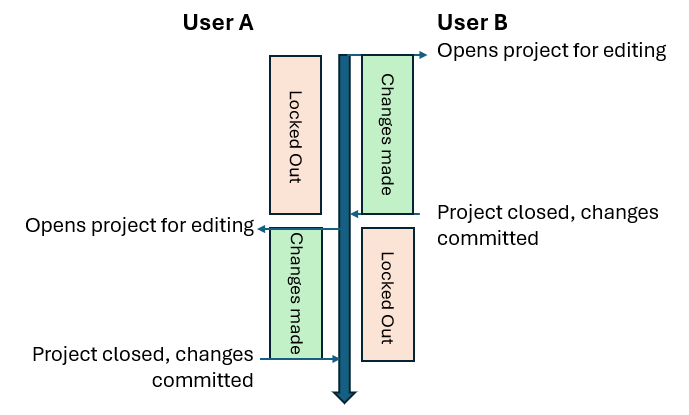
In summary, opening a MineTrust-enabled project for editing locks it, and closing the project (or stopping synchronization) unlocks it, automatically synchronizing changes.
Related topics and activities
