
Open MineTrust Project
MineTrust-enabled projects are 'connected' to a target cloud endpoint via a running service (the MineTrust Connector Service). This service manages all of the data interactions between (potentially) multiple users and a data server. One of the big challenges of this type of collaboration is maintaining data integrity and ensuring data updates happen when they are supposed to, without multiple users competing to make edits to common data or projects.
MineTrust achieves this by allowing one person to edit project contents at a time, using exclusive operating modes.
About MineTrust
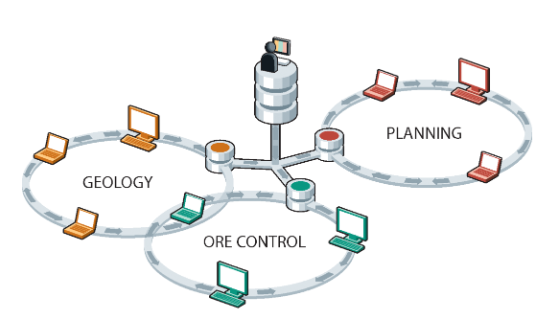
MineTrust is Datamine's data sharing service; a data management solution that is used to share and synchronise versions of files and groups of files between multiple users and teams in separate locations. Unlike many other file synchronisation systems, MineTrust can deal with groups of files, or packages, with a mix of file types that are synchronised and shared together. MineTrust can tag packages and files with any amount of meta data to reflect the data’s content, purpose, and how it is used within organisations and business processes.
Note: If you are interested in supporting your business with MineTrust but haven't made the move yet, contact your local Datamine office to work out a plan that's best for you.
MineTrust is built into Datamine Studio products by default. The use of automatically assigned tags specific to products and workflows, enables data to be shared automatically and efficiently between users and products, removing the need to manually manage and transfer files.
A cloud-hosted, highly secure data storage service, MineTrust provides reliable data management services for all team members, regardless of their location. Data is 'pushed' to the server following changes on the desktop and 'pulled' to other users' machines where newer data is available. This makes the following tasks to be performed very quickly and easily:
-
Sharing the latest 'ground truth' with other team members, such as sharing the latest field mapping data with resource modellers, or the latest EOM survey results, and so on.
-
Sharing reference data amongst multiple team members, such as the latest development plan to update reconciliation results, or a standard legend to be used for corporate-level reporting, for example.
-
Pushing data along a workflow, such as the latest drillhole sample data for implicit modelling revisions.
MineTrust is built specifically for resource modelling and mine planning workflows. Its integration with Studio products ensures teams collaborate in real-time without leaving their familiar working environment. It helps eliminate miscommunication and data duplication by centralising project files and enforcing structured sharing practices across departments, operations and the corporate enterprise.
See MineTrust and MineTrust-Enabled Projects to get started.
View Only and Editing Modes
When opening a project that is synchronised with MineTrust, the project is launched in View Only Mode by default. This mode lets you inspect and review the project without modifying (and subsequently locking) files, ensuring that multiple users can access the same project simultaneously without unintended data loss.
Switching to Editing Mode
To perform changes to the project, you must switch from View Only Mode to Editing Mode. Editing Mode grants full access to the software’s functionalities, including the ability to modify files, run commands and processes and access workflows.
In this mode:
-
Only one user may be in Editing Mode at any time for a given project. Editing mode isn't available for projects already locked by others. This prevents competing file changes from taking place at the same time.
-
As such, switching to Editing Mode locks the project, preventing other users from making edits while the lock is active.
-
Other users may continue working in View Only Mode (see above) while you are editing the project contents.
-
When you close a project in editing mode, or switch back to View Only Mode, another user can then activate Editing Mode.
This workflow ensures that MineTrust maintains a consistent, authoritative version of the project while still supporting multi-user access.
Opening MineTrust Projects
There are two ways to open a MineTrust-enabled project. The method you use depends on whether you have a copy of the project file locally already, or not.
-
Method 1: You have a copy of the Studio project file locally, you can open it as normal, using one of the following methods:
-
Double-click the project file icon in Windows.
-
Start Page >> Open Project.
-
Project menu >> Open.
If the project is MineTrust-Enabled, and your local environment is configured to access a suitable MineTrust host, you will automatically backup data and (if the project sharing setting is enabled) synchronize your local data with others accessing the same project (and vice versa).
Note: If the selected project is not MineTrust-Enabled, or your system is not configured to access MineTrust, you can still make standalone, local changes. These changes are committed once a connection to the MineTrust endpoint can be achieved (or not, if data sharing and synchronization is subsequently disabled).
-
-
Method 2: You don't have a local copy of a MineTrust-enabled project, you can open it directly from the MineTrust cloud host and set up your local environment for data sharing using one of the following methods:
-
Start Page >> Open MineTrust Project.
-
Project menu >> Open Project from MineTrust.
Note: If these options are unavailable, this is likely due to the local environment not being MineTrust-configured yet. See MineTrust-Enabled Projects for guidance.
Providing a suitable MineTrust endpoint has been configured, the following happens:
-
On your local PC, create a local project folder if a suitable one doesn't already exist.
-
A screen displays listing all available MineTrust packages (in this sense, a package is a collection of files that belong together, typically a project and associated data). Only package data relating to shared data projects displayed.
Note: If a project contains multiple files or components grouped as a MineTrust package, they will be retrieved together to ensure version consistency.
-
Locate the project to open (this will have a ...proj extension) and click Open.
-
On the Select location to save remote project, select a local folder and click Select Folder. This becomes the project folder where the "working copy" of the project is saved.
-
Next, package data is downloaded to the local file system. Throughout this process, a progress bar displays showing each file's download status.
-
When all files are downloaded, the project is opened in View Only Mode. You can then attempt to open it for editing, which will succeed only if another user hasn't already got it open for editing.
Data synchronization happens automatically after this point; as changes are made, updates are committed to the cloud host.
-
Synchronizing an Existing Project
If a project was not synchronized during creation, it can still be shared with MineTrust at a later stage. Typically, this is done through the File Menu.
To synchronize an existing project:
-
Load a standard (unshared) Studio project.
-
Ensure the local system has access to a configured MineTrust endpoint.
-
Project menu >> Synchronize with MineTrust.
-
At the prompt, click Yes. Once enabled:
-
The full project structure is uploaded to MineTrust.
-
A new package is created or updated in the central repository.
-
The project becomes available to eligible users (if shared).
-
Related topics and activities:
