
Print Setup, Preview and Printing
Print Setup
Use the Projectbutton to access thePrint Setup command to select the printer device and match the page size and page orientation to the selected view.
Setting up the printer, paper and page orientation uses the standard
Windows Print Setup screen shown below: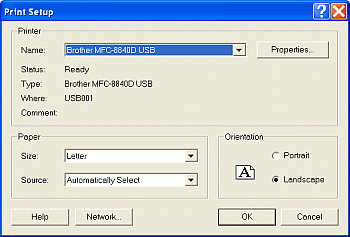
Print Preview
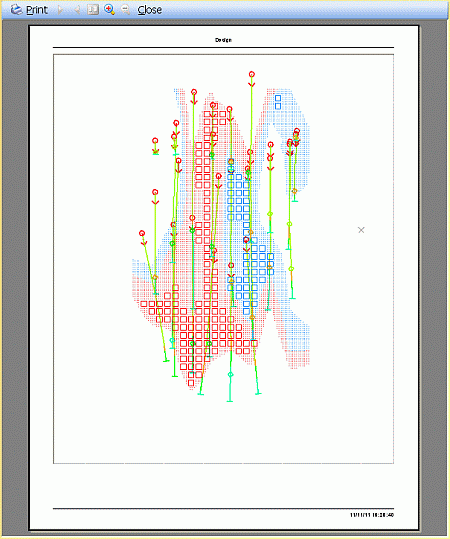
Use the Projectbutton|Print Preview command to view pages prior to printing.
When this command is run, a preview of all the currently displayed
data in the selected window, will be used to generate and display
a print preview, as shown below:
Printing
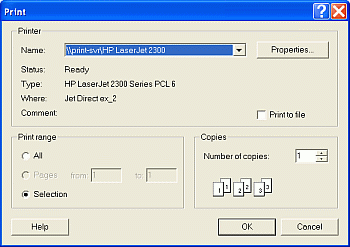
Use Projectbutton command to print the selected view using the current page and printer settings. You can print the current log or section of the selected view, or all logs and sections defined in the view, or specify a range of logs or sections to print.
The Print command uses the standard Windows Print screen shown below:
Related topics and activities:
