
Generate Downtime
To access this screen:
-
Project Settings >> Calendars >> Scheduling Calendars.
-
Select a calendar.
-
Select the Detailed Downtime tab,
-
Select the Graphical tab.
-
If not already selected, check Use detailed downtime.
-
Click Generate Downtimes.
Note: Before you use this screen, you need to define at least one Downtime Codes.
Using detailed downtime settings means you wish to set up your calendar from the point of view of the downtime periods in your schedule rather than the work time.
Downtime Types
Generate randomized downtime using custom parameters using this screen. The generation algorithm considers 3 types of downtime, or more specifically 2 type of downtime and additional operational downtime or losses:
- Fixed downtime – This is considered to be fixed because it is not meant to be altered by the algorithm (other downtime is meant to be generated around this). This fixed downtime would typically be imported via an EXF file, or it can be entered manually in tabular or graphical form. It can be made up from several downtime codes.
- Remaining downtime – This downtime together with the fixed downtime makes up the total downtime that you specify in the form via the percentage availability. It can be made up from several downtime codes.
- Additional downtime – Optional additional losses/downtime that you can add randomly.
The Total Downtime is calculated as Total
Time in Month * (100 - Availability).
The Remaining Downtime is calculated as
Total Downtime - Fixed Downtime.
Downtime Example
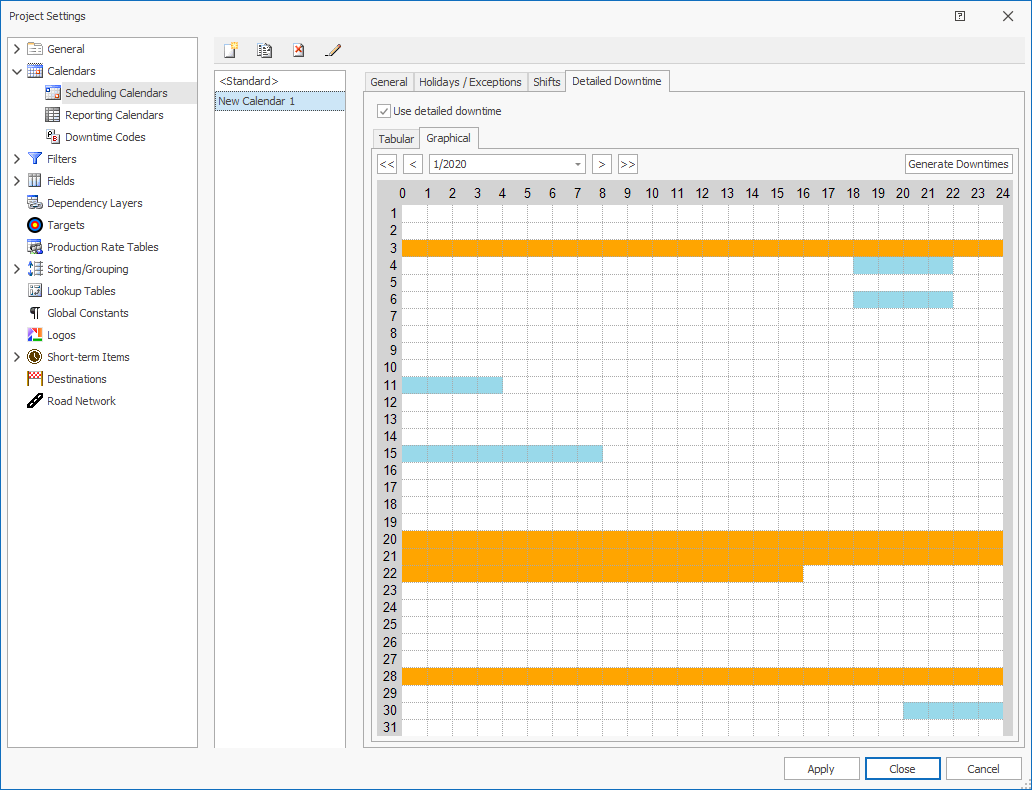
Assume you have fixed downtime as shown in the image below, and you wish to generate downtime records according to the previous picture.
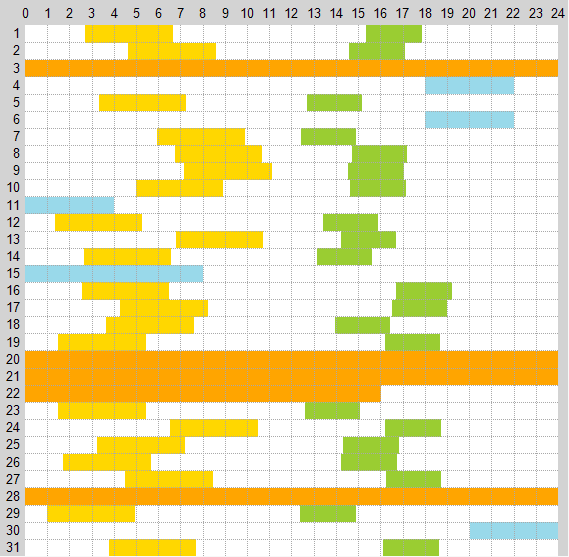
The resultant randomized downtime records for a single month could look like this:
Generate Downtime
Activity steps:
-
Display the Generate Downtime screen for the appropriate caledar.
-
Select the From and To date within which to generate downtimes. Downtimes are generated on a monthly basis, hence these fields only allow the selection of months.
-
Select a Code you wish to take into consideration when generating downtimes. See Downtime Codes.
-
Specify the downtime Type for the downtime code selected in the Code column. See Downtime Types.
-
Click Refresh to populate (or update) the table below, which allows you to specify additional generation data on a monthly basis. One record is added for each month in the date range specified above.
-
Review and edit the downtimes table:
-
Date – The month of the current record. You can't edit this cell.
-
Availability (%) – Specify the availabilty as a percentage of the total time in the current month. The total downtime is calculated as
Total
		Time in Month * (100 - Availability)
. -
Depending on the Type of downtime selected you will see:
-
Fixed Downtime (%) – This will list all Fixed downtime codes specified in the top grid in a separate column. The percentage shown here is the amount of fixed downtime (per code) as a percentage of the
Total Downtime. This percentage is calculated and hence not editable.Note: The
Total Fixed Downtimecannot be more than theTotal Downtime. -
Remaining Downtime (%) – The
Total Remaining Downtimeis calculated asTotal Downtime - Total Fixed Downtime. All of this downtime is spread across the selected downtime codes as specified in the top grid. All of the Remaining downtime codes make up 100% of theTotal Remaining Downtime.Note: Enter a percentage into each column related to the remaining downtime, and these must add up to 100%.
-
Additional Downtime – This can be added over and above the fixed and remaining downtimes. This is specified in hours per day.
-
-
-
Click Generate to create the downtime.
Note: Downtime records are only generated on those days where there is not fixed downtime specified. You can re-run generation for any month, in which case all existing records for remaining and additional downtime are removed first before regenerating new records.
Related topics and activities
