
Internal Fields
To access this screen:
-
Project Settings >> Fields >> Internal Fields.
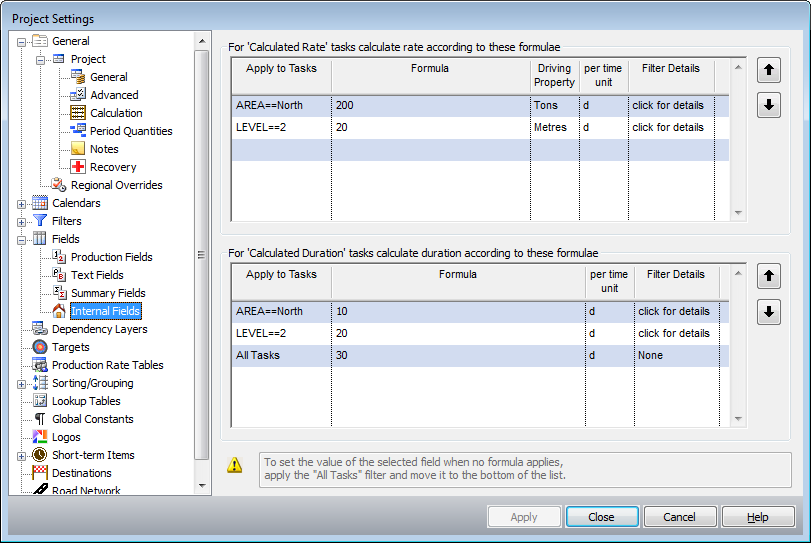
This screen allows you to add formulae for the internal fields Duration and Rate to be used by those tasks where the type has specifically been set to Calculated Duration or Calculated Rate (as opposed to Fixed Duration, Fixed Rate, Cyclical or Hammock). This is useful if a task's production rate depends on, for example, rock hardness, type of drilling and so on.
This screen contains 2 grids that allow you to set up formulae similar to how you would set up the same for production fields.
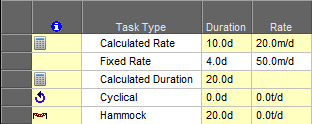
In order for these formulae to have any effect on a task's duration or rate, the relevant task needs to have its type set to Calculated Duration or Calculated Rate. This can be done in the Task Information form that is displayed when double-clicking on a task, or in the Task Type column when this is displayed in the task table. Such a task will display an icon in the Indicator column to show that it's duration or rate is calculated, for example:
To define a formula for Calculated Rate or Calculated Duration tasks:
-
Display the Internal Fields screen.
-
Using the appropriate task type table (Calculated Rate at the top, Calculated Duration at the bottom), define the following:
-
Apply to Tasks – Specify the tasks filter to which the formula applies. All existing filters appear here. See Filters.
-
Formula – Define the formula to be applied to the rate or duration of tasks that pass the specified filter. Click into this cell and use the Formula Builder screen to configure the formula syntax.
-
Driving Property – If defining a rate, specify the property on which the rate is based.
For example, when calculating the rate, if the formula returns a numeric value of 20, then this is the property that gets added to the numeric value, for example, 20m (20 metres). The time unit still needs to be appended to this as explained in the following cell.
-
Per time unit (time unit for duration):
-
For calculated duration tasks, time unit specifies the time unit applied to the result of the formula. For example, if calculating the duration, and the formula returns a numeric value of 10, then this is the time unit that gets added to the numeric value, for example, 10d.
-
For calculated rate tasks, per time unit the rate is calculated as a formula for each unit of time that passes. Essentially, the same as above, but in a rate (not duration) context.
-
-
Locked – Make all the fields of the selected row read-only. This can help to prevent inadvertent changes.
-
-
Ensure your formulae are applied in the correct top-bottom order using the arrow keys on the left.
Note: To set the value of the selected field when no formula applies, move the All Tasks filter to the bottom of the list.
-
Click OK.
-
Save your project.
Related topics and activities:
