
Generate Work Packages/Tasks
To access this screen:
-
Work Package ribbon >> Work Packages.
The Generate Work Packages / Tasks tool is used to define and configure work packages. A work package consists of a predefined set of tasks and rules, that are used by the generation process to create secondary or derived tasks.
Tip: After generating tasks from a work package, you can display and group them using the Generated From Work Package field in the Task Table. This provides a clear way to identify and manage all tasks created from the same source.
Work package configurations include:
| Field | Description |

|
Click to insert a new work package. By default, new work packages are called New Template Plan #, where # starts as 01 and is incremented by 1. |

|
Click to delete the currently selected work package.
|

|
Click to rename the currently selected work package. |
| Generate work package as follows |
1. Create single work package and link between 2 selected tasks If selected:
|
|
2. Create single work package and link to selected task(s) If selected:
|
|
|
3. Create work package for each primary task / group If selected:
|
|
|
4. Replace each primary task with work package If selected:
|
|
| For | One sequence of work package tasks (or single task if the work package only
consists of one task) is generated for each primary
task as specified in the For option (all / filtered / selected). This selection works together with
Group primary tasks. Note Note that if the Selected Tasks option is chosen together with a valid grouping in Group primary tasks, you have to make sure to select the actual primary tasks belonging to a group, not just the group header. |
| Group primary tasks | One
sequence of work package tasks (or single task if the work package only
consists of one task) is generated for each group of
primary tasks, rather than each
individual primary task. This selection works together with the For
option. The For option determines which primary tasks to
include in the grouping. Note Note that if the Selected Tasks option is chosen together with a valid grouping in Group primary tasks, you have to make sure to select the actual tasks belonging to a group, not just the group header. |

|
Click this button to paste tasks from the clipboard into the work package task grid. The tasks to be pasted (eg. primary scheduled tasks from the task table) must be copied to the clipboard before opening this form. |
|
Tasks in work package tab - Work package task properties and attributes can be individually configured in the task grid. Property and attribute values can be �fixed�, copied from primary tasks or based on a formula. Tasks are The fields below can be specified for each task |
|
| Primary |
This column is only visible when the Create single work package and link between 2 selected tasks option is selected. The drop-down values of Start and Finish determine which primary task values to base a �copy from� or �formula� on during the generation process. |
| Generate For |
The drop-down shows all task filters from the project settings. This work package task will only be generated if the primary task (that the work package is applied to) matches the selected filter condition. |
| ID |
This field is optional. Specify the ID you want to assign to the generated task. You can use a formula to apply during the generation process to evaluate the ID. For example, you could base the generated ID on the ID of the existing primary task by using the formula [ID]+�_001� where [ID] is the value of the existing primary task. NoteIf the specified ID results in a duplicate ID value during the task generation process, then the system will revert to its own ID auto-numbering convention without notification. WarningUse the [ID] tag with caution |
| Name |
Specify the name for the generated task. You can use a formula to determine the generated name. Example [Name]+�Drill� appends Drill to the name of the primary task, or name of the group if a grouping is specified. |
| Description |
Specify the generated task description. |
| Properties |
The drop-down shows all production fields. Indicate which production field values to assign to the generated task(s). Values can be copied from the primary task (or group of primary tasks) or evaluated by using a formula. The formulae are used during the generation process only. There is no link between generated tasks and the work package specification. See Calculate Properties. |
| Text Fields |
The drop-down shows all text fields. Indicate which text field values to assign to the generated task(s). Values can be copied from the primary task (or group of primary tasks) or evaluated by using a formula. See Calculate Properties. |
| Codes |
The drop-down shows all code fields. Indicate which code field values to assign to the generated task(s). Values can be pre-set or inherited from the primary task/group. See Set Code Values. |
| Calendar |
Select the calendar to apply to the generated task. |
| ALAP |
Tick this box to schedule the generated task as late as possible. |
| Driven |
Fixed Rate / Fixed Duration / Cyclical / Hammock / Calculated Rate / Calculated Duration. |
| Rate/Duration |
Specify the production rate for fixed rate tasks / the duration for fixed duration tasks. |
| Resource Assignments |
The drop-down opens a new form. Specify one or multiple resources to assign to the generated task. Fields include: Resource / Units / Type / Rate / Use Production Rate Table. |
| Destination |
The drop-down shows all destinations. Select the destination to assign to the generated task. |
| Copy from primary |
This option is only enabled when the Replace each primary task with work package option is selected. Instead of configuring work package tasks individually, you can bulk-copy all values (of the selected attributes) from the primary task to the generated task. A selected attribute applies to ALL work package tasks and takes priority over corresponding fields in the task rows (these field columns are disabled). All attributes in the Copy from primary drop-down are selected if you click the (Select All) option at the top of the list.
|
| Keep replaced task as summary |
This option is only enabled when the Replace each primary task with work package option is selected. |
| Network diagram |
Work package tasks, including auto-generated elements, are displayed in the network diagram. Dependencies between work package tasks, as well as links between work package tasks and the existing primary scheduled tasks, are created in the network diagram. |
|
Cross-group dependencies tab - this tab is only visible when the Create work package for each primary task / group option is selected AND a Group primary tasks grouping has been specified. For every dependency that exists between two primary tasks of different primary groups, as specified by the grouping in the Group primary tasks, the Cross-group dependencies grid allows you to specify which additional dependencies to generate. |
|
| Generate |
Click to generate tasks based on the configuration and rules of the work package. You can also invoke the generation process from the Insert Work Packages\Tasks context menu (click the right mouse button from the task table to open the context menu). |
| OK |
Click to save the work package changes and close this screen. |
| Cancel |
If you have made changes in the task grid you are promted to
confirm whether you wish to cancel and lose all changes. Note,
however, that the cancel will only lose changes of a newly
created row whose focus has not yet left the row. |
 Work
packages are deleted immediately. You are not
asked to confirm the deletion.
Work
packages are deleted immediately. You are not
asked to confirm the deletion.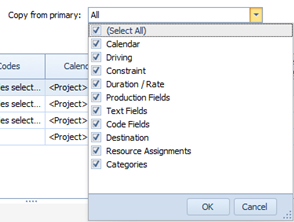
Related topics and activities
