Main parameters
Input Geostatistical Set
-
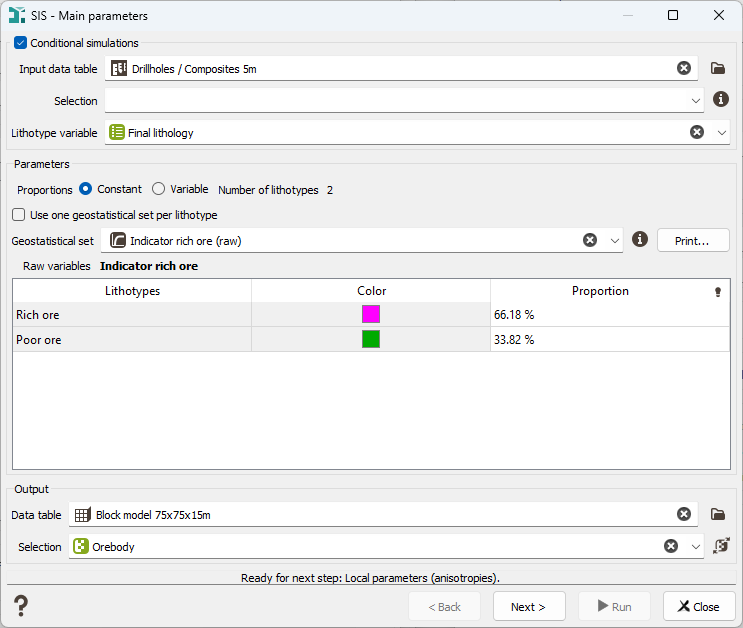
Select the Conditional simulations option to constrained all simulations to all the active information. Information of data required for conditioning is displayed: Input data table, an optional Selection to limit the input samples and the Lithotype variable to be simulated. Lithotypes must be defined through a categorical variable.
Note: The selection defines which samples can be used for interpolation, often those inside a domain. To also include samples outside the domain, you can use:
- Soft Boundaries to create a selection within a specified distance from a mesh.
- Border analysis to determine an appropriate distance using the contact analysis tool.
-
Proportions: Two options are available to define the Proportions:
-
The Constant option, which corresponds to the Stationary case, is activated by clicking on the toggle Constant. The Number of lithotypes, Lithotypes naming and Color of each lithotype correspond to the ones defined in the catalog of the input Lithotype variable.
The global proportion of each lithotype is automatically calculated from input data and proposed as default value. This value can be edited by clicking in the column Proportion.
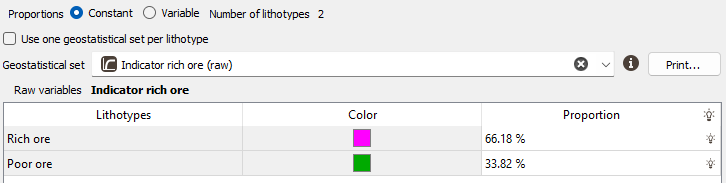
Caution: The sum of proportions must be equal to 100%. If the default proportions are changed, you must take care of honoring this constraint. Modified proportions are not automatically normalized, and the global proportions consistency must be checked by the user. If the sum of proportions is not equal to 100%, a message is displayed at the bottom of the window and Isatis.neo will refuse to go to the next step.
Note: If the check box Conditional Simulations is ON, the number of Lithotypes corresponds to the number of different values in the selected conditioning categorical variable and cannot be modified. Clicking on the bulb of the Proportion column assigns its experimental proportion to each Lithotype. If the check box is OFF, then non-conditional simulations will be calculated and the number of Lithotypes becomes editable. You can choose the number of Lithotypes and assign a proportion to each. Clicking on the bulb of the Proportion column gives the same proportion to each Lithotype.
-
The Variable option corresponds to the Non-Stationary case. Therefore, the Lithotypes proportions can vary in space. This option is activated by clicking on the toggle Variable.
When this option is selected, Isatis.neo requires the definition of the proportions in each cell of the domain to be simulated, in the simulation grid. These proportions must be stored in a macro-variable which has to be prepared beforehand.
Two text fields are displayed to define the Grid table and the Macro proportions.

- If the provided grid table is not the simulation grid, a linear interpolation will be done during the simulations.
-
-
Variogram model: Select here the Geostatistical set where the characteristics of the model you wish to apply for kriging are stored. This geostatistical set must contain a point raw variogram model and no drift. Several options are available.
- You can select one Geostatistical set only. The model entered should correspond to the one of the representative category. The variogram model at the modal category is usually used.
- You can Use one geostatistical set per lithotype (not activated by default). When checking this option, an additional column appears next to the proportions to select the Geostatistical set associated with each lithotype. The Geostatistical sets must have a global rotation to be compatible with the use of local parameters. If not, the option won't be available in the next page.
- Otherwise, a multivariate Geostatistical set can be defined. The number of variables must match the number of categories. In that case, a true cokriging of indicators will be performed.
A Print button enables you to check the content of the Geostatistical Set defined (sent in the Messages window).
- Output data table: Select the Data Table on which you want to store the simulations and/or the associated results. It can be of any type. You may define a Selection on the output samples - useful when the data is heterogeneous and when several steps should be processed one after the other, using different models and/or neighborhoods.