
Creating a Table
The Table Editor will create a new, empty table automatically when it is opened without an associated file type.
If there is a table open already, choose File >> New, or click  on the Table Editor toolbar. An empty table containing a single column heading "RECORD" is created.
Note: Only one table can be opened at a time in a Table Editor session.
Add and Define Fields
Before any data can be added it is necessary to define the fields (columns). The Table Editor contains a number of inbuilt definitions which will assist in the creation of a particular type of table (e.g. block model, wireframe points, etc.).
Add a Definition
The table definitions are listed in the Task Pane. If this is not displayed, right-click in the toolbar area and select Task Pane from the context menu.
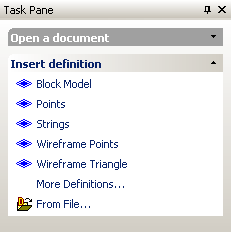
To insert a definition, click a definition name.
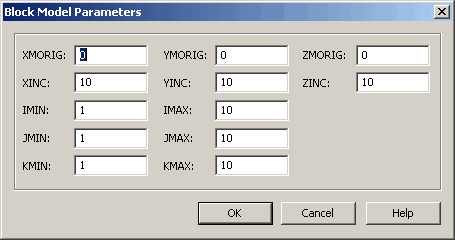
With the exception of the Block Model definition, this will insert columns (fields) associated with the chosen definition into the table. If the Block Model definition is selected, the Block Model Parameters screen prompts for the information that is common to all the records in the block model. More...
Add a Column
To add a new data column to a table, select Add >> Column or Insert >> Column.
The Add Column or Insert Column screen appears, allowing you to define the data to be inserted.
There are constraints regarding attribute naming. See Attribute Naming Convention.
Note: Add will put the new column at the end of the table whilst Insert will put it before the selected column, or at the beginning of the table if no column is selected.
See Insert Column.
Add a Record
To add a record (table row) select Add >> Record or Insert >> Record.
Note: Add will put the new column at the end of the table whilst Insert will put it above the selected record, or at the top of the table if no column is selected.
Related topics and activities