
Getting Started
Prerequisites for this topic:
-
You will need to have read the Table Editor Scripting Introduction topics and met the minimum requirements for that section.
The Datamine Table Editor is available as a registered Microsoft ActiveX control, and can be embedded within any suitable scripting environment. The following topic provides information about embedding Table Editor within Internet Explorer using the <OBJECT> tag, and passing a class identifier (for this reason, it is essential that your Datamine application is installed locally for the machine you are working with). The important point to note is that the control must be embedded before use - in other words, part of the Document Object Model (DOM).
This does not mean that the control need necessarily be visible, for example, you could wrap the control in an invisible <DIV> (an example of this is shown at the bottom of this topic) - this visibility control must be performed by the HTML layer, however - it is not possible to embed a natively invisible component.
Exposing Controls
To fully expose the controls of the Table Editor control, you will need to embed it within an HTML document using an <OBJECT><.../OBJECT> statement, within the <BODY> section of the page where you would like it to appear, for example:
<HTML>
<HEAD>
<TITLE>Table Editor Scripting Example</TITLE>
</HEAD>
<BODY>
<H1>The Table Editor</H1>
<OBJECT CLASSID="clsid:08B27415-70B7-4FB8-91EE-12BD0D9E7B72" ID="DmEditX1" WIDTH="100%" HEIGHT="100%">
</OBJECT>
</BODY>
</HTML>
Note the provision of the DmEditX1 ID; this will be used throughout this series of topics on Table Editor scripting. You can use any identifier you like, but if you are unfamiliar with Table Editor scripting and wish to follow the examples that follow, it is recommended that you use the same variable.
Launching the script in Internet Explorer shows the following view (notwithstanding any security prompts that may appear):
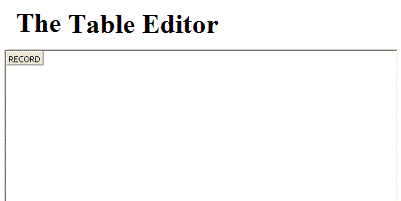
Although not particularly useful, the 'RECORD' block signifies that the ActiveX control has been accessed and embedded.
Note that the ActiveX control does not support any native parameters, for example, it is not possible to automatically load a particular file on embedding the object itself. Instead, subsequent calls to the Table Editor control's functions should be used. This is explained in later topics.
The following example describes how to embed an invisible table editor object - note that the object visibility is controlled using a hidden <DIV> tag. The component does not have to be visible to manipulate Datamine format files.
Invisible Components
The following HTML embeds an invisible component:
<DIV style="position: absolute; visibility: hidden>
<OBJECT CLASSID="clsid:08B27415-70B7-4FB8-91EE-12BD0D9E7B72" ID="DmEditX1">
</DIV>
Function Categories
Functions supported by the Table Editor COM interface fall broadly into two categories:
Functions that automate the display of a standard Table Editor helper dialog. T
Functions that access the functions of a dialog without displaying it, using passed arguments (will be referred to as 'X' functions throughout these Help topics, as all functions of this type have an 'X' suffix, e.g. ReplaceAllX allows global search and replace functionality without displaying the Search and Replace dialog. These functions are referred to throughout this series of Help topics as 'transparent functions'.
Calling a Simple Function
A useful function of the Table Editor's automation interface is OpenFile(); this allows you to specify a FilePath parameter, and thisfile will be loaded into the embedded component. This is a good example of a 'transparent' function - one that will perform a task without requiring any user input, nor will it display any other dialogs - the contents of the named file will be loaded into the Table Editor component and displayed.
Before you can access this command, an instance of the Table Editor component must exist in memory - see the first section on this page for more information. To call OpenFile(), the calling statement should be added to the <BODY> section of the page, below the <OBJECT> tags.
The way that functions are called (and properties are set) depends on how you like to script. There are no particular constraints for accessing the Table Editor component. You could, for example, use one of the following approaches (this is not an exhaustive list):
Set up a custom function in the <HEAD> section of your page, and make a call to that from the <BODY> section.
Create a custom function in an external JavaScript file, then link this file to your page, and call it from the <BODY> section.
Add an interactive element (e.g. a Form button) with an associated onClick event to call the function.
Call the function on the successful (or unsuccessful) completion of another JavaScript function.
There are many more options available, and it is also feasible to use a combination of approaches.
In the example below, the full HTML for a page is displayed. The <OBJECT> tag ensures the Table Editor control is embedded, and the following inline JavaScript statement makes a call to OpenFile(), passing the filename and path "C:\Database\myWireframeTR.dm". Note that this method supports (and expects) two further parameters; ReadOnly and CacheAll - these parameters are explained in detail in the reference help for this method, but in this example, the file is opened for reading and writing, and file contents will be fully loaded into cache memory on loading:
<HTML>
<HEAD>
<SCRIPT LANGUAGE = "Javascript">
\\Create a function to load a named file
function LoadFile() {
   \\Open an existing DM file - error will be raised if it doesn't exist
   DmEditX1.OpenFile("C:\\Database\\myWireframeTR.dm", true, false);
}
</SCRIPT>
<TITLE>Table Editor Scripting Example</TITLE>
</HEAD>
<BODY onload = "LoadFile();">
<H1>The Table Editor</H1>
<!-- Embed the Table Editor Object -->
<OBJECT CLASSID="clsid:08B27415-70B7-4FB8-91EE-12BD0D9E7B72" ID="DmEditX1" WIDTH="100%"
HEIGHT="100%">
</OBJECT>
</BODY>
</HTML>
The general approach to create the script above:
Create a function in the <HEAD> section of the page, and within it, make a call to a function (or functions) on the Table Editor interface.
Embed the Table Editor <OBJECT> within the <BODY> section.
Set up a call to your custom function, reacting to a proprietary event (in the example above body.onload).
When loaded, the web view is automatically updated:
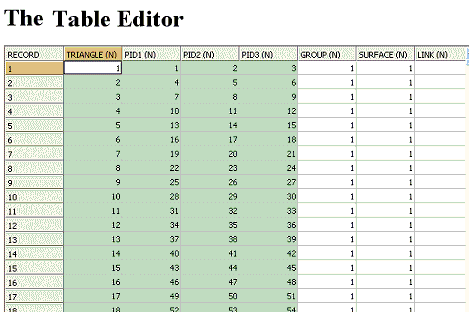
Admittedly, the above example is simple, however, a small amendment would allow you to pass any FilePath into the OpenFile() function by changing the section. Changing the following section:
function LoadFile() {
   \\Open an existing DM file - error will be raised if it doesn't exist
   DmEditX1.OpenFile("C:\\Database\\myWireframeTR.dm", true, false);
}
to:
function LoadFile(FileName) {
   \\Open an existing DM file - error will be raised if it doesn't exist
   DmEditX1.OpenFile(FileName, true, false);
}
and altering the Body onload call from:
to
allows the FilePath to be passed into your LoadFile() method with the BODY onload event.
Note: The above examples relate to the OpenFile() function. Another function exists - Open() - that will display the file load dialog, allowing the remainder of the operation to be undertaken interactively. This function does not accept parameters.
Other Extensions
With the Table Editor component, you can 'mix and match' calls to its available functions, with proprietary JavaScript commands. For example, you could set up a batch process to search and replace all instances of one string with another, for all Datamine files in a specified directory (you could use the File System Object to achieve this by looping all files within a named folder - see the Examples section for more ideas).
Related topics and activities