
Table Editor Scripting Examples
Prerequisites for this topic:
Before going through the examples on this page, you should read through the following topics
This topic outlines how you can use the Table Editor's scripting interface to perform a variety of tasks.
The following examples are shown on this page:
-
Using the File System Object (FSO) in conjunction with the Table Editor component.
-
Combining Studio 3 and Table Editor scripting.
-
Providing a 'Save changes?' scripted dialog.
-
Truncating all column names in a table to 8 characters.
The examples provided in this section are intended to provide a basic introduction to some of the features available with the Table Editor's scripting interface.
Datamine offers full training in the area of scripting and automation and also provide a scripting service to ensure your resulting scripts are viable, and fully supported. For more information on either of these services, please contact your local Datamine office.
Table Editor and the File System Object
In the following example, you will see how to use the Table Editor component function calls in conjunction with Microsoft's File System Object (FSO). If you are not familiar with using FSO, you should research this module beforehand.
the following script will traverse all files in a specified directory and for each file, create an HTML table outlining the name of the file, the number of data columns within it, and the total number of records. This script is easily extendable by adding further functionality into the For Each - Loop. The important thing to remember is that all calls to the Table Editor methods must be calls to custom function 'wrappers' - you cannot access the controls of the embedded object directly.
For this script to work, you will need to place some Datamine format files into your C:\Temp directory, or edit the indicated section in the script to point to another folder:
<HTML>
<HEAD>
<SCRIPT LANGUAGE = "Javascript">
//Declare all function wrappers for Table Editor controls
//First, the OpenFile function, accepting a filePath argument
function OpenFile(filePath){
    DmEditX1.OpenFile(filePath, false, false);
}
//Next, created a clear table function, to remove
//the loaded data from view after processing
function Clear(){
  DmEditX1.New();
}
//Next, a function to write the number of columns in the loaded object to the page
function WriteColCount(){
  document.write("<TD>" + DmEditX1.ColumnCount + "</TD>");
}
//Finally, a function write the total number of records to the page
function WriteRecCount(){
   document.write("<TD>" + DmEditX1.RecordCount + "</TD></TR>");
}
</SCRIPT>
<TITLE>Table Editor Scripting Example</TITLE>
</HEAD>
<BODY>
<H1>The Table Editor</H1>
<OBJECT CLASSID="clsid:08B27415-70B7-4FB8-91EE-12BD0D9E7B72" ID="DmEditX1" WIDTH="100%"
HEIGHT="65px">
</OBJECT>
<SCRIPT LANGUAGE = "JAVASCRIPT">
//Specify the folder containing the .dm files
//(could be extended to include a browser control)
//#####OTHERWISE, EDIT THIS SECTION FOR OTHER FOLDERS#####
var folderspec = "c:\\Temp";
//Create instance of File System Object
var fso=new ActiveXObject("Scripting.FileSystemObject");
//Get the contents of the folder and store in f
var f = fso.GetFolder(folderspec);
//create an enumerator
var fc = new Enumerator(f.files);
//Write the first section of the table, defining columns
document.write("<h1>Files found in: " + folderspec + "</H1>");
document.write("<TABLE><TR><TD>Filename</td><td>Number of Columns</td><td>Total Records</td></tr>");
//Loop for each file in fc enumerator
for (; !fc.atEnd(); fc.moveNext()){
  //derive the file name from FSO
  var fileName=fc.item().Name;

  //create the full folderpath to open the file
  var filePath = folderspec + "\\" + fileName
  document.write("<TR><TD>" + fileName + "</TD>")
  //Make a call to the custom OpenFile function,
  OpenFile(filePath);
  //Similarly, derive and write the number of columns
  WriteColCount();
  //Derive and write the number of records
  WriteRecCount();
  //Clear the table contents
  Clear();
}
//Finish the table
document.write("</TABLE>")
</SCRIPT>
</BODY>
</HTML>
Studio and Table Editor Scripting
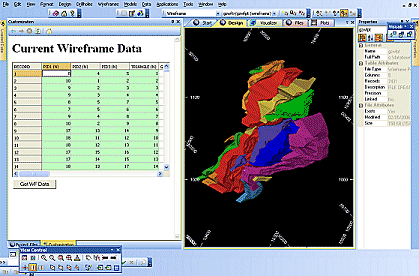
Studio products and Table Editor feature a scripting interface, and as both can be accessed by the same COM-aware scripting environments, it is easy to combine calls to Studio components, with calls to an embedded Table Editor object.
The easiest way to do this is to utilize the Customization control bare. Consult your Studio help file for more information on displaying this control bar.
Combining the Table Editor functionality with your existing scripts can be a useful way of quickly accessing both 'systems'.
Scripting can allow you to, for example, perform actions on the current project, and view the resulting file in an embedded editor on completion.
Before you run this script, you will need to start your Studio product (this option is not available for Studio Mapper users) and show the Customization window and ensure at least one wireframe object exists in memory.
Then, save the following script as a .htm file and drag it into the Customization window:
<HTML>
//Script to save loaded Wireframe data to an external file and
//Load the resulting file into an embedded table editor component.
//Wireframe data MUST exist in memory for this script to operate.
<HEAD>
<SCRIPT LANGUAGE = "Javascript">
//First, define the functions to be called in the <BODY> section
//The first function sets up the pointers the the DmApplication object
//Using a call to window.external (meaning this script can only be run
//from a Studio 3 HTML window, such as the Customization window.
function LoadFile() {
  //Declare hierarchical variables to DmApplication, DmOptions and DmDesign
  var oDmsApplication = window.external;
  var oDmsProject = oDmsApplication.ActiveProject;
  var oDmsOptions = oDmsApplication.Options;
  var oDmsDesign = oDmsProject.Design;
  //Derive the currently active project folder description
  var S3DBFolder = oDmsProject.Folder;
  //Save all project wireframe data as a temporary DM file
  oDmsDesign.SaveAllWireframesAsDMFile("tempWF", true, "");
  //Build up the path to be used by the Table editor's OpenFile function
  //Remember that Javascript interprets forward slashes in an odd way, hence,
  //The following statement adds a single slash between project folder and file...
  var TELoadPath = S3DBFolder + "\\" + "tempWFTR.dm";
  //...and this statement replaces a single with a double slash
  //which is required for the OpenFile function to find the file if called from
  //Javascript. Note also that a custom replace function, not proprietary
  //Javascript.
  TELoadPath = replace(TELoadPath, '\\', '\\\\');
  //Open the file in the Table Editor
  DmEditX1.OpenFile(TELoadPath, false, false);
}
//Custom replace function
function replace(string,text,by) {
// Replaces text with by in string
    var strLength = string.length, txtLength = text.length;
    if ((strLength == 0) || (txtLength == 0)) return string;
    var i = string.indexOf(text);
    if ((!i) && (text != string.substring(0,txtLength))) return string;
    if (i == -1) return string;
    var newstr = string.substring(0,i) + by;
    if (i+txtLength < strLength)
        newstr += replace(string.substring(i+txtLength,strLength),text,by);
    return newstr;
}
</SCRIPT>
<TITLE>Table Editor Scripting Example</TITLE>
</HEAD>
<BODY>
<H1>Current Wireframe Data</H1>
<OBJECT CLASSID="clsid:08B27415-70B7-4FB8-91EE-12BD0D9E7B72" ID="DmEditX1" WIDTH="100%"
HEIGHT="60%">
</OBJECT>
<table><tr>
<tr><td><INPUT TYPE="button" VALUE="Get WF Data" NAME="btnLoad" onclick="LoadFile(); return false;"></td></tr></table>
</BODY>
</HTML>
The "Save Changes" Example
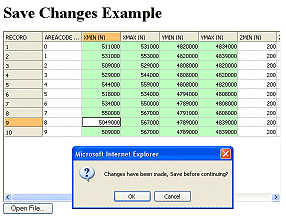
The following short script provides a "Save Changes?" screen when an attempt is made to load new table data. The dialog is displayed conditionally according to the TableModified property of the currently loaded table.
This script can be run from within Studio applications via the Customization window, or as a standalone script. To see the screen, load a table into the editor using the Open File HTML form button, make some edits in the embedded table view, and then attempt to open a new file:
<HTML>
<HEAD>
<SCRIPT LANGUAGE = "Javascript">
//Function declaration
function OpenFile() {
//Check to see if TableModified value is true or false
if (DmEditX1.TableModified == true) {
  //If table changed, show prompt and return true or false response
  var SaveBoo = window.confirm('Changes have been made, Save before continuing?');
    //If save is chosen, call Table Editor's Save() function
    if (SaveBoo == true) {
         DmEditX1.Save();
    }
  }
//Open file with OpenFile on Table Editor component
DmEditX1.OpenFile("", false, false);
}
</SCRIPT>
<TITLE>Table Editor Scripting Example</TITLE>
</HEAD>
<BODY>
<H1>Save Changes Example</H1>
<OBJECT CLASSID="clsid:08B27415-70B7-4FB8-91EE-12BD0D9E7B72" ID="DmEditX1" WIDTH="100%"
HEIGHT="65%">
</OBJECT>
<INPUT TYPE="button" VALUE="Open File..." NAME="btnOpen" onclick="OpenFile(); return false;">
</BODY>
</HTML>
Column Names Truncation
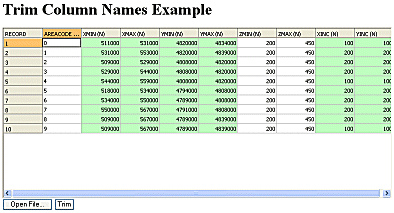
The script listed below can be used to automatically 'trim' the column fields of a given file to 8 characters, this being the maximum length of column fields permitted within Studio 3.
Warning: This script is intended for demonstration purposes, and may be too 'validation-free' to be of direct use in its current state. Trimming a series of column names to eight characters, in some situations, may result in duplicate column names within a table, forcing an error and script cessation (through the Table Editor UI, in fact, this possibility is blocked). However, this script is easily extendable, and further logic could be added to ensure that duplicate file names do not get passed into theUpdateColumnX()method.
This script also provides a file load facility, by passing an empty string to OpenFile():
<HTML>
<HEAD>
<SCRIPT LANGUAGE = "Javascript">
//Global Table Editor File Opener function
function OpenFile() {
  DmEditX1.OpenFile("", false, false);
}
//Trim Columns
function TrimCols() {
  //Get the total number of columns
  var ColTotal = DmEditX1.ColumnCount;
  //Loop the collection of columns
  for (i=0; i<ColTotal; i++) {
   var ColName = DmEditX1.ColumnName(i)

      //If ColumnName is found to be greater than 8
      if (ColName.length > 8) {
//Get all other properties to feed back into UpdateColumnX
        var ColType = DmEditX1.ColumnType(i);
        var ColLen = DmEditX1.ColumnLength(i);
        var ColDefault = DmEditX1.ColumnDefault(i);
        var ColImplicit = DmEditX1.ColumnImplicit(i);
 //Truncate the column name
var NewName = ColName.substring(0,8)
//Update the column definition
        DmEditX1.UpdateColumnX(i, NewName, ColType, ColLen, ColDefault, ColImplicit)
        }
  }
}
</SCRIPT>
<TITLE>Table Editor Scripting Example</TITLE>
</HEAD>
<BODY>
<H1>Trim Column Names Example</H1>
<OBJECT CLASSID="clsid:08B27415-70B7-4FB8-91EE-12BD0D9E7B72" ID="DmEditX1" WIDTH="100%"
HEIGHT="65%">
</OBJECT>
<INPUT TYPE="button" VALUE="Open File..." NAME="btnOpen" onclick="OpenFile(); return false;">
<INPUT TYPE="button" VALUE="Trim" NAME="btnOpen" onclick="TrimCols(); return false;">
</BODY>
</HTML>
Related topics and activities