
Table Editor Automation
The Table Editor component is a COM-aware ActiveX control that can be scripted using any proprietary scripting language. Many existing interface functions are scriptable, either by scripting the display of a screen, or by accessing the underlying functionality by passing parameters into a proprietary function.
Transparent Methods
Two types of function are distinguishable by the function name format:
-
An 'X' prefix to a function (such as InsertRecordX() or InsertColumnX()) allow you to update the current dataset in a single operation. These are referred to as 'transparent' functions.
-
All other functions are those that do not require any parameters to be passed (such as Save()) or functions that display a screen for further interactive input (like Open()).
Table Editor Component Structure
There is no multi-level object model within the Table Editor Component. All methods and properties apply to the loaded dataset in its entirety; it is not possible to 'drill down' to a sub-component such as a column or table cell to access native methods for these subsets. The 'deeper' functions of the control will allow updates of specific areas of the loaded data set, but these methods will require the full qualifying parameters to be specified on the initial function call.
For example, whereas the UpdateColumnX() function allows specific columns to be updated (by passing the column UID, followed by a Name, Type, Length, Default value and Implicit boolean), there is no facility to allow columns to accessed in a hierarchical fashion (for example, TableEditorObject.Columns(1).Name = "New Name").
All methods and properties operate on a one-to-one relationship with the Table Editor parent object.
Transparent Function Example
As an example of a transparent function, UpdateColumnX() allows you to specify a column by index number (remember that the column index array is 0-based, so index 0 relates to the first editable column after the Record column). The following parameters then allow you to control the properties of the selected column:
-
Column (Long Integer)
-
Column Name (String)
-
Column Type (String - either "alphanumeric", "a", "string" or "s" to force an alphanumeric type or any other value to force an integer column type).
-
Column Length (Long integer)
-
Default Value (String)
-
Implicit? (Boolean; true = implicit - the same values will be used for all records, false = explicit - different values will be used for each record).
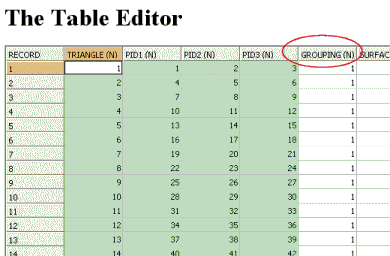
For example, the following script loads the "MyWireframeTR" file, and changes the name of the "GROUP" column to read "GROUPING":
<HTML>
<HEAD>
<SCRIPT LANGUAGE = "Javascript">
function LoadFileAndUpdate(FileName) {
   //Load the file
   DmEditX1.OpenFile(FileName, true, false);
   //Update column index 5 with the passed details
   DmEditX1.UpdateColumnX(4, "GROUPING", "numeric", 4, "-", false);
}
</SCRIPT>
<TITLE>Table Editor Scripting Example</TITLE>
</HEAD>
<BODY onload = "LoadFileAndUpdate('C:\\Database\\myWireframeTR.dm');">
<H1>The Table Editor</H1>
<OBJECT CLASSID="clsid:08B27415-70B7-4FB8-91EE-12BD0D9E7B72" ID="DmEditX1" WIDTH="100%"
HEIGHT="100%">
</OBJECT>
</BODY>
</HTML>
Note that even though 'GROUP' appears as the sixth column from the left in the image at the top of the page, it has an index of 4; this is because the RECORDS column isn't part of the column index, and as the index is zero-based. Effectively you 'lose' one index number for the RECORD column, and another because of the zero-based nature of the array:
onClick Handlers
Up to now, all that has been shown is how to set up a script that is processed from start to finish without user input. In many situations, it is useful to allow users of your web-page to decide when they wish to perform a particular task. This is the ethos of defining an HTML interface. Most elements of HTML have associated events that can be used to trigger script processing, but in practice, you may find that the HTML Form controls are a simple and effective way of creating a custom user interface via HTML.
In the following example, the MoveNext() function is called in response to an onClick event on a form button:
<HTML>
<HEAD>
<SCRIPT LANGUAGE = "Javascript">
function LoadFile(FileName) {
DmEditX1.OpenFile(FileName, true, false);
}
function ShowLoadDialog(){
DmEditX1.MoveNext();
}
</SCRIPT>
<TITLE>Table Editor Scripting Example</TITLE>
</HEAD>
<BODY onload = "LoadFile('C:\\Database\\myWireframeTR.dm');">
<H1>The Table Editor</H1>
<form name="form1" method="post" action="">
<input type="button" name="Load..." value="Next>" id="Load" onclick = "ShowLoadDialog();">
</form>
<OBJECT CLASSID="clsid:08B27415-70B7-4FB8-91EE-12BD0D9E7B72" ID="DmEditX1" WIDTH="100%"
HEIGHT="100%">
</OBJECT>
</BODY>
</HTML>Resulting in the following interface:
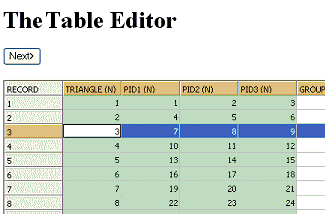
Clicking Next> will advance the selected row in the displayed Table Editor.
Next Steps...
If you have followed the examples on this, and the previous topic, you should now be able to embed the Table Editor component within a web page, and construct a simple HTML interface to allow the component in memory to be both manipulated, and controlled by user input. The topics which follow include tutorials which describe designing a functional interface around an embedded Table Editor component.
Related topics and activities