
Scatter Plots: Preview
To access this area:
-
Double-click an existing Scatter plot item or sheet. The Scatter Plot Preview area is permanently fixed on the left side of the Scatter Plot screen.
The Scatter Plots: Preview screen is used to select and preview a scatter plot chart.
The Preview Toolbar
The preview area has a dedicated toolbar which can be displayed by selecting the Show Toolbar check box at the bottom of the screen:

Once enabled, the toolbar is revealed, and can be repositioned as required using drag-and-drop.
To use the Preview toolbar:
-
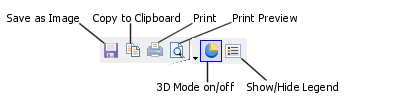
Click Save as Image to save the current chart image to a standalone image file. Files can be saved in .bmp, .jpg, .jpeg, .tiff, .gif or .emf formats.
-
Click Copy to Clipboard to copy the contents of the preview area to the clipboard. The image can be pasted into any external application that supports pasted image metadata.
-
Click Print to send the displayed chart to any supported local or network printing device. This launches your system's print control screen.
-
Click Print Preview to preview your hard copy output using the Print Preview screen.
-
Toggle 3D Mode to enable or disable 3D chart mode. When this option is enabled, rotate the chart in the preview area by dragging with the right mouse button held down. When disabled, the chart is shown as a flat 2D view.
-
Toggle Show/Hide Legend to show or hide the chart legend. The legend is displayed by default.
Performance Mode
When working with large data sets, the speed performance of the Scatter Plot screen e.g. while generating and refreshing chart previews, can be increased by selecting the Performance Mode option. This is located below the Chart Thumbnails and Preview Panes:
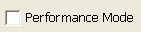
Once selected (ticked), the chart thumbnails and the histogram chart plot item will be temporarily hidden; these can again be displayed by turning this option off.
Context Menu Options
Right-clicking in the preview area displays the following context menu:
To use the context menu:
-
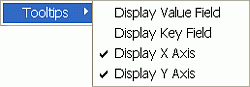
Right-click in the preview area and use the tooltip display options as required:
-
Use Display Value Field to show or hide the value field name and value.
-
Use Display Key Field to show or hide the key field name and value. This is the Key Field defined in the Data Selection tab.
-
Use Display X Axis to show or hide the X Axis data value. This is the X Axis defined in the Data Selection tab and is shown by default.
-
Use Display Y Axis to show or hide the Y Axis data value. This is the Y Axis defined in the Data Selection tab and is shown by default.
Interactive Data Selection
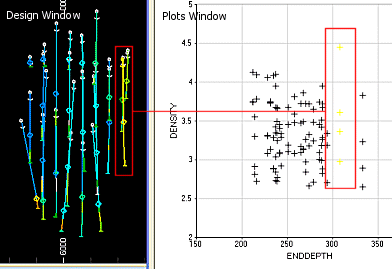
If drillhole or points data is selected on the Scatter Plot screen as a loaded data object, the preview panel's functions are expanded so that you can link to the Design window. This connection allows you to select an interval in a graph and have that selection of data automatically highlighted in the Design window. Similarly, if data is selected in the Design window, the corresponding scatter plot data points are highlighted on the Scatter Plot screen.
Related topics and activities:
