
Scheduling Setup: Quality Constraints
To access this screen:
-
In the Scheduling Setup screen, select the Quality Constraints tab.
Define constraints for your scheduling scenario that aren't applicable to a particular destination. These are also known as global targets. These targets are defined using target variables. Typical examples of such constraints are the total ore mass reclaimed from all stockpiles or the total ore mass sent to all stockpiles.
Once the variables are defined, you create one or more global targets, which can be a rate or ratio target.
See Target Variables.
To define a quality constraint:
-
Display the Quality Constraints screen.
-
Define your target variable context by selecting a rock type Input, Destination and (optionally) Element.
Variables that consist of only Input and Destination represent the rock mass for this combination of values.
Note: Input lists all ore rock types, stockpiles, external sources, and waste rock types. This is where rock comes from. Destination lists all processing destinations and stockpiles. This is where ore goes to. Waste inputs do not have a destination or element.
-
To define an input-destination volume constraint, check Volume before clicking Add.
-
Optionally, define a target variable Element (or leave as none to apply the global target to all products).
Variables that consist of Input, Destination and Element represent the contained element mass for the Input/Destination pair. For example:
-
Example 1: Trans_Mill_ variable is the ore mass from Trans rock type that goes to Mill.
-
Example 2: Trans_Mill_Au variable is the contained Au mass from Trans rock type that goes to Mill.
This list contains all products, elements, and attributes.
Note: If an element is specified, a volume target cannot be created. If a volume target is required, Element must be none.
-
-
If the selected Element is a product; check Recovered if the variable is to represent recovered metal rather than an in situ product (unchecked).
-
Example: Trans_Mill_Au-R variable is the recovered Au mass from Trans rock type that goes to Mill.
-
-
Click Add to generate a new constraint reference using the format Input_Destination_Element.
Note: Once a constraint has an associated Global Target (see below), it cannot be deleted without first deleting the associated targets.
-
After creating all input-destination (and optionally -element) variables, click Add at the bottom of the screen to generate a new Global Target.
The generated target is checked by default, meaning it will be active and considered during scheduling. If a target is unchecked, it is inactive but still reported.
Note: The table on the right updates to show all defined variable(s).
-
On the right, specify a constraint Label to appear in reports and other screens. Target_1 is made by default and should be changed.
-
Choose the type of target to create; either Rate (either Mtpa or Ktpd, according to the current mining rate definition), or Ratio. See Target Variables.
-
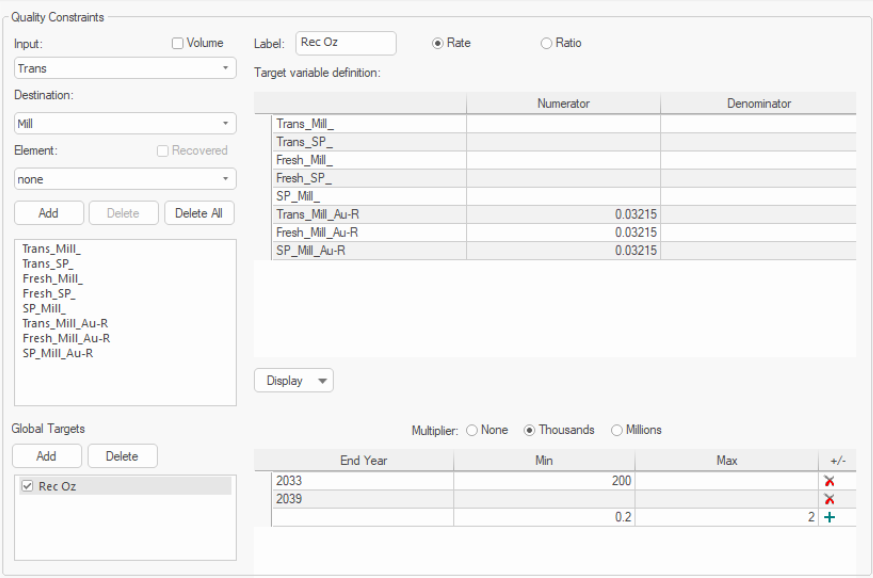
For each Rate Target, set the Numerator for each of the relevant variables. Common values are 1, -1 and 100 but any decimal value can be used.
For example, 0.03215 can be used for Recovered Oz target with Recovered Grams variables – see below. With this target the Optimizer needs to make a schedule producing at least 200,000 recovered oz for all periods including 2033:
-
For each Ratio Target, set both Numeratorand Denominator. Common values are 1, -1 and 100.
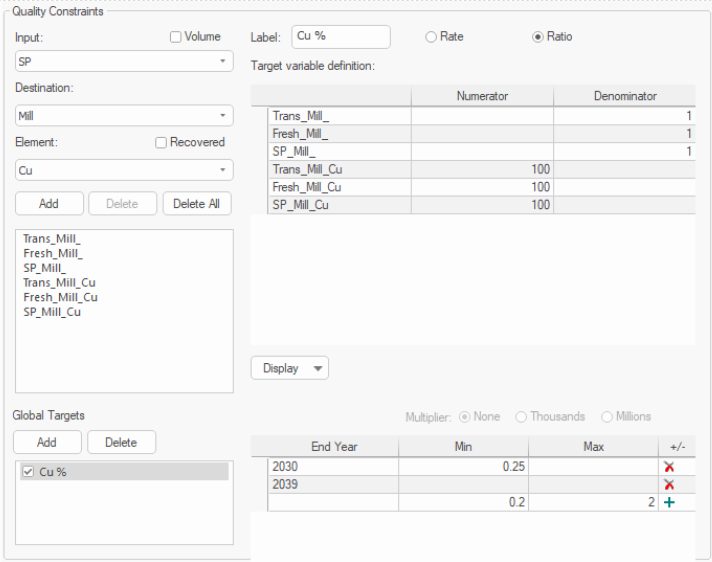
A typical Cu% target is shown below. It is defined as a Ratio target to allow using both Numerator and Denominator.
Target variables Trans_Mill_, Fresh_Mill_, and SP_Mill_ are ore mass in tonnes. They need a denominator of 1 to be used in the target.
Target variables Trans_Mill_Cu, Fresh_Mill_Cu, and SP_Mill_Cu are contained Cu mass in tonnes. They need a numerator of 100 to make the target percentage:
-
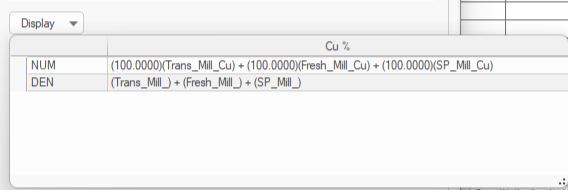
At this point, it can be useful to review your quality target variable definition. Click Display to show the Display Target Variable pop up, for example:
-
Set the period range for which the target applies by selecting the (inclusive) End Year in the table below.
-
Define the target variable bounds:
-
Choose how your numeric values are interpreted using the Multiplier options:
-
None – Table values are processed as-is.
-
Thousands – Table values are multiple by 1000 before processing.
-
Millions – Values are expressed as millions.
-
-
For rate targets, set the Minimum or Maximum volume (or both) in mass units.
-
For ratio targets, define the ratio that must be maintained as a minimum or maximum (or both).
-
-
Save your settings.
Related topics and activities
