
Studio Projects
Your project file manages all the information and data for a given work scenario. A project contains several items of information, including:
-
A list of file references, including file names and locations.
-
A list of files to reload when the project is opened (and how to load them).
-
Project settings, including project folder behaviour, wireframe linking preferences and many more, as displayed in Project Settings.
-
Interface settings.
-
Default settings for various tasks and commands.
Warning: Forward compatibility is not supported for Studio projects. If you create or save your project in a version of Studio, you will not be able to load it into an earlier version. We appreciate this could prove inconvenient, but it is necessary to ensure we can continue to evolve our products without being shackled to legacy technology and project configurations.
Standard and MineTrust-Enabled Projects
Your product is capable of creating both standard (unshared) and MineTrust-Enabled projects. You can also convert between these project types at any time using Project Settings: MineTrust.
Standard projects are isolated collections of data that can be worked on by a single user, or transferred to another user by deploying the data to them by some manual means. This suits an 'offline' style of working although data isn't automatically backed up by default (although you can, of course, delegate this responsibility to a third party package such as OneDrive, for example).
To collaborate with others on a project, MineTrust is a good solution as it provides a pain-free way of allowing multiple users to access the same data, whilst protecting data against simultaneous competing changes. MineTrust projects can be:
-
backed up automatically to a configured cloud store,
-
shared with other users, or;
-
both of the above.
See MineTrust-Enabled Projects.
Converting Between Datamine Formats
Your product supports both automatic and manual file conversion.
Automatic Conversion
When you open a project where all files in the project and subfolders are not in the default format, you see a message:
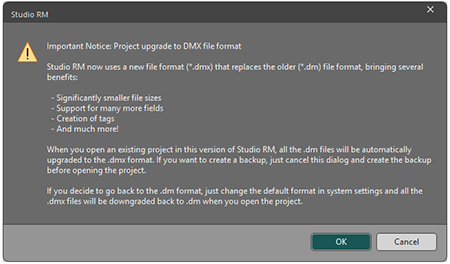
As a mixture of file formats can potentially cause issues with processing,
Note: Click Cancel to abort the project launch.
Once project files have been converted, your project is flagged to "convert future files" automatically. This means that reopening the project triggers an automated and unprompted check for non-default files, converting them without prompts if detected.
Once conversion completes, the project opens as normal. Where conversion (prompted or unprompted) happens, you'll see a summary report in the Command window when the project opens, for example:
Project files were detected in a non-default format.
157 files were converted from .dm to .dmx format.
You are also shown a list of files that cannot be converted (for example, they may be in use and locked):
The following 3 files could not be converted:
D:\Downloads\CORE-9111_attachments\2205_od_pu_geos_240301.dm
D:\Downloads\CORE-9111_attachments\LOWERPT.dm
D:\Downloads\CORE-9111_attachments\LOWERTR.dm
Please ensure these files are not in use and either reopen your project or convert them manually using the DmToDmxConverter utility.
For more information see C:\Users\MyAccount\AppData\Roaming\Datamine\DmToDmxConverter\log.txt
Note: If you subsequently change the default file format (see above), project conversion takes place in the opposite direction when the project is next reopened, meaning potentially all project files are converted again. This may take a few seconds for project folders containing lots of files.
Note: Files referenced by the project that are outsideyour project folder are NOT converted. These remain in their original format, and can still be accessed by application functions and processes.
Automated Conversion during Project Creation
Automated conversion also occurs if you create a project and specify a folder that contains files in a non-native format. In this situation, you are told that file formats will be automatically changed at the completion of the Project Wizard.
Project Archives and File Conversion
If you open an archive project that is solely comprised of data stored within the project (no references to external project files in the project or subfolders), no conversion takes place. This means you can safely open "loaded data only" archives in any location on your PC without triggering automatic file conversion of all files in the same location or below.
Warning: If an archive project is edited to include even a single file in the project or subfolders, it becomes a "standard project" and is no longer a true archive. Subsequently opening this project will trigger automatic conversion of all files in the same location or below.
Manual File Conversion
We have provided a new utility, the DM to DMX File Converter. This is installed as part of your Data Converter utility installation. If a standard installation has been performed, this can be found at:
C:\Program Files\Datamine\Data Converter
You can also access this new utility via the Windows Start menu. Type "DM" into the search bar:
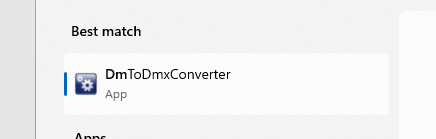
Once launched, you can use the conversion utility to:
-
Convert legacy .dm files to .dmx format, either singly or as a batch.
-
Convert .dmx files to .dm format, again either one at a time or as a group.
Use the Type Conversion options to pick which 'direction' to convert files (DM to DMX or DMX to DM). If files for conversion are already listed, the view updates to show only files relevant to the option selected.
Select one or more .dm files by dragging either those files, or their containing folder (or multiple folders, and optionally including subfolders) into the Files and Folders to Convert panel. Files and folders are displayed with corresponding icons, with the total number of detected .dm files shown further below, for example:
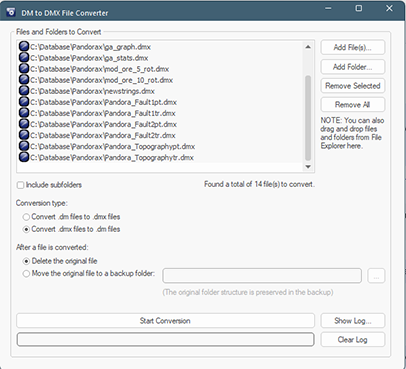
You can either retain the existing files as a backup (in a ".dm" or ".dmx" folder in each conversion location) or delete them after conversion. You will need to define the location of your backups.
Warning: Don't back up files in the alternate format to your project folder as they will be automatically reconverted the next time the project is reopened.
Click Start Conversion and start enjoying smaller, more capable source data files.
Opening and Creating Projects
-
See Create a New Project.
Note: For any procedure above, if a project is already open, you are asked to confirm that you wish to change projects. If you proceed, a standard project close procedure follows, including a project save prompt and auto reload options. If you are swapping between standard and MineTrust-enabled projects, the new project opens using either the Standard or MineTrust project opening behaviour.
